Wednesday, March 9, 2011

How to enable and test RemoteFX on RDSH

As a followup on my previous post about Remote FX for RDSH, and with SP1 for both Windows Server 2008 R2 and Windows 7 being available for download let’s see if we can get a basic RemoteFX for Remote Desktop Session Host running!
As a quick recap, what is RemoteFX in a nutshell? RemoteFX is not a standalone product from Microsoft. It’s a set of RDP technologies that is added to Windows Server 2008 R2 SP1.
“.. With Microsoft RemoteFX, users will be able to work remotely in a Windows Aero desktop environment, watch full-motion video, enjoy Silverlight animations, and run 3D applications – all with the fidelity of a local-like performance when connecting over the LAN. Their desktops are actually hosted in the data center as part of a virtual desktop infrastructure (VDI) or a session virtualization environment (formerly known as Terminal Services)..”
RemoteFX for VDI has been the most heard combination but RemoteFX on RDSH can actually give more benefits then you might suspect. Quick reminder of a blogpost from Brian Madden on this:
“…In the case of a Terminal Server running RemoteFX, you'll actually have an increase in CPU usage on the server since you can't offload the RemoteFX encoding to the GPU. (The exact amount of the increase will vary depending on your workload.) However, the actual traffic over the network will decrease since you're spending more effort on the host encoding and compressing the traffic. You'll also typically end up with a better user experience because of this! (That's right! A Terminal Server running RemoteFX with the CPU-based encoding will typically provide a better overall user experience than a non-RemoteFX RDP session!)…”

So, lets get started…What are the minimum requirements in this test-setup? I used the following virtual machines:
- Windows Server 2008 R2 Domain Controller
- Windows Server 2008 R2 SP1 RD Session Host
- Windows 7 SP1 client to run the RDP session on
So after setting up the basic stuff we have the domain running and have added the machines to it. We have configured the RD Session Host with the appropriate roles and created a group to allow them connections via RDP. As said, we need SP1 to enable RemoteFX on the RD Session host. Before running SP1 the option “configure RemoteFX” simply isn’t available in the Policy (see below)
 So let’s get that SP1 running! Updating it is pretty straight forward, we download ISO, run the setup and after accepting some license terms we hit Install.
And after the reboot we’re up & running
And there we have the new options in the policy:
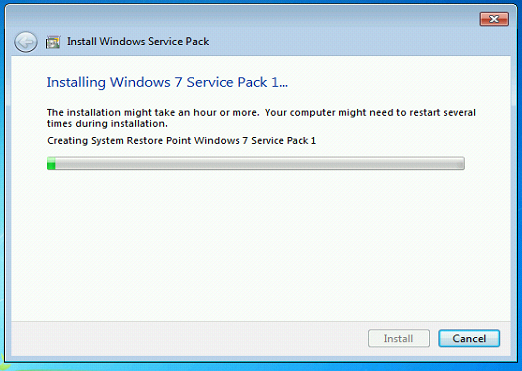
Now let’s take our Windows 7 client to SP1 as well, same procedure as previously.
Now let’s enable and configure RemoteFX for the RD Session Host server:
To enable RemoteFX compression
  1. Log on to RDSH-SRV as a member of the local Administrators group.
  2. Click Start, click Run, type gpedit.msc and then click OK.
  3. Navigate to Computer Configuration\Administrative Templates\Windows Components\Remote Desktop Services\Remote Desktop Session Host\Remote Session Environment.
Double-click Configure RemoteFX, click Enabled, and then click OK..
After a quick reboot of the RD Session Host to make sure the policy applied, we open up a session to the Windows 7 client and open up a Remote Desktop Client. We set the experience to LAN (10 Mbps or higher).
We enter the name to the RD Session Host server and hit connect. We’re now connected to the RD Session Host server with RemoteFX enabled. But…how can we make sure of this?
We open up the eventlog and we enable Analytic and Debug Logs
And then browse to
Application and Services\Logs\Microsoft\Windows\RemoteDesktopServices-RemoteDesktopSession Manager.
    • If the computer is connected to the RD Session Host by using RemoteFX for Remote Desktop Session Host, Event ID 1000 will be shown.
    • If the RemoteFX hardware compression was used, Event ID 1001 will be shown.
To conclude, we can configure the experience index for RemoteFX connections by using the following policy settings:
Computer Configuration\Policies\Administrative Templates\Windows Components\Remote Desktop Services\Remote Desktop Session Host\Remote Session Environment.
Enable Optimize visual experience when using RemoteFX.
In the Screen capture rate (frames per second) box, click Highest (best quality), and then click OK.
Select the Enabled option.
In the Screen Image quality box, click Highest (best quality), and then click OK.
A reboot of the RDSH server to apply the settings and we’re done!
Related articles and blogs:
* http://technet.microsoft.com/en-us/library/ff817595(WS.10).aspx
* http://www.brianmadden.com/blogs/brianmadden/archive/2011/03/03/can-you-connect-to-a-terminal-server-via-remotefx-yes-here-s-what-you-need-to-know.aspx
* http://technet.microsoft.com/en-us/library/ff817602(WS.10).aspx
* http://technet.microsoft.com/en-us/library/ff817578(WS.10).aspx

Tuesday, March 8, 2011

RemoteFX to connect to Remote Desktop Session Hosts

Interesting post by Brian Madden about RemoteFX on Remote Desktop Services (Terminal Services). We've been hearing about RemoteFX for some time now. In most cases it was all about Windows 7 VM's running on a Hyper-V environment in scenarios where VDI was used. Brian Madden shines a light on RemoteFX in combination with Remote Desktop Session Hosts. Some Snippets below.

For the full article see here: Can you connect to a Terminal Server via RemoteFX? Yes!

"...On the plus side, Microsoft has announced that certain partners will eventually release host-side hardware-based RemoteFX encoder cards that will offload the RemoteFX encoding. Those cards will work with both RemoteFX for Win7 VDI VMs on Hyper-V and Terminal Servers with no GPUs. Microsoft isn't talking about those cards too much today, but we can assume that they'll both lower the overall CPU load and provide a better overall user experience..."

"...In case you're wondering, the unofficial reason that RemoteFX will work with a Terminal Server natively is actually related to Microsoft MultiPoint Server. The story is that in order to get the ASIC-based MultiPoint thin client cost point as low as possible, Microsoft had to enable RemoteFX for Terminal Server. (MultiPoint is based on Terminal Server.)..."


Monday, February 28, 2011

Quest vWorkspace 7.2 - certification

Last week I followed the 4-day training (and passed the exam afterwards) and became Quest vWorkspace certified. For those who never heard of the product, a quick introduction:


“…Quest vWorkspace manages, secures and provisions virtual desktop environments as well as brokers connections. It delivers virtual applications and desktops from multiple hypervisors, Remote Desktop Session Hosts (Terminal Servers) and blade PCs through a single user access point and management center, while increasing user adoption with an optimal user experience…”

For more info see here: http://www.quest.com/vworkspace/

Although parts of the product contain some similarities with existing Microsoft products like RD Gateway, RD, WebAccess, RD Easyprint (also see earlier post) and Virtual IP, the vWorkspace (and especially the new release 7.2) has some really interesting features that extend the existing Microsoft technologies and (what I think is important) without completely replacing them!

Being a Microsoft-minded guy I especially like the seamless integration with the Hyper-V platform, Remote Desktop Services (RDSH) and VDI based on Windows 7.

Besides these integrations for managing your virtual environment vWorkspace comes with a lot of features that make the life of a systems administrator much easier. Like for example the ability to extending a users roaming profile with additional folders or regkeys to be saved on central storage upon logoff (MetaProfiles-IT). I think we can all agree that we love RD easyprint, quest vWorkspace takes printing even a bit further with Print-IT because on top of a universal printerdriver it support things like Bandwith Control and data compression split into compression for graphics and text within an single document and it is supported on RDSH (TS) servers as well as VDI.

Using USB-IT vWorkspace enables VDI clients to seamlessly access their USB-based handhelds over RDP connections on the fly, so no need to logoff.

vWorkspace also offers the patent-pending technology, Quest EOP Xtream. It accelerates RDP traffic on wide area networks (WANs). This provides for an improved user experience by providing faster RDP screen responses and improved performance of all EOP features. ( How EOP Xtream in Quest vWorkspace accelerates RemoteFX by 62% )

The 7.2 release can also be used with a first set of Powershell commands. A PowerShell library for vWorkspace is available at http://communities.quest.com/community/vworkspace

Since 7.2 they’ve also extended the logging capabilities by adding a logging feature into a separate database that holds all history about what happened when. There is a Quest logging interface to view reports based on SQL queries, but you can easily connect thing like SQL Server reporting services to it to generate those reports that CEO’s tend to like.

I’ve had the pleasure to take the course and play with vWorkspace in a Quest lab environment to get a good feeling with all the features. I will be setting up a demo environment myself as well to test it a bit more thoroughly and might devote some more posts on this.

For more general info also see:

general vWorkspace info:
http://www.quest.com/vworkspace/
The vWorkspace community forum:
http://communities.quest.com/community/vworkspace
Info about the new 7.2 release:
http://www.quest.com/vworkspace/new-release.aspx

RemoteFX documentation overview

Microsoft have been creating new and updating existing documentation on deploying and testing RemoteFX. The RDS blogteam on MSDN.com created a post last week with a list of all the RemoteFX documents that were published to coincide with the Windows Server 2008 R2 with Service Pack 1 release. It contains a great list of all the references that you might need for setting up Remote FX so I thought I’d cross-post it here.
The following documents were created for Microsoft RemoteFX:
The following existing Remote Desktop Services documents were updated to include Microsoft RemoteFX:

Wednesday, February 23, 2011

Installing GALSync 4.2 on Forefront Identity Manager 2010 (FIM)

Installing GALSync 4.2 on Forefront Identity Manager 2010 (FIM)

New blogpost arrived today (23-02-11) on blogs.technet.com about installing GALSync 4.2 on Forefront Identity Manager 2010 (FIM) !

"...Download the galsync msi file onto your box. Specific Galsync requirements (including those needed for setting up a Galsync account) can be found here… http://help.outlook.com/en-us/140/dd575560.aspx. The documentation currently states that Galsync will only work on ILM 2007 FP1, however, it will work with the FIM synchronization engine by following this guide. I have not tested this with FIM Update Package 1..."

For the full article see here:
http://blogs.technet.com/b/kristinw/archive/2011/02/23/installing-galsync-4-2-on-forefront-identity-manager-fim.aspx


Additional info:
How Outlook Live Directory Sync Works Learn the terminology, underlying concepts, and synchronization logic.
Plan Your Outlook Live Directory Sync Deployment Before you deploy, make sure you have everything ready to go.
Deploy Outlook Live Directory Sync Follow this step-by-step guide to deploy and configure OLSync.

Thursday, February 17, 2011

Windows 7 SP1 and Windows Server 2008 R2 SP1 are available

*** Windows 7 SP1 available and Windows Server 2008 R2 SP1 available ***

As you might have heard, M
icrosoft RTM'ed SP1 for Windows 7 as well as Windows Server 2008 R2 !!

It will be available for public download (and available via Windows Update Services) as per february 22. Volume Licensed, MSDN and TechNet Subscriptions will have access to it since yesterday (february 16).

Happy downloading!

For more info see this blog post:
http://blogs.technet.com/b/windowsserver/archive/2011/02/09/windows-server-2008-r2-and-windows-7-sp1-releases-to-manufacturing-today.aspx

*** Windows 7 SP1 available and Windows Server 2008 R2 SP1 available ***

Wednesday, February 2, 2011

New rollup hotfix package for Forefront Identity Manager 2010 released

A new rollup hotfix package has been released for Forefront Identity Manager 2010 (FIM).

It's build number is 4.0.3573.2 Lots of issues have been fixed in it! For example improvements to initial load performance in the FIM MA!

For more details see here:
http://support.microsoft.com/kb/2417774

The direct hotfix request link:
http://support.microsoft.com/hotfix/KBHotfix.aspx?kbnum=2417774&kbln=en-us