Monday, June 4, 2012

Managing multiple RDS Deployments from one console with Windows Server 2012

In a previous blog post I wrote about the differences between Windows Server 8 Beta and Windows Server 2012 RC after my first quick review. (Read here). One of the changes I pointed out was the fact that there a new option is introduced Server Manager called “Connect to Another Deployment” and that the options was greyed out.

image

I just figured out when this gets enabled. In order to connect to another deployment we need to add the Server, more precisely the RD Connection Broker servers, of this deployment to the server manager first.

We choose the option “Add other servers to manage”.

image

and select a RD Connection Broker from another deployment. We then refresh the Server Manager console, go back to the deployment overview and…..

image

....an error. Apparently we cannot combine deployments that are clustered (i.e. contain multiple RD Connection Brokers in HA) with non clustered environments from one Deployment Overview. As of yet, I’m not sure why that is as of yet. There might be an issue with the fact that the other deployment still runs Server 8 Beta so I will try this again later when my complete LAB is running 2012 RC. As a test I removed one of my RD Connection Broker servers from the 2nd deployment (which was in HA). After that, the option “Connect to Another Deployment” becomes available and we’re able to select the other deployment by specifying the RDCB

image

After the selecting we are able to switch RDS deployments and manage another deployment, definitely useful in environments where you need to manage and maintain multiple deployment!

Free e-book: Introducing Windows Server 2012

imageMicrosoft has released a free e-book entitled “Introducing Windows Server 2012”.

The Introduction:
“…Windows Server 2012 is probably the most significant release of the Windows Server platform ever. With an innovative new user interface, powerful new management tools, enhanced Windows PowerShell support, and hundreds of new features in the areas of networking, storage, and virtualization, Windows Server 2012 can help IT deliver more while reducing costs. Windows Server 2012 also was designed for the cloud from the ground up and provides a foundation for building both public and private cloud solutions to enable businesses to take advantage of the many benefits of cloud computing.

This book represents a “first look” based on the public beta release of Windows
Server 2012 and is intended to help IT professionals familiarize themselves with
the capabilities of the new platform. Although certain features may change
between now and RTM, much of the basic functionality likely will remain as
described here, meaning that most of what you learn from reading this book will
continue to benefit you as you begin to evaluate and deploy Windows Server
2012 in your own environment…”

Download the e-book

Friday, June 1, 2012

Windows Server 2012 RC is available–What's new on RDS?

Windows Server 2012 Release Candidate (build 4800) is here. The download was made available by Microsoft yesterday. I did the download and performed the installation in my existing LAB to see if there are new things related to RDS in the 2012 RC version compared to Windows Server 8 Beta.

I deployed a Quick Scenario Based Installation on the 2012 RC server.

First thing I noticed, besides the minor font changes, is the naming of the components! As an RDS MVP I’ve heard about this in Redmond back in February, but this is first time the new names are made public inside the new OS.

Windows Server 8 Beta Windows Server 2012 RC
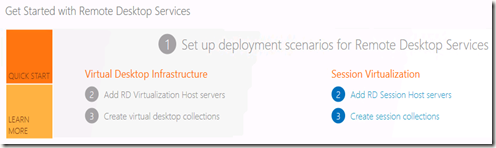
Virtual Desktop Infrastructure Virtual machine-based desktop deployment
Session Virtualization Session-based desktop deployment

Windows Server 8 Beta:
image

Windows Server 2012 RC:
image

Are these better names then before? Time will tell, but I think this way the difference between the two flavors can now be better explained.

Second thing I noticed is that the deployment overview picture format has slightly changed, circles around the + signs and some changes on the font there as well. It looks a bit more Metro now.

Windows Server 8 Beta:
image

Windows Server 2012 RC:
image

The interactive interface of the deployment overview picture has changes too. Where in Windows Server 8 Beta you could e.g right-click the RD Licensing tab and have these options available:

image

With Windows Server 2012 RC you cannot right-click anymore. You now have to left-click it to get the “Add RD Licensing Servers” dialog. Which means that the “Remove RD Licensing Servers” is gone. You can however, still perform the remove action from the Roles and Features screen.

image

New in Windows Server 2012 RC is also the option to connect to another deployment from the deployment overview. This option is still greyed out, but it seems you can now also maintain multiple deployments from one deployment overview by remotely connecting to it.

image

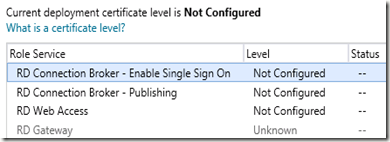
Inside the deployment properties we see a change in the way the certificates are named for the various roles. (remember that I blogged earlier about how certificates can now be managed from one place).

Windows Server 8 Beta:
image

Windows Server 2012 RC:
image

The names here now actually match the names of the roles, which makes it much more clear.

On the Session Collection part (remember that I blogged earlier about how the Quick deployment pre-configures some Remote Apps for you) there has been a change in the amount of RemoteApps that is pre-configured for you during the setup.

Where this was the default with Windows Server 8 Beta

image

You now get 3 RemoteApps by default, which I guess is okay. Who would want to demo the ODBC connector or iSCSI initiator anyway :-)

image

On the Session Collection Properties we see a minor name change as well. The Connections tab is now called Session, which I guess makes more sense since were configuring session settings not connection settings here.

Windows Server 8 Beta
image

Windows Server 2012 RC
image

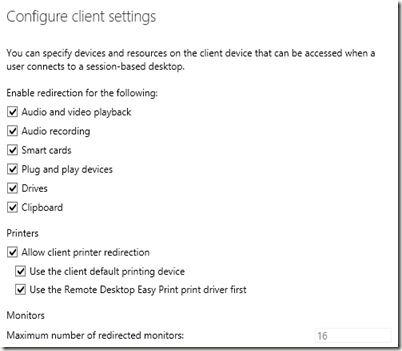
Furthermore the Configure Client Settings tab is now visible and working. With Windows Server 8 Beta you got the message below: (or at least I did).

image

With Windows Server 2012 RC we have all the options available to set client settings for the complete Session Collection, which is great!
image

As far as I can tell the RD Web Access didn’t itself didn’t change much, aside from the new name and logo of course.

These are the differences I spotted at a first glance while looking at a Quick Deployment. If I come up with some more changes, you can definitely expect them to be posted on this blog! It’s now time to setup a new lab with all servers running Windows Server 2012 RC.

And yes, I’m excited about this release! 

Smile

Wednesday, May 30, 2012

New Article: Remote Apps and the Metro RDP client

image_thumb1My new article titled “Remote Apps and the Metro RDP client" on virtualizationadmin.com just got published. The article is about the integration of RemoteApps running on Windows Server 2012 (8 Beta) launched from a Windows 8 client.

“…Introduction

Remote applications that run seamlessly on a client desktop have been around for some time now. With Windows Server 8 Beta, Microsoft has put in a good effort to make the RemoteApps on the Windows 8 desktop interact and integrate better than before. In this article, we will look at the integration of RemoteApps running on Windows Server 8 Beta launched from a Windows 8 client...”

Read the complete article here:
http://www.virtualizationadmin.com/articles-tutorials/vdi-articles/general/remote-apps-and-the-metro-rdp-client.html

Presentation / demo on Session Virtualization in Windows Server 2012

imageThree weeks ago I did a presentation / demo on Session Virtualization in Windows Server 2012 (Windows Server 8 Beta) at the TechReady event hosted by Wortell.

There was a good turn up and the evaluation forms contained a positive feedback. Most of the session was around demos of RDS and Session Virtualization, but in case you’re interested in the slide deck (partly Dutch) send me an e-mail or tweet.

Here’s an impression of the event with photos and videos.

The 4th edition of Wortell TechReady will be held the 1st of November 2012.

Tuesday, May 29, 2012

New GPO’s for Windows Server 2012 related to RDS

imageWindows Server 2012 comes with some new Group Policy Objects (GPOs) related to Remote Desktop Services. I did an earlier blog post a new specific GPO for the Windows 8 client regarding Remote App Connections  (http://microsoftplatform.blogspot.com/2012/04/setting-default-remoteapp-connection.html) but here is a summary of the new GPO’s for the serve side:

The following policies are new for the Remote Desktop Session Host role service and apply to Remote Desktop Session Host connections:

Group Policy

Description

Connections - Turn Off Network Detection On Server

This policy setting specifies whether the Remote Desktop Protocol will try to detect the network quality (bandwidth and latency).

If you enable this policy setting, you must select one of the following: Connect Time Network Detect, Continous Network Detect, or Connect Time Detect and Continous Network Detect. If you select Connect Time Network Detect, Remote Desktop Protocol will not try to determine the network quality at the connect time, and it will assume all traffic to this server originates from a low speed connection. If you select Continous Network Detect, Remote Desktop Protocol will not try to adopt to changing network quality. If you select Connect Time Detect and Continous Network Detect, Remote Desktop Protocol will not try to determine the network quality at the connect time, it will assume all traffic to this server originates from a low speed connection; and it will not try to adopt to changing network quality.

If you disable or do not configure this policy setting, Remote Desktop Protocol will spend up to a few seconds trying to determine the network quality prior to the connection; and it will continuously try to adopt to the network quality.

Connections - Turn Off UDP On Server

This policy setting specifies whether the UDP protocol will be used for Remote Desktop Protocol access to this server.

If you enable this policy setting, Remote Desktop Protocol traffic to this server will only use the TCP protocol.

If you disable or do not configure this policy setting, Remote Desktop Protocol traffic to this server will use both the TCP and UDP protocols.

Remote Session Environment - Configure RemoteFX lossless graphics

This policy setting allows the administrator to configure RemoteFX graphics for Remote Desktop Session Host or Remote Desktop Virtualization Host servers to be lossless.

If you enable this policy setting, RemoteFX graphics will use lossless encoding. The color integrity of the graphics data will not be impacted.

If you disable or do not configure this policy setting, RemoteFX graphics lossless encoding will not be on.

Remote Session Environment - Configure RemoteFX Adaptive Graphics

This policy setting allows the administrator to configure the RemoteFX experience for Remote Desktop Session Host or Remote Desktop Virtualization Host servers. By default, the system will choose the best experience based on available nework bandwidth.

If you enable this policy setting, the RemoteFX experience could be set to one of the following options:

1. Let the system choose the experience for the network condition

2. Optimize for experience (balanced)

3. Optimize to use minimum network bandwidth

If you disable or do not configure this policy setting, the RemoteFX experience will change dynamically based on the network condition.

Remote Session Environment - Use the hardware default graphics adapter for all Remote Desktop Services sessions

This policy setting enables system administrators to change the graphics rendering for all Remote Desktop Services sessions on a Remote Desktop Session Host (RD Session Host) server.

If you enable this policy setting, all Remote Desktop Services sessions on the RD Session Host server use the hardware graphics renderer instead of the Microsoft Basic Render Driver as the default adapter.

If you disable or do not configure this policy setting, all Remote Desktop Services sessions on the RD Session Host server use the Microsoft Basic Render Driver as the default adapter.

NOTE: The policy setting affects only the default graphics processing unit (GPU) on a computer with more than one GPU installed. All additional GPUs are considered secondary adapters and used as hardware renderers. The GPU configuration of the local session is not affected by this policy setting.

Source: http://blogs.msdn.com/b/rds/archive/2012/03/28/get-started-with-remote-desktop-services-in-windows-server-8-beta.aspx

Monday, May 14, 2012