Showing posts with label Shadow. Show all posts

Tuesday, November 25, 2014

RDS User Session Control GUI tool

Free tool by Ramon Bruin to allow helpdesk users to shadow a user session running on RDS 2012 R2 without the need for them to connect to Server Manager or user PowerShell commands!

image

More info and download: http://easyinit.nl/rds-user-session-control-2/

Monday, July 1, 2013

Detailed walkthrough on Remote Control (Shadowing), reintroduced in Windows Server 2012 R2

As you probably know the ability to Remote Control a user in RDS (shadowing) was removed from Windows Server 2012. I briefly talked about that in a Customer Review I wrote for blogs.msdn.com. In the R2 upgrade of Windows Server 2012, Remote Control has been reintroduced! I briefly discussed this in the blog post What's New in Windows Server 2012 R2 Virtual Desktop Infrastructure and Remote Desktop Services (more details!)

Now that the preview bits for Windows Server 2012 R2 have been released during Tech Ed Europe in Madrid, I’m able to show Remote Control (shadowing) in Windows Server 2012 R2 in greater detail.

With Windows Server 2012, there are 2 options to perform the Remote Control of a user session. Using the Server Manager GUI or using a the Command Line.

Remote Control using Server Manager GUI

Open the Server Manager Console and select Remote Desktop Services. You now have two options to find the user you want to Remote Control. Click on “Collections” and the look at the Connections section. This view contains all active or idle sessions within every Session Collection as part of the deployment.

image

Or, if you know the Session Collection under which the user is active, in stead of clicking on “Collections”, click on the collection in question and then look at the Connections section.

To Remote Control a user, right click the user and choose Shadow

image

You will then be prompted asking if you would like to view or control the session and if the users needs to be prompted, which can also be enforced using GPO.

image

The user in question will receive an authorization request as shown below.

image

While waiting for the users response the administrator is represented with the dialog below.

image

If the user clicks No or does not respond within 30 seconds the administrator that launched the Remote Control will be presented with a “The operator or administrator has refused the request”.

image

The 30 seconds is also configurable suing the GPO:

Computer Configuration\Policies\Administrative Templates\Windows Components\Remote Desktop Services\Remote Desktop Session Host\Connections\Set Rules for Remote Control of Remote Desktop user Session

If he chooses to accept, the Remote Control will start and the administrator will be presented with the remotely controlled session easily recognizable by looking at the name of the window as shown below.

image

Remote Control using the Command line

The second method to Remote Control is by using the command line. In order to be able to perform the command line Shadow the client machine must be running at least Remote Desktop Client 8.1 (which at this point is only available for Windows 8.1 (preview) or Windows Server 2012 R2 (preview), but will be become available for Windows 8 and Windows Server 2012 in the future.

image

The reason for this requirement is that the shadowing option has become part of the mstsc.exe executable itself.

To be more precise, the shadowing is now a command line parameter of mstsc.exe which can be confirmed by running mstsc.exe /help, which will result in the screenshot below.
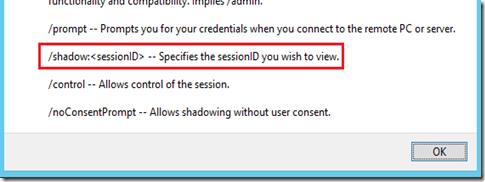
image

The syntax to shadow a session is as follows:

mstsc /v:<ServerName> /shadow:<SessionID>

We obviously first need to find out the ID of the session we want to Remote Control. The Session ID can be found by running the PowerShell command “”Get-RDUserSession” (make sure you first import the module RemoteDesktop) and is retrieved in the UnifiedSessionId column.

image

And while inside the PowerShell console it’s probably most convenient to do the mstsc command from within there is as well.

image

The authorization process is the same compared to launching the Shadow option from the GUI, however, by default the command line will start the Remote Control in “View” mode. If you want to be able to interact with the session the parameter /control also needs to be specified. If you want to bypass the authorization prompt, use the /noConsentPrompt option.

In the introduction I also mentioned that shadowing has not only been reintroduced in R2 but also improved. We’re now also able to Shadow a Remote App, which was previously not supported. And also it now supported to shadow a client session running multiple monitors.

Shadowing a Remote App

As an example we launch Paint as a Remote App

image

If you perform a Remote Control on this user Session (and after running through the same authorization process) you are represented with the screen below. Because the user we’re shadowing does not have a desktop we see a black screen presenting the users desktop.

image

As you might know, if a user runs more than 1 Remote Apps, additionally launched Remote Apps all run in the same user session (and thus same Session ID). Therefor, if a user would run multiple Remote Apps, they will all be visible for the administrator who is shadowing, as shown below.

image
Do note that if the end user minimizes the Remote App, it will become invisible for the administrator doing to Remote Control. So if all Remote Apps are minimized the administrator will end of with a black screen.

image

Also, note that since the black screen represents the user local desktop, I the administrator chose the Control option and would move to the lower left part of the black screen that triggers the local start menu. In the screenshot below the administrator moved the cursor to the area marked by the red square on the left. That causes the File Explorer on the local user’s client (on the right) to show a preview pane.

image

The administrator obviously cannot interact with the local desktop by performing left or right clicks, but the experience above is something to be aware of.

The black screen does not occur when shadowing a full desktop that the end user minimizes. The admin will still be able to interact with a minimized full desktop session.

Permissions

In order to be able to perform Shadowing you need permissions. If no permissions are in place it will result in the error below.

image

Being local administrator on the destination server obviously works. However, to allow non-administrators permissions to shadow you can use the following command which is also applicable for Windows Server 2008 R2 (Credits for this command go to fellow RDS MVP TP who posted this on TechNet Forum.

wmic /namespace:\\root\CIMV2\TerminalServices PATH Win32_TSPermissionsSetting WHERE (TerminalName="RDP-Tcp") CALL AddAccount "domain\group",2

Than concludes this blog post on the reintroduction or Remote Control (shadowing) in Windows Server 2012 R2.

Happy shadowing !!

Tuesday, June 4, 2013

What's New in Windows Server 2012 R2 Virtual Desktop Infrastructure and Remote Desktop Services (more details!)

Yesterday, Adam Carter (Technical Product Manager) did a session on What's New in Windows Server 2012 Virtual Desktop Infrastructure and Remote Desktop Services on Tech Ed 2013 North America and announced the some of the new features in R2 in more detail! So I’m now able to talk some more on those details. Here is a wrap up of some of the announcements on R2!

image

Let’s start with the big feedback item Microsoft got after the release of Windows Server 2012 and that is bring shadowing (Remote Control) back! Back in September 2012 I wrote a review on RDS in Windows Server 2012 for blogs.msdn.com called Managing RDS/VDI with Windows Server 2012 where I mentioned that I was very surprised and not too happy about the fact that Shadowing was a deprecated feature. And I was not the only one. I’ve seen many questions on TechNet Forum, replies to blog posts and many e-mail’s from people asking where shadowing was moved to. It is a widely used feature and it’s good that Microsoft listened to the feedback and reintroduced (and even improved!) shadowing in Windows Server 2012 R2.

A session can be shadowed using the Server Manager GUI

image

And you’ll be asked to view or interact with the session.

image

The user will be prompted to accept (if configured that way)

image

And also, it’s now fully supported to Shadow RemoteApps!! Which was previously not supported.

On the left you see a Remote App ran by the user, on the right you see the Remote Control Interface as seen by the admin.

image

Actually Shadowing / Remote Control  is now build into mstsc.exe so you don’t need the GUI to start the shadowing, for example using the command mstsc /v:<servername> /shadow 6 /control

Dynamically add / Remove monitors
Upon changing resolution or adding monitors you used to have to disconnect and reconnect to use the new resolution, that’s now dynamically. No more logoff, logon! This also works for tablet or surfaces when you rotate the device the session will pick up on that.

Improved RemoteApp behavior.
There have been many improvements in the way RemoteApp behave. Before when dragging a Window of a Remote App you just get the the windows outline

image

And, when you look at the taskbar preview you just see a genuine Excel Icon.

image

With Windows Server 2012 R2, when you drag a RemoteApp, it’s not just the border and a full preview of the application is available!

image

Quick Reconnect
The Remote App and Desktop Connections (RADC) can be used to sign up for corporate applications and desktops and publish them in the users local start screen or start menu. Part of this feature was the ability to disconnect all Remote Apps and later reconnect them. It used to take a long time to perform the full reconnect, they improved the time it takes the reconnection process to finish in R2 and it now does so under 5 seconds! Also, network loss detection has been improved to allow for a more intuitive reconnect phase.

Codec improvements
The continuing improvements in the codecs that are being used, less bandwidth, better performance.

There are some other new features not shown / announced yet, so I’m not allowed to show you that, but stay tuned to find out soon!

Source: http://channel9.msdn.com/Events/TechEd/NorthAmerica/2013/WCA-B350#fbid=YavD-8dO8_f

Monday, June 3, 2013

RDS Enhancements - Enhanced VDI in Windows Server 2012 R2

Windows Server 2012 R2 has just been announced at Tech Ed NA 2013! With Windows Server 2012 R2 new features and improvements around RDS are also announced to further enhance VDI !

I’m not allowed to show detailed information yet, but here is a quick wrap up based on what’s just been posted on blogs.microsoft.com

“'…RDS Enhancements - Enhanced VDI in Server 2012 R2 which delivers improvements in Management, Value, and User Experience. Session Shadowing allows Admins to view and remotely control active user sessions in an RDSH server. Disk dedupe and storage tiering allow for lower cost storage options. User experience for RemoteApps, network connectivity and multiple display support has been improved. Administrators can now easily support users with session desktops to provide helpdesk style support. Administrators now have even more flexible storage options to support a VDI environment without expensive SAN investments. End users will find RemoteApp behavior is more like local apps, and the experience in low-bandwidth is better, with faster reconnects and improved compression, and support for multiple monitors…”

Source: http://blogs.windows.com/windows/b/springboard/archive/2013/06/03/what-s-new-for-the-enterprise-in-windows-8-1.aspx

Expect more detailed information on these features soon on this blog including screenshots!

Wednesday, May 9, 2012

Poor performance occurs when you shadow a Remote Desktop session in Windows Server 2008 R2 or in Windows 7

Today a new KB article and hotfix have been released for RDS on Windows Server 2008 R2 related to performance issues when shadowing a session. I actually experienced this myself recently. Good to see there's a fix!

UPDATE: After have been taken offline the 10th of may, the KB has been republished on the 25th of may.

Article ID: 2685909 - Last Review: May 9, 2012 - Revision: 1.0
Poor performance occurs when you shadow a Remote Desktop session in Windows Server 2008 R2 or in Windows 7
"...Consider the following scenario:
  • You start a Remote Desktop session to a computer that is running Windows Server 2008 R2 and that has the Remote Desktop Services role installed.
  • You remotely control (or "shadow") a different Remote Desktop session by using the Remote Desktop Services Manager Microsoft Management Console (MMC) snap-in.
In this scenario, the CPU usage for the Remote Desktop Services Manager MMC snap-in increases to 100 percent.

Note This issue can also occur on a computer that is running Windows 7 and that has the Remote Server Administration Tools feature installed. When the issue occurs, the CPU usage for the Server Manager MMC snap-in increases to 100 percent.


This issue occurs because there are messages in the message queue to be processed by the UI thread when the Remotecontrol option is clicked. However, the message queue is shared across threads, and other threads cannot process the messages..."

Wednesday, May 4, 2011

Shadowing error: The Terminal Server security layer detected an error in the protocol stream and has disconnected the client.

In addition to an earlier blogpost about troubleshooting shadowing (remote controlling) sessions; http://microsoftplatform.blogspot.com/2011/04/troubleshooting-remote-control-session.html

Microsoft released KB2533983 yesterday. This is about shadowing remote session in which Aero is enabled. This is not supported and could raise the following error:

The Terminal Server security layer detected an error in the protocol stream and has disconnected the client.

How do you know Aero is enabled for a user? The existence of the Dwm.exe process in the user session indicates that Aero is enabled for that session.

In addition the following events are raised:

Log Name: System
Source: TermDD
Date: 4/5/2011 1:14:24 PM
Event ID: 50
Task Category: None
Level: Error
Keywords: Classic
User: N/A
Computer: computername.domain.com
Description:
The RDP protocol component WD detected an error in the protocol stream and has disconnected the client.

Log Name: System
Source: TermDD
Date: 4/5/2011 1:14:24 PM
Event ID: 56
Task Category: None
Level: Error
Keywords: Classic
User: N/A
Computer: computername.domain.com
Description:
The Terminal Server security layer detected an error in the protocol stream and has disconnected the client. Client IP: fe80:0000:0000:0000:e499:f014:83ea:8221.


Source: http://support.microsoft.com/kb/2533983/en-us?sd=rss&spid=14134