Showing posts with label VDI. Show all posts

Monday, September 30, 2013

KB: Connection hangs after you import virtual machines into Windows Server 2012 Remote Desktop Services Unmanaged Pool

New KB article (2891541) related to migrating Windows Server 2008 (R2) VDI VM’s to Windows Server 2012.

“…Consider the following scenario:

  • You have a Virtual Device Interface (VDI) infrastructure that is configured on a server that is running Windows Server 2008 or Windows Server 2008 R2.
  • You have another Windows Server 2012 VDI environment.
  • You migrate virtual machines from Windows Server 2008 or Windows Server 2008 R2 to the Windows Server 2012 VDI environment.
  • You import the virtual machines into Windows Server 2012 Remote Desktop Services Unmanaged Pool.
In this scenario, if you try to connect to a virtual machine from Remote Desktop Web Access (RD Web) or Remote Desktop Protocol (RDP), the connection stops responding (hangs) at the "Loading the virtual machine" state. Additionally, the connection may time out, and you receive the following error message:

Connection processing has been canceled. Try connecting again, or contact your network administrator…”

“…The problem occurs because Windows Server 2012 VDI virtual machines add a Remote Desktop Virtualization (RDV) device that does not exist in virtual machines that are not created by using Windows Server 2012. Without this device, the VDI RDP client cannot connect to the virtual machines, and the connections hangs…”

“…To work around this problem, re-create the virtual machines in Windows Server 2012 and copy over the Virtual Hard Disk (VHD) instead of exporting and importing the virtual machines…”

Source: http://support.microsoft.com/kb/2891541/en-us?sd=rss&spid=16526

Thursday, August 8, 2013

KB: Server 2012 VDI collection require two-way trust when adding user group of external domain (2877933)

A new KB article (2877933) was released (FAST PUBLISH type) regarding the RD Connection Broker being in a separate domain as the RD Virtualuzation Hosts. In that case the domain trust must be two-way

“…Consider the following scenario:

  1. RDCB and RDVH are in DomainA
  2. RD users are in DomainB\RD_USER_GROUP, RD_USER_GROUP is a “Security Group - Universal"
  3. DomainA and DomainB are in different forests
  4. DomainA one-way trusts DomainB

When you tried to add DomainB\RD_USER_GROUP directly to VDI collection in DomainA, we got an error “The security identifier could not be resolved. Ensure that a two-way trust exists for the domain of selected user.

Two-way trust is required for this scenario to work

Change one-way trust to two-way trust…”

Source: http://support.microsoft.com/kb/2877933/en-us?sd=rss

Lowering the cost of storage for VDI using Windows Server 2012 R2 with Data Deduplication

The Microsoft Remote Desktop Virtualization team posted a new blog on Data Deduplication for VDI in Windows Server 2012 R2:

“..The File Server team just posted two great blogs on the value of live data deduplication for VDI (Extending Data Deduplication to New Workloads in Windows Server 2012 R2) and how to deploy it (Deploying Data Deduplication for VDI Storage in Windows Server 2012 R2).  As you can see, storing your personal virtual desktop collections on a Windows Server 2012 R2 file server just got A LOT cheaper, and in some cases, faster as well!  Coordinating downtime to turn off your virtual machines and deduplicating your virtual hard disks (VHDs) is a thing of the past, as now “live” VDI files can be deduplicated, meaning your VHDs can be deduplicated even while they are running.

To preempt a few follow-up questions you might have:

  • The personal virtual desktop collection is the mainline scenario here, but if you have a session collection running as virtual machines, you should get similar benefits (both often have upwards of 90% duplicative content across the VHDs).
  • User profile disks are now another great candidate for deduplication (often upwards of 50% duplicative content across the VHDs).
  • Yes, Cluster Shared Volumes (CSV) caching will continue to work on your file servers configured with data deduplication. At any given point in time your VDI file servers will contain some content that has been deduplicated and some that has not (i.e. new or modified content); the system cache will handle caching of files that have been deduplicated, and the CSV cache will handle everything else.

So if you haven’t done so already, now is the time to deploy a scale out file server cluster with Data Deduplication enabled by using the Windows Server 2012 R2 Preview…

Source: http://blogs.msdn.com/b/rds/archive/2013/08/07/lowering-the-cost-of-storage-for-vdi-using-windows-server-2012-r2-with-data-deduplication.aspx

Friday, June 14, 2013

Tech Ed 2013, Madrid.

bling_bethere[1]The Europe edition of Tech Ed 2013 will be held in Madrid, June 25-28. I will be staffing in the VDI booth as part of the Microsoft Solutions Experience area!

I will be doing demo’s of VDI / RDS in Windows Server 2012. If you have questions on VDI / RDS in Windows Server 2012 (or what’s coming in the R2 release) or want to see it live in action, drop by at the booth!


More info: http://europe.msteched.com/MicrosoftSolution

Opening hours of the Microsoft Solutions Experience area:

Day/Date

Hours

Tuesday, 25 June

10:30 – 13:30

Wednesday, 26 June

11:30 – 17:30

Thursday, 27 June

11:30 – 17:00

Friday, 28 June

11:30 – 15:00

Tuesday, June 4, 2013

What's New in Windows Server 2012 R2 Virtual Desktop Infrastructure and Remote Desktop Services (more details!)

Yesterday, Adam Carter (Technical Product Manager) did a session on What's New in Windows Server 2012 Virtual Desktop Infrastructure and Remote Desktop Services on Tech Ed 2013 North America and announced the some of the new features in R2 in more detail! So I’m now able to talk some more on those details. Here is a wrap up of some of the announcements on R2!

image

Let’s start with the big feedback item Microsoft got after the release of Windows Server 2012 and that is bring shadowing (Remote Control) back! Back in September 2012 I wrote a review on RDS in Windows Server 2012 for blogs.msdn.com called Managing RDS/VDI with Windows Server 2012 where I mentioned that I was very surprised and not too happy about the fact that Shadowing was a deprecated feature. And I was not the only one. I’ve seen many questions on TechNet Forum, replies to blog posts and many e-mail’s from people asking where shadowing was moved to. It is a widely used feature and it’s good that Microsoft listened to the feedback and reintroduced (and even improved!) shadowing in Windows Server 2012 R2.

A session can be shadowed using the Server Manager GUI

image

And you’ll be asked to view or interact with the session.
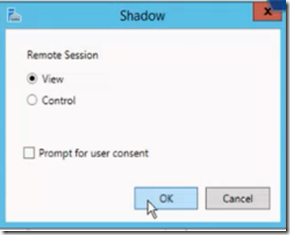
image

The user will be prompted to accept (if configured that way)

image

And also, it’s now fully supported to Shadow RemoteApps!! Which was previously not supported.

On the left you see a Remote App ran by the user, on the right you see the Remote Control Interface as seen by the admin.

image

Actually Shadowing / Remote Control  is now build into mstsc.exe so you don’t need the GUI to start the shadowing, for example using the command mstsc /v:<servername> /shadow 6 /control

Dynamically add / Remove monitors
Upon changing resolution or adding monitors you used to have to disconnect and reconnect to use the new resolution, that’s now dynamically. No more logoff, logon! This also works for tablet or surfaces when you rotate the device the session will pick up on that.

Improved RemoteApp behavior.
There have been many improvements in the way RemoteApp behave. Before when dragging a Window of a Remote App you just get the the windows outline

image

And, when you look at the taskbar preview you just see a genuine Excel Icon.

image

With Windows Server 2012 R2, when you drag a RemoteApp, it’s not just the border and a full preview of the application is available!
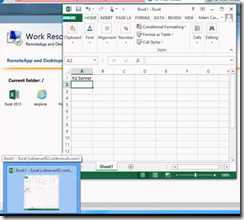
image

Quick Reconnect
The Remote App and Desktop Connections (RADC) can be used to sign up for corporate applications and desktops and publish them in the users local start screen or start menu. Part of this feature was the ability to disconnect all Remote Apps and later reconnect them. It used to take a long time to perform the full reconnect, they improved the time it takes the reconnection process to finish in R2 and it now does so under 5 seconds! Also, network loss detection has been improved to allow for a more intuitive reconnect phase.

Codec improvements
The continuing improvements in the codecs that are being used, less bandwidth, better performance.

There are some other new features not shown / announced yet, so I’m not allowed to show you that, but stay tuned to find out soon!

Source: http://channel9.msdn.com/Events/TechEd/NorthAmerica/2013/WCA-B350#fbid=YavD-8dO8_f

Monday, June 3, 2013

Part 3 in our series on VDI in Windows Server 2012 now online on Microsoft TechNet Magazine

Part 3 of the series of articles I’m co-authoring on VDI in Windows Server 2012 together with Kristin Griffin (also RDS MVP) is now online on Microsoft TechNet Magazine. Read it here: Windows Server 2012: Manage your RDS with RDMS

In this part we’ll describe the main sections of Remote Desktop Management Services (RDMS) and explore how RDMS categorizes server properties. Then we’ll walk through several examples of how to use RDMS to manage your VDI session-based deployment

image

Thursday, May 23, 2013

2000 Seat VDI Deployment Benchmark (By Dell & Microsoft)

A new Blog post on MSDN by the Microsoft RDV team how they recently partnered with Dell to build a 2000-seat VDI deployment (all pooled virtual desktops) at their Enterprise Engineering Center (EEC) in Redmond.

“…The key idea of this architecture is that VDI compute and storage are per host; think of these as VDI pods, and you can just add more pods to host more users. The key advantage of such a design is that we only need high availability (HA) type storage for user docs and settings, and typically such an infrastructure already exists in an enterprise. If not, it can be built mostly independent of the VDI. And just to complete the picture, some shared storage might be required depending on your preference for HA configuration of back-end services such as SQL, although the VDI-specific services have application-level HA and can work either way.

Following is a high level overview of our deployment.

image

In the preceding diagram, please note that the capacity of this deployment is primarily a function of the number of VDI hosts; one could easily add more hosts to grow capacity without upgrading the management infrastructure, but bear in mind that you may need to increase storage for user docs and settings (this analogy holds for traditional desktops with roaming or redirected folders too). That said, another benefit of this architecture is that the design of storage for user docs and settings is decoupled from the VDI design, which makes it especially ideal for pooled virtual desktops.

Read the complete blog post here: http://blogs.msdn.com/b/rds/archive/2013/05/22/2000-seat-vdi-deployment-benchmark.aspx

Thursday, April 11, 2013

Recorded sessions on Desktop Virtualization at MMS 2013 available on Channel 9 (part 2)

A third session on Desktop Virtualization recorded Wednesday at MMS 2013 is now available on channel 9.

It discusses the choice of Client OS (Windows 7, Windows 8) as well as x86 vs x64 discussion. It also shows several methods to optimize the Windows 8 client OS for VDI purposes. Interesting talk!

Optimizing Windows 8 for Virtual Desktop Infrastructure DV-B308
By Doug Klokow and Carl Luberti

image

Wednesday, April 10, 2013

Microsoft RDV Team: Get the best RDP 8.0 experience when connecting to Windows 7: What you need to know

The Microsoft Remote Desktop Virtualization team created a new blog post that discusses the way to get the best RDP 8.0 experience when connecting to Windows 7. Very useful information when you’re setting up a VDI environment en need to connect to a Windows 7 client!

“…The Remote Desktop Protocol (RDP) 8.0 update for Windows 7 provides many advantages for the remote work experience; for all the details, see KB2592687.

However, to benefit from the experience enhancements in RDP 8.0, you must configure your client and server correctly, as instructed in KB2592687. So if you want the best RDP 8.0/Windows 7 remote work experience, make sure you do the following three things:

1. Install updates KB2574819 and KB2592687 on the Windows 7 (not Windows Server 2008 R2) system you’ll be connecting to. If you’ll be connecting to this system from a Windows 7 PC, install these updates on that system as well. (If you’re running Windows 8 on your client PC, you’re all set. Sorry, there’s no RDP 8.0 support for Windows Vista or Windows XP.) After the installation, restart your computer.

2. RDP 8.0 is disabled by default, so you must enable the following Group Policy settings on the Windows 7 system you’ll be connecting to:

  • “Computer Configuration\Administrative Templates\Windows Components\Remote Desktop Services\Remote Desktop Session Host\Remote Session Environment\Enable Remote Desktop Protocol 8.0” should be set to “Enabled”
  • “Computer Configuration\Administrative Templates\Windows Components\Remote Desktop Services\Remote Desktop Session Host\Connections\Select RDP Transport Protocols” should be set to “Use both UDP and TCP”

Important: After these policy settings have been configured, restart your computer.

3. Allow port traffic: If you’re connecting directly to the Windows 7 system, make sure that traffic is allowed on TCP and UDP for port 3389. If you’re connecting via Remote Desktop Gateway, make sure you use RD Gateway in Windows Server 2012 and allow TCP port 443 and UDP port 3391 traffic to the gateway.

When you connect, look for the connection quality indicator on the Connection bar. If you click it, you should see a message saying that UDP is enabled. If you don’t see either of these two items, you’re not getting the full RDP 8.0 experience and you should check your configuration. If you see both of these, congratulations, you’re on RDP 8.0!

clip_image001

Please do note that while RDP 8.0 for Windows 7 provides many advantages, it has some limitations as well. For more information about these particulars, see KB2592687…”

Source and more info: http://blogs.msdn.com/b/rds/archive/2013/04/09/get-the-best-rdp-8-0-experience-when-connecting-to-windows-7-what-you-need-to-know.aspx

Monday, April 8, 2013

TechNet: The VMHostAgent service timed out while waiting for the newly provisioned virtual desktop to start

The Microsoft Platforms Support Team posted a new blog post on AskPerf about an error related to creation of an Unmanaged Virtual machine-based desktop pool collection on Windows Server 2012.

“The VMHostAgent service timed out while waiting for the newly provisioned virtual desktop to start”

“…During our troubleshooting we noticed the first virtual machine was stuck at “Setup is preparing your computer for first use” and this occurred after the first reboot of the virtual machine during the installation.  We collected Panther logs from the virtual machine to identify the cause of the setup issue and found out the system was stuck at executing setupcomplete.cmd, a custom post setup script.  This script was part of the windows image from where the template virtual machine was installed…”

Source and more details: http://blogs.technet.com/b/askperf/archive/2013/04/05/error-with-the-creation-of-an-unmanaged-vdi-pool-collection.aspx

Friday, April 5, 2013

Free Microsoft Virtual Academy course “Using Microsoft VDI to Enable New Workstyles Jump Start”

Microsoft announced a free one-day course that will cover the latest approaches to desktop virtualization and the business cases for each, guidance for choosing appropriate virtual desktop types according to requirements, and architectural guidance for building a VDI !

Live Event Details April 18, 2013 9:00am - 5:00pm (PDT)

Sign up here!

image

“…This course is designed for IT Pros interested in the latest approaches to desktop virtualization, the business cases for each, guidance for choosing appropriate virtual desktop types according to requirements and architectural guidance for building a Virtual Desktop Infrastructure (VDI) with appropriate sizing, scalability and fault tolerance. In addition to VDI, Microsoft Sr. Technical Evangelist Joey Snow and holSystems’ Lead Architect Corey Hynes will cover Session Virtualization, application and user state virtualization, and scenarios for desktop virtualization vs. traditional desktops.…”

Tuesday, April 2, 2013

Part 2 in our series on VDI in Windows Server 2012 now online on Microsoft TechNet Magazine

Part 2 of the series of articles I’m co-authoring on VDI in Windows Server 2012 together with Kristin Griffin (also RDS MVP) is now online on Microsoft TechNet Magazine. Read it here: Virtualization: VDI session-based deployment

image

Thursday, March 21, 2013

Technet: Microsoft Volume Licensing Mail Bag: Three Questions on Virtual Desktop Infrastructure (VDI) Licensing

A new blog post on TechNet was released on TechNet that answers three important questions on Microsoft VDI licensing.

“…A Microsoft Volume Licensing Expert Answers your Burning Questions on Licensing the Microsoft Virtual Desktop Infrastructure (VDI).

Microsoft VDI offers the ability to rapidly and securely deploy desktops from a data center to users. IT support teams can manage desktops centrally, and VDI can help improve security by centralizing users’ data. VDI also gives end users the flexibility they need to access their work desktops from almost any device that has a reliable network connection.

Louise Ulrick, a UK-based licensing consultant and trainer, has relished taking the opportunity to answer some of your thornier questions on the licensing of VDI. She first began running licensing training courses all the way back in 1995.  Today, Louise continues to love licensing and works all over the world on behalf of Microsoft…”

Read more: http://blogs.technet.com/b/volume-licensing/archive/2013/03/21/microsoft-volume-licensing-mail-bag-three-questions-on-virtual-desktop-infrastructure-vdi-licensing.aspx

Session-Based Desktop Deployment on Windows Server 2012, experiences so far (Part 1)

My new article on VirtualizationAdmin.com has just been published.

image“…Now that Windows Server 2012 has been generally available for some time, it’s high time to take a look back at the past few months to see what Windows Server 2012, and particularly Session-Based Desktop Deployment, Powered by RDS has brought us. In this article I’ll share some of my experiences while putting Session-Based Desktop Deployment in production based on Windows Server 2012. We’ll discuss how the overall installation process and the new way of managing your Session-Based Desktop Deployment environment performs and works out. This is part 1 of a series of (at least) 2 parts.…”

http://www.virtualizationadmin.com/articles-tutorials/vdi-articles/general/session-based-desktop-deployment-windows-server-2012-experiences-so-far-part1.html

Wednesday, March 13, 2013

KB: fixing several bugs in the RTM versions of Lync 2013 Virtual Desktop Infrastructure (VDI) clients

A new KB article (2760556) has been released that contains several fixes RTM versions of Lync 2013 Virtual Desktop Infrastructure (VDI) clients

“….Microsoft has released an update for Microsoft Lync 2013. This update provides the latest fixes for Lync 2013.

This update fixes several bugs in the RTM versions of Lync 2013 Virtual Desktop Infrastructure (VDI) clients. Additionally, after you apply this update, you do not have to re-enter a username and password when you pair a Lync 2013 VDI plugin with a Lync 2013 Desktop client.
You can apply this hotfix on both Lync 2013 VDI clients and Lync 2013 Desktop clients…”

Source and download: http://support.microsoft.com/kb/2760556

Thursday, March 7, 2013

RDV Team: Microsoft VDI vs. VMware View: Freedom of Choice

Adam Carter, the technical product manager for Virtual Desktop Infrastructure (VDI) wrote a great blog post on the overall value that session-based and virtual machine-based desktop deployment provides in response to a datasheet by VMware.

“…Our approach to VDI is fundamentally different from VMware’s, primarily because we believe in providing choices to our customers. Unlike VMware, Microsoft can deliver VDI functionality in 3 different ways:

  • Session-based desktop deployment (Remote Desktop Session Host, formerly known as Terminal Server)
  • Virtual machine-based desktop deployment using pooled virtual desktops
  • Virtual machine-based desktop deployment using personal virtual desktops

As each solution has its pros and cons, a single console management experience for all three means that you can choose to mix and match experiences for your users depending on their needs…”

Microsoft delivers VDI functionality in three ways

source: http://blogs.msdn.com/b/rds/archive/2013/03/06/microsoft-vdi-vs-vmware-view-freedom-of-choice.aspx

Friday, March 1, 2013

Microsoft TechNet Magazine article series on VDI in Windows Server 2012, now online!

image

As announced earlier on this blog I’m co-authoring a series of articles on VDI in Windows Server 2012 together with Kristin Griffin (also RDS MVP).

The series will start by covering an introduction to VDI, how to set up the basic deployment and will later on go into great detail on many post-deployment configurations to make the VDI deployment enterprise ready.

The articles will be published monthly on TechNet Magazine, and the first edition, called “Virtualization, VDI made easy” is now online at: http://technet.microsoft.com/en-us/magazine/jj992579.aspx

Friday, February 22, 2013

KB: A user cannot be assigned to a renamed virtual machine in a personal VDI collection in Windows Server 2012 (2815795)

A new Microsoft KB article (2815795) has been released today related to renaming a personal assigned  VDI on Windows Server 2012.

“…Consider the following scenario:

  • You have a virtual machine in Windows Server 2012.
  • The virtual machine is assigned to a user in a personal virtual machine collection.
  • You rename the virtual machine.
In this scenario, the virtual machine is displayed as not assigned after you rename it. When you try to assign the user to the renamed virtual machine, the assignment fails, and the user cannot be assigned to any virtual machine. Additionally, you receive the following error message:

Exception: Object reference not set to an instance of an object…”

“…To work around this problem if you rename an existing virtual machine in a collection, follow these steps:

  1. Remove the user from the virtual machine.
  2. Remove the virtual machine from the collection.
  3. Rename the virtual machine by using the Hyper-V console.
  4. Add the renamed virtual machine to the collection.
  5. Assign the user to the renamed virtual machine…”

Source: http://support.microsoft.com/kb/2815795/en-us?sd=rss&spid=16526

Thursday, December 13, 2012

RDS/VDI showcase videos


Here are some links to showcase videos by the Remote Desktop Virtualization team. They show the various improvements in Remote Desktop Services / VDI on Windows Server 2012 and Windows 8.

· Virtual Desktop Infrastructure Overview – Summary of the value of Remote Desktop Services in Windows Server 2012

· Quick VDI Wizard – Set up a virtual machine based deployment on a single server.

· Set up an RDS VDI deployment – Set up a virtual machine-based deployment.

· Set up an RDS session deployment   – Set up a session-based deployment.

· RemoteFX – Learn about the enhancements made for end user discovery and experience.

Source: http://blogs.msdn.com/b/rds/archive/2012/12/11/new-windows-server-2012-remote-desktop-services-showcase-videos.aspx

Tuesday, October 9, 2012

Windows Server 2012 RDS Reference Architecture and Scale Test by HP

image The Microsoft RDV Team posted a new blog on the Windows 2012 RDS Reference Architecture and Scale Test by HP.

“…Targeting small and medium business customers, the reference architecture describes the components needed to assemble a high-performing, cost-effective solution…”

“…For anyone thinking about deploying VDI on Microsoft Remote Desktop Services, we encourage reviewing the “HP Client Virtualization SMB Reference Architecture for Windows Server 2012”.   We will continue to provide pointers to solutions, reference architectures, and tests as they become available…”

Source:
http://blogs.msdn.com/b/rds/archive/2012/10/08/hp-publishes-windows-server-2012-remote-desktop-services-reference-architecture-and-scale-test.aspx