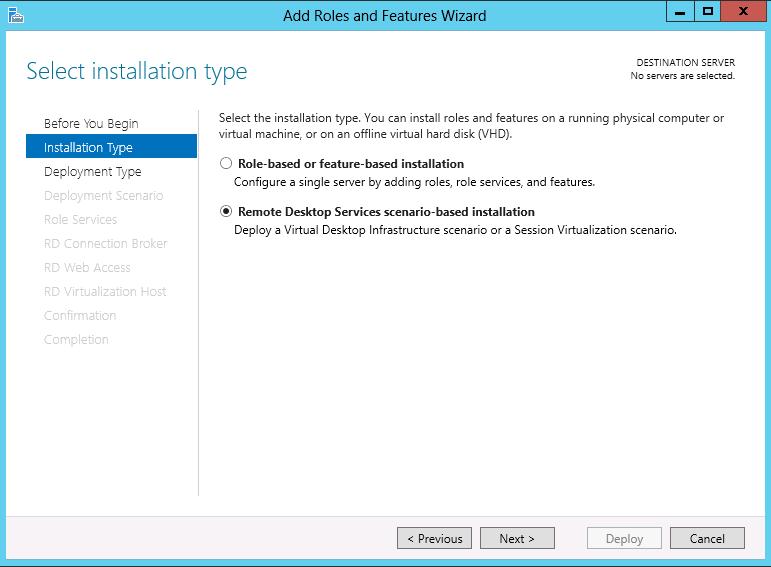
By now I’m sure you’re familiar with the Remote Desktop Management Services (RDMS) as part of the new Server Manager in Windows Server 2012. The RDMS combines most of the functions we used to have in separate MMC snap ins in previous versions of Windows Server. RDMS is now the central management interface for all your deployments (both Session-Based as well as Virtual machine-Based).
If you’d like to read more about the actual deployment processes and RDMS configuration, the links that conclude this post might help.
In this post we’ll dive a little deeper to see where this RDMS data is (initially) stored, under what conditions you can successfully access the RDMS and what errors you may run into.
Let assume we would like to set up the following deployment:
| Hostname | Roles |
| AD01 | Active Directory Domain Services |
| RDS01 | RD Connection Broker |
| RDS02 | RD Session Host
RD Web Access |
For more information on this type of deployment also see this TechNet Wiki; Deploying the RDS Quick Start deployment type in Windows Server 2012 (for Session Virtualization)
Let’s assume that we perform the Scenario Based Deployment (Remote Desktop Services Deployment) using the Server manager console on the RDS01 and deploy the roles according to the table above. Note that as a prerequisite we added the RDS02 as a “to be managed server” to the Server Manager on this RDS01.

During the installation process a Windows Internal Database is created on the server that we selected ad the initial RD Connection Broker server. The corresponding .mdf and .ldf of this database are placed in C:\Windows\rdcbDb

When the deployment succeeds, we can open the RDMS (as part of the Server Manager) on the RDS01.

By selecting the Remote Desktop Services Link as shown above we can obviously manage our RDS environment as the screenshot below shows, nothing new there.

Now what would happen if we would open up the Server Manager on the RDS02 (now containing the RD Web Access and RD Session Host roles). We would also see the Remote Desktop Services link, since at least 1 RDS role is installed on the RDS02, however if we click we’re presented with the following error.
“There are no RD Connection Broker servers in the server pool.”
If we’d want to manage the environment using the RDMS on this server we have to add the server running the RD Connection Broker role to the Server Manager by using the “Add other servers to manage” option.
If we would try to open the RDMS console on a server where the RD Connection broker is added as a server to be managed, but at least 1 server that is also part of the deployment is not added, we get a little different error.
“The following servers in this deployment are not part of the server pool”
Conclusion: we need to add all servers to the Server Manager that are part of the deployment in order to be able to use to RDMS on that server to manage that deployment.
In some scenarios you might perform the RDS deployment on some sort of central management server to perform al RDMS related tasks (and maybe also other administrative tasks) on that server. This is possible, but do note though that the RDMS database is still placed on the first RD Connection Broker part of that deployment. The exception here is when you configure RD Connection Broker High Availability (HA) as part of your post-installation configuration. After successfully performing the HA the RDMS database is placed on a centrally running SQL Server instance. To configure HA also see Installing and configuring RD Connection Broker High Availibilty in Windows Server 2012 .
Also note that although the name is RD Connection Broker HA, in a sense we’re also doing HA on the RDMS since the database does not only contain RD Connection Broker information, but all RDMS information.
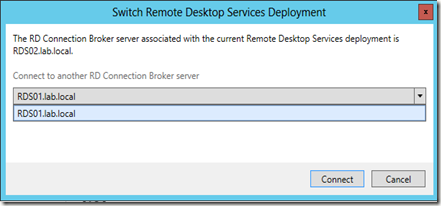
Also note that from 1 server you can only manage 1 deployment at the same time. However, you can dynamically switch deployments. If you added more RD Connection Brokers from multiple deployments to a single RDMS console, you can use the option called “Connect to Another deployment” to switch between deployments.

That will show you what deployment you’re currently connected to and what other deployment(s) you can currently switch to.
Additional links to TechNet Wiki’s that describe working with the RDMS in more detail:
Scenario Based Deployment of RDS in Windows Server 2012
Distribution of Remote Apps and desktops in Windows Server 2012Deploying and configuring RD Gateway in Windows Server 2012 Deploying and configuring RD WebAccess in Windows Server 2012