Showing posts with label RDSH. Show all posts

Friday, April 12, 2013

Guidelines for installing the Remote Desktop Session Host role service on a computer running Windows Server 2012 without the Remote Desktop Connection Broker role service (2833839)

Microsoft has releases a FAST PUBLISH KB (2833839) regarding installing the Remote Desktop Session Host (RDSH) role without the Remote Desktop Connection Broker (RDCB) role. This server can be part of a workgroup or may even be configured as a Domain Controller.

Why is this important? With RDS/VDI in Windows Server 2012, the RD Connection Broker is more or less a mandatory component. I believe deploying RDS/VDI 2012 within an Active Directory Domain where the Domain Controller is not combined with RDS roles and where the RD Connection Broker is part of the deployment, is always the recommended way to go. However, I’ve seen many, many questions arise on TechNet Forum where people ask for deployments on a single server where the all RDS roles (including Active Directory) are installed on a single server and accepting all the downsides. Obviously intended for very small scenarios, where only 1 server is available. Second, many have asked for a deployment of RD Session Host without even using a Active Directory domain, and thus a workgroup. Third, many have asked for deployments where only the RD Session Host role is deployed (role based).

So here’s Microsoft's answer:
Guidelines for installing the Remote Desktop Session Host role service on a computer running Windows Server 2012 without the Remote Desktop Connection Broker role service

“…This article provides the guidelines to install and configure the Remote Desktop Session Host  role service on a computer running Windows Server 2012 without the Remote Desktop Connection Broker role service installed.
This configuration should only be used when it is the only option as the recommended configuration includes the Remote Desktop Connection Broker to provide access to the complete functionality with Remote Desktop Services. If a Domain Controller is available on a separate server, it is recommended to use the Standard Remote Desktop Services deployment wizard. This configuration is appropriate when there is only one server on the network. This server can be part of a workgroup or may be configured as a Domain Controller.
This configuration, will provide desktop sessions to users based on the number of Remote Desktop Services client access license (RDS CALs) installed on the server, but will not provide access to RemoteApp programs or the RDWeb site…”

Source: http://support.microsoft.com/kb/2833839/
(KB2833839)

Wednesday, January 16, 2013

RDMS on Windows Server 2012: The Where, the Why and the How..

By now I’m sure you’re familiar with the Remote Desktop Management Services (RDMS) as part of the new Server Manager in Windows Server 2012. The RDMS combines most of the functions we used to have in separate MMC snap ins in previous versions of Windows Server. RDMS is now the central management interface for all your deployments (both Session-Based as well as Virtual machine-Based).

If you’d like to read more about the actual deployment processes and RDMS configuration, the links that conclude this post might help.

In this post we’ll dive a little deeper to see where this RDMS data is (initially) stored, under what conditions you can successfully access the RDMS and what errors you may run into.

Let assume we would like to set up the following deployment:

Hostname Roles
AD01 Active Directory Domain Services
RDS01 RD Connection Broker
RDS02 RD Session Host
RD Web Access

For more information on this type of deployment also see this TechNet Wiki; Deploying the RDS Quick Start deployment type in Windows Server 2012 (for Session Virtualization)

Let’s assume that we perform the Scenario Based Deployment (Remote Desktop Services Deployment) using the Server manager console on the RDS01 and deploy the roles according to the table above. Note that as a prerequisite we added the RDS02 as a “to be managed server” to the Server Manager on this RDS01.

image

During the installation process a Windows Internal Database is created on the server that we selected ad the initial RD Connection Broker server. The corresponding .mdf and .ldf of this database are placed in C:\Windows\rdcbDb

image

When the deployment succeeds, we can open the RDMS (as part of the Server Manager) on the RDS01.

image

By selecting the Remote Desktop Services Link as shown above we can obviously manage our RDS environment as the screenshot below shows, nothing new there.

image

Now what would happen if we would open up the Server Manager on the RDS02 (now containing the RD Web Access and RD Session Host roles). We would also see the Remote Desktop Services link, since at least 1 RDS role is installed on the RDS02, however if we click we’re presented with the following error.

“There are no RD Connection Broker servers in the server pool.”image

If we’d want to manage the environment using the RDMS on this server we have to add the server running the RD Connection Broker role to the Server Manager by using the “Add other servers to manage” option.

If we would try to open the RDMS console on a server where the RD Connection broker is added as a server to be managed, but at least 1 server that is also part of the deployment is not added, we get a little different error.

“The following servers in this deployment are not part of the server pool”
image

Conclusion: we need to add all servers to the Server Manager that are part of the deployment in order to be able to use to RDMS on that server to manage that deployment.

In some scenarios you might perform the RDS deployment on some sort of central management server to perform al RDMS related tasks (and maybe also other administrative tasks) on that server. This is possible, but do note though that the RDMS database is still placed on the first RD Connection Broker part of that deployment. The exception here is when you configure RD Connection Broker High Availability (HA) as part of your post-installation configuration. After successfully performing the HA the RDMS database is placed on a centrally running SQL Server instance. To configure HA also see Installing and configuring RD Connection Broker High Availibilty in Windows Server 2012 .

Also note that although the name is RD Connection Broker HA, in a sense we’re also doing HA on the RDMS since the database does not only contain RD Connection Broker information, but all RDMS information.

Also note that from 1 server you can only manage 1 deployment at the same time. However, you can dynamically switch deployments. If you added more RD Connection Brokers from multiple deployments to a single RDMS console, you can use the option called “Connect to Another deployment” to switch between deployments.

image

That will show you what deployment you’re currently connected to and what other deployment(s) you can currently switch to.

image

Additional links to TechNet Wiki’s that describe working with the RDMS in more detail:

Scenario Based Deployment of RDS in Windows Server 2012
Distribution of Remote Apps and desktops in Windows Server 2012
Deploying and configuring RD Gateway in Windows Server 2012 Deploying and configuring RD WebAccess in Windows Server 2012

Wednesday, June 13, 2012

The Remote Desktop Web Access website does not show any published RemoteApp programs

Revision 2.0 of KB 2705427 was just released. I don’t recall ever seeing the 1.0 version of this KB, but it’s an interesting one.

imageArticle ID: 2705427 - Last Review: June 13, 2012 - Revision: 2.0
The Remote Desktop Web Access website does not show any published RemoteApp programs if a RemoteApp source is offline in Windows Server 2008 R2.

“…Consider the following scenario:

  • You configure a Remote Desktop Web Access (RD Web Access) server on a computer that is running Windows Server 2008 R2.
  • You install the Remote Desktop Session Host role service on some servers that are running Windows Server 2008 R2, and then you publish some RemoteApp applications on these servers.
  • You configure these Remote Desktop Session Host servers as the RemoteApp source of the RD Web Access server.
  • You shut down one of the Remote Desktop Session Host servers.

In this scenario, you notice that the list of the RemoteApp applications in the RD Web Access website is returned as blank.

This issue occurs because of a design flaw in the RD Web component. The RD Web component stops enumerating applications as soon as the component encounters a session host that is unavailable…”

Source: http://support.microsoft.com/kb/2705427/en-us?sd=rss&spid=14134

Wednesday, May 30, 2012

New Article: Remote Apps and the Metro RDP client

image_thumb1My new article titled “Remote Apps and the Metro RDP client" on virtualizationadmin.com just got published. The article is about the integration of RemoteApps running on Windows Server 2012 (8 Beta) launched from a Windows 8 client.

“…Introduction

Remote applications that run seamlessly on a client desktop have been around for some time now. With Windows Server 8 Beta, Microsoft has put in a good effort to make the RemoteApps on the Windows 8 desktop interact and integrate better than before. In this article, we will look at the integration of RemoteApps running on Windows Server 8 Beta launched from a Windows 8 client...”

Read the complete article here:
http://www.virtualizationadmin.com/articles-tutorials/vdi-articles/general/remote-apps-and-the-metro-rdp-client.html

Thursday, March 15, 2012

RDS in WIN8 Feature highlight no. 6 Demo environment within just a few minutes

RDS in WIN8 Feature highlight no. 6  Demo environment within just a few minutes

Setting up a RDS demo environment on a server or VM running Windows Server 8 (Beta) literally takes you a few mouse clicks and a few minutes. If you read my Feature Spotlight no. 4 (http://microsoftplatform.blogspot.com/2012/03/rds-in-win8-feature-highlight-no-4.html) you know that installing the RDSH role as a prerequisite prior to the Scenario Based Deployment was a bug in the pre-beta release and is now fixed. This means that setting up a lab for demo-environments using the quick deployment only takes a few minutes. If you’ve ever setup a RDS lab or environment on Windows Server 2008 (R2) you’ll remember that it was always a hassle because you had to add the roles manually, add computers to the correct groups etc. The steps have not changed much compared to the pre-beta release, but I added them below to give you the complete story.

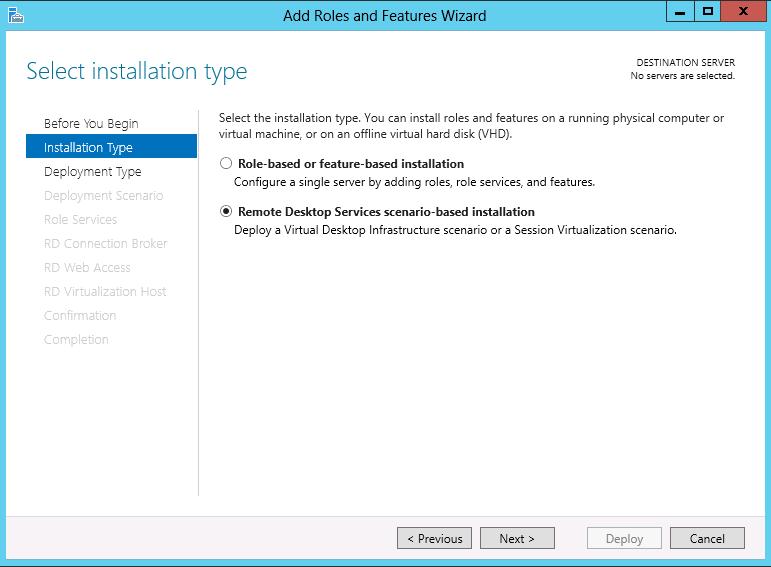
Open up the Server Manager Console and choose option 2, “Add roles and features”:

Choose next to start the deployment


Select the “Remote Desktop Services scenario-based installation”


As we want all the roles to be running on the same server, we choose the Quick Deployment option.


As we are going to be deploying sessions, not Virtual Desktops, we choose Session Virtualization.


We select the server where we want to install the roles


We confirm that we allow the deployment to reboot the server (needed for the RDSH role)


And that it! The Scenario Based Deployment will now install the RD Session Host, RD Connection Broker and RD WebAccess role, create a first Session Collection and add computer to the Active Directory Groups as needed.


To make the lab even more complete, several applications are already added to the Remote App sections and published on RD WebAccess to give you an environment that can be used for demo’s instantly!

Tuesday, March 13, 2012

RDS in WIN8 Feature highlight no. 4 Installing RDSH prior to a scenario based deployment, no requirement anymore

RDS in WIN8 Feature highlight no. 4  Installing RDSH prior to a scenario based deployment, no requirement anymore

This is more of a bug fix then a feature highlight of course, but if you have read one of my previous blog posts back in October 2011, I wrote that having the RD Session Host role installed was a prerequisite for being able to successfully walk through the new the Scenario Based deployment. Described here: http://microsoftplatform.blogspot.com/2011/10/take-rds-management-to-higher-level.html

Since the Beta release of Windows Server 8, this is no longer necessary. Therefore, the deployment of the scenario is now even faster than before.

I tested the quick scenario based deployment on a single server on the Beta Edition of Windows Server 8, within a few mouse clicks and an automatic reboot afterwards all the roles (RD Session Host, RD WebAccess and RD Connection Broker) are installed and the first Session Collection (QuickSessionCollection) is created. The scenario deployment runs very smooth.

Wednesday, February 15, 2012

Long logon time when you establish an RD session to a Windows Server 2008 R2-based RD Session Host server if Printer Redirection is enabled

Microsoft released a new KB article today related to long logon times on a RD Session Host based on Windows Server 2008 R2 in situations where Printer Redirection is enabled.

Article ID: 2655998 - Last Review: February 15, 2012 - Revision: 1.0
Long logon time when you establish an RD session to a Windows Server 2008 R2-based RD Session Host server if Printer Redirection is enabled

Consider the following scenario:
  • You have a Windows Server 2008 R2-based Remote Desktop (RD) Session Host server in an Active Directory domain environment.
  • You apply the Printer Redirection Group Policy setting to RD sessions that connect to the server.
  • You repeatedly establish RD sessions to the server from a client computer that has multiple printers installed.
In this scenario, the logon time increases every time that you establish an RD connection. Additionally, the % Privileged Time count increases in the Svchost.exe process that hosts the User-mode Plug-and-Play Service (Umpnpmgr.dll) on the server. This behavior occurs every time that you log on, log off, or reestablish an RD session.

This issue occurs because the Remote Desktop Services Device Redirector service creates a new port every time that an RD session is established. However, the inactive ports are not recycled. Instead, the inactive ports for the redirected printers accumulate under the following registry key on the server:
KEY_LOCAL_MACHINE\SYSTEM\CurrentControlSet\Control\DeviceClasses\{28d78fad-5a12-11d1-ae5b-0000f803a8c2}\##?#Root#RDPBUS#0000#{28d78fad-5a12-11d1-ae5b-0000f803a8c2}\

Source: http://support.microsoft.com/kb/2655998/en-us?sd=rss&spid=14134

Thursday, June 16, 2011

Two new hotfixes regarding RDS 2008 (R2) KB2522762 and KB2538047

Microsoft has released two new hotfixes yesterday and today regarding Remote Desktop Services in Win Server 2008 R2. Details see below.


Article ID: 2522762 - Last Review: June 16, 2011 - Revision: 1.0
RemoteApp application does not work correctly from RD Web Access in Windows 7 or in Windows Server 2008 R2
http://support.microsoft.com/kb/2522762/en-us?sd=rss&spid=14134

Article ID: 2538047 - Last Review: June 15, 2011 - Revision: 1.0
Audio capture redirection feature does not work after a second remote desktop connection is created in Windows Server 2008 R2
http://support.microsoft.com/kb/2538047/en-us?sd=rss&spid=14134