Showing posts with label RDS. Show all posts

Friday, June 14, 2013

Tech Ed 2013, Madrid.

bling_bethere[1]The Europe edition of Tech Ed 2013 will be held in Madrid, June 25-28. I will be staffing in the VDI booth as part of the Microsoft Solutions Experience area!

I will be doing demo’s of VDI / RDS in Windows Server 2012. If you have questions on VDI / RDS in Windows Server 2012 (or what’s coming in the R2 release) or want to see it live in action, drop by at the booth!


More info: http://europe.msteched.com/MicrosoftSolution

Opening hours of the Microsoft Solutions Experience area:

Day/Date

Hours

Tuesday, 25 June

10:30 – 13:30

Wednesday, 26 June

11:30 – 17:30

Thursday, 27 June

11:30 – 17:00

Friday, 28 June

11:30 – 15:00

Thursday, March 21, 2013

Session-Based Desktop Deployment on Windows Server 2012, experiences so far (Part 1)

My new article on VirtualizationAdmin.com has just been published.

image“…Now that Windows Server 2012 has been generally available for some time, it’s high time to take a look back at the past few months to see what Windows Server 2012, and particularly Session-Based Desktop Deployment, Powered by RDS has brought us. In this article I’ll share some of my experiences while putting Session-Based Desktop Deployment in production based on Windows Server 2012. We’ll discuss how the overall installation process and the new way of managing your Session-Based Desktop Deployment environment performs and works out. This is part 1 of a series of (at least) 2 parts.…”

http://www.virtualizationadmin.com/articles-tutorials/vdi-articles/general/session-based-desktop-deployment-windows-server-2012-experiences-so-far-part1.html

Wednesday, January 16, 2013

RDMS on Windows Server 2012: The Where, the Why and the How..

By now I’m sure you’re familiar with the Remote Desktop Management Services (RDMS) as part of the new Server Manager in Windows Server 2012. The RDMS combines most of the functions we used to have in separate MMC snap ins in previous versions of Windows Server. RDMS is now the central management interface for all your deployments (both Session-Based as well as Virtual machine-Based).

If you’d like to read more about the actual deployment processes and RDMS configuration, the links that conclude this post might help.

In this post we’ll dive a little deeper to see where this RDMS data is (initially) stored, under what conditions you can successfully access the RDMS and what errors you may run into.

Let assume we would like to set up the following deployment:

Hostname Roles
AD01 Active Directory Domain Services
RDS01 RD Connection Broker
RDS02 RD Session Host
RD Web Access

For more information on this type of deployment also see this TechNet Wiki; Deploying the RDS Quick Start deployment type in Windows Server 2012 (for Session Virtualization)

Let’s assume that we perform the Scenario Based Deployment (Remote Desktop Services Deployment) using the Server manager console on the RDS01 and deploy the roles according to the table above. Note that as a prerequisite we added the RDS02 as a “to be managed server” to the Server Manager on this RDS01.

image

During the installation process a Windows Internal Database is created on the server that we selected ad the initial RD Connection Broker server. The corresponding .mdf and .ldf of this database are placed in C:\Windows\rdcbDb

image

When the deployment succeeds, we can open the RDMS (as part of the Server Manager) on the RDS01.

image

By selecting the Remote Desktop Services Link as shown above we can obviously manage our RDS environment as the screenshot below shows, nothing new there.

image

Now what would happen if we would open up the Server Manager on the RDS02 (now containing the RD Web Access and RD Session Host roles). We would also see the Remote Desktop Services link, since at least 1 RDS role is installed on the RDS02, however if we click we’re presented with the following error.

“There are no RD Connection Broker servers in the server pool.”image

If we’d want to manage the environment using the RDMS on this server we have to add the server running the RD Connection Broker role to the Server Manager by using the “Add other servers to manage” option.

If we would try to open the RDMS console on a server where the RD Connection broker is added as a server to be managed, but at least 1 server that is also part of the deployment is not added, we get a little different error.

“The following servers in this deployment are not part of the server pool”
image

Conclusion: we need to add all servers to the Server Manager that are part of the deployment in order to be able to use to RDMS on that server to manage that deployment.

In some scenarios you might perform the RDS deployment on some sort of central management server to perform al RDMS related tasks (and maybe also other administrative tasks) on that server. This is possible, but do note though that the RDMS database is still placed on the first RD Connection Broker part of that deployment. The exception here is when you configure RD Connection Broker High Availability (HA) as part of your post-installation configuration. After successfully performing the HA the RDMS database is placed on a centrally running SQL Server instance. To configure HA also see Installing and configuring RD Connection Broker High Availibilty in Windows Server 2012 .

Also note that although the name is RD Connection Broker HA, in a sense we’re also doing HA on the RDMS since the database does not only contain RD Connection Broker information, but all RDMS information.

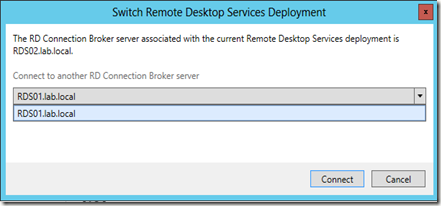
Also note that from 1 server you can only manage 1 deployment at the same time. However, you can dynamically switch deployments. If you added more RD Connection Brokers from multiple deployments to a single RDMS console, you can use the option called “Connect to Another deployment” to switch between deployments.

image

That will show you what deployment you’re currently connected to and what other deployment(s) you can currently switch to.
image

Additional links to TechNet Wiki’s that describe working with the RDMS in more detail:

Scenario Based Deployment of RDS in Windows Server 2012
Distribution of Remote Apps and desktops in Windows Server 2012
Deploying and configuring RD Gateway in Windows Server 2012 Deploying and configuring RD WebAccess in Windows Server 2012

Wednesday, January 9, 2013

RDS and TS CAL Interoperability Matrix

A few weeks ago Klaas Langhout created a TechNet Wiki on RDS and TS CALs. It answer a question that is often heard:

What CAL types can be used with what OS versions of Remote Desktop Licensing Server and Remote Desktop host server?

The Wiki provides a nice matrix that answers this question from Windows 2000 to Windows 2012.

Source en more info: http://social.technet.microsoft.com/wiki/contents/articles/14988.rds-and-ts-cal-interoperability-matrix.aspx

image

Thursday, December 13, 2012

RDS/VDI showcase videos


Here are some links to showcase videos by the Remote Desktop Virtualization team. They show the various improvements in Remote Desktop Services / VDI on Windows Server 2012 and Windows 8.

· Virtual Desktop Infrastructure Overview – Summary of the value of Remote Desktop Services in Windows Server 2012

· Quick VDI Wizard – Set up a virtual machine based deployment on a single server.

· Set up an RDS VDI deployment – Set up a virtual machine-based deployment.

· Set up an RDS session deployment   – Set up a session-based deployment.

· RemoteFX – Learn about the enhancements made for end user discovery and experience.

Source: http://blogs.msdn.com/b/rds/archive/2012/12/11/new-windows-server-2012-remote-desktop-services-showcase-videos.aspx

Tuesday, September 4, 2012

Video’s related to VDI / RDS on Windows Server 2012 launch site

imageWindows Server 2012 is here!
The Windows Server 2012 launch site contains some great video’s. Below the link to some video’s related to Desktop Virtualization:
http://www.windows-server-launch.com/TechnicalTracks/VDI

Monday, August 20, 2012

Co-authoring a new book on RDS in Windows Server 2012, soon to be published!

I’m currently co-authoring a new book on Remote Desktop Services in Windows Server 2012 together with fellow RDS-MVP Cláudio Rodrigues! The book is a new release of a book Cláudio wrote earlier on Terminal Services in Windows Server 2003. We are updating the book and will be covering Remote Desktop Services (mostly Session Based Desktop Deployment) on Windows Server 2012.

We are planning to release this very soon, stay tuned for more info on the release date! A quick sneak preview of the beta edition of the book below:

image

image

Wednesday, August 8, 2012

New Article: Using PowerShell to control RDS in Windows Server 2012 (Part 2)

image3

A few weeks ago I did a first article on using PowerShell to control RDS in Windows Server 2012. Today the part II of this article has been release on virtualizationadmin.com. Read it here:

Using PowerShell to control RDS in Windows Server 2012 (Part 2)

image“…Introduction. In a previous article, I discussed how to use PowerShell to set up a basic Remote Desktop Services environment. In that article, amongst other things, we discussed how to do a quick RDS deployment, add a Session Collection and add a RemoteApp. In this article we’ll dive a little bit deeper into PowerShell for RDS to take a look at how we can even further automate the installation, configuration and maintenance of Remote Desktop Services using the new PowerShell commands available with Windows Server 2012.…”

Source: http://www.virtualizationadmin.com/articles-tutorials/vdi-articles/general/using-powershell-control-rds-windows-server-2012-Part2.html

Friday, July 27, 2012

Fast and fluid audio/video experience with the new Lync and RemoteFX

Great announcement on the RDS blog by Shanmugam Kulandaivel, a senior program manager on the Remote Desktop Virtualization (RDV) team : Fast and fluid audio/video experience with the new Lync and RemoteFX This is great news as this covers vm-based scenarios as well as session (traditional terminal servers) !

"... One of the announcements that will particularly interest readers of this blog is the support for Lync audio and video in virtual machine-based and session-based desktop deployments. You can find more details in the section titled ‘Virtual Desktop Infrastructure Plug-in’ in this TechNet article. The RDV and Lync teams worked over the past year to help enable a seamless, fast, and fluid conferencing experience that works with the new Lync in Windows Server 2012 deployments by using RemoteFX..."

"...A key part of the new architecture is the RemoteFX Media Redirection API, which allows Voice over IP (VoIP) applications to natively integrate with RemoteFX, and enables transmission and rendering of audio and video content directly on the client side.

Some of the significant advantages of this approach include:


  • Audio and video performance similar to that of running Lync locally. Since a double hop of media content is avoided, even WAN users can have a great Lync conferencing experience.
  • Reduced bandwidth usage between the client and the data center because Lync media content is not sent from the server-based desktop anymore.
  • Improved server scalability because CPU intensive media processing happens on the client side..."

    Source : http://blogs.msdn.com/b/rds/archive/2012/07/24/fast-and-fluid-audio-video-experience-with-the-new-lync-and-remotefx.aspx
  • Friday, July 13, 2012

    Everything you ever wanted to know about Microsoft VDI - from TechEd 2012

    imageGaurav Daga, the Lead Program Manager on Microsoft's Remote Desktop Virtualization team did a great summary blog post containing links to all the Channel9 video’s on VDI recorded at TechEd 2012!

    “…In June, Dean Paron posted two TechEd overview videos for Remote Desktop Services (RDS) in Windows Server 2012. Today’s blog post summarizes the key presentations from TechEd. We suggest you watch these presentations in the order shown so that you will go from a high-level overview of RDS to a deep technical analysis (with demos) of everything you want to know about the Microsoft Virtual Desktop Infrastructure (VDI) investments in Windows Server 2012 and Windows 8. You will also take away some general knowledge about VDI and other related desktop virtualization technologies..”

    Source: http://blogs.msdn.com/b/rds/archive/2012/07/12/all-you-want-to-learn-about-microsoft-vdi-from-teched-2012.aspx 

    image

    Thursday, June 14, 2012

    RDS Team: two new blog posts

    imageI have blogged about many new features regarding RDS in Windows Server 8 and later Windows Server 2012 RC. The Microsoft RDS team released two new blog posts yesterday about Whats new in Windows Server 2012 RC and about RemoteFX VGPU. You can find the links below!

    Remote Desktop Services “What’s New” in Windows Server 2012 Release Candidate ”…Hi, I’m Ben Meister from the Remote Desktop Virtualization team. We’ve been hard at work after the beta release earlier this year. This post highlights some of the features added and enhancements made in the Windows Server 2012 Release Candidate build. Special thanks to Snesha Foss and Shanmugam Kulandaivel for their major contributions to this post. By now there have been quite a few posts about Windows Server 2012 and the many features that Remote Desktop Services has introduced in this release. If you have not read them all, following are links…”
    Source: http://blogs.msdn.com/b/rds/archive/2012/06/13/remote-desktop-services-what-s-new-in-windows-server-2012-release-candidate.aspx

    Your desktop will be a rich DX11-based experience, and your virtual GPU should be too “…When you take Windows 8 Release Preview home and launch it, you’ll see a rich and immersive experience accelerated by a DX11 desktop. Your VDI solution should focus on bringing all of that to you, all while tackling the challenges of distance and connecting from anywhere. You’ll want a touch interface, smooth animations that give a tactile feel, and the richest set of applications and compatibility. You’ll want the ecosystem of software, hardware, and the Windows operating system to bring that together. When RemoteFX v1 released in Windows 7 SP1 early last year, we introduced a set of technologies for a rich PC-like experience for VDI. It was the first place where we introduced and emphasized host-side remoting, a render-capture-encode pipeline, a highly efficient GPU-based encode, throttling based on client activity, ad a DirectX-enabled virtual graphics processing unit (VGPU). All these ideas proliferate more in Windows 8 Release Preview, and the VGPU gets better…”
    Source: http://blogs.msdn.com/b/rds/archive/2012/06/13/richvgpu.aspx

    Friday, March 16, 2012

    RDS in WIN8 Feature highlight no. 7 SSL configuration made easy.

    RDS in WIN8 Feature highlight no. 7  SSL configuration made easy.

    If you ever had to set up or configure certificates for a Remote Desktop Services environment based on Windows Server 2008 (R2), you’ve probably dealt with having to setup certificates in many different places on many different machines running the various RDS roles. With Windows Server 8 (Beta) SSL certificate management has been made much easier for the administrator.

    If you open up the server manager en browse to “Remote Desktop Services” from the left pane and select “Collections” you have the ability to choose “Edit Deployment Properties”.


    A dialog will appear in which we select “Certificates”. Using this dialog we can actually setup the SSL certificate for the Redirector, publishing and RD Web Access all from the same console!

    Thursday, March 15, 2012

    RDS in WIN8 Feature highlight no. 6 Demo environment within just a few minutes

    RDS in WIN8 Feature highlight no. 6  Demo environment within just a few minutes

    Setting up a RDS demo environment on a server or VM running Windows Server 8 (Beta) literally takes you a few mouse clicks and a few minutes. If you read my Feature Spotlight no. 4 (http://microsoftplatform.blogspot.com/2012/03/rds-in-win8-feature-highlight-no-4.html) you know that installing the RDSH role as a prerequisite prior to the Scenario Based Deployment was a bug in the pre-beta release and is now fixed. This means that setting up a lab for demo-environments using the quick deployment only takes a few minutes. If you’ve ever setup a RDS lab or environment on Windows Server 2008 (R2) you’ll remember that it was always a hassle because you had to add the roles manually, add computers to the correct groups etc. The steps have not changed much compared to the pre-beta release, but I added them below to give you the complete story.

    Open up the Server Manager Console and choose option 2, “Add roles and features”:

    Choose next to start the deployment


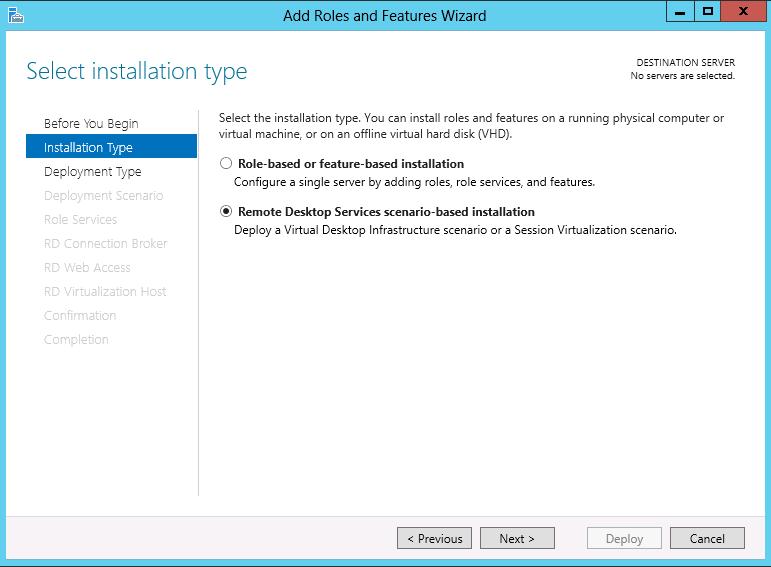
    Select the “Remote Desktop Services scenario-based installation”


    As we want all the roles to be running on the same server, we choose the Quick Deployment option.


    As we are going to be deploying sessions, not Virtual Desktops, we choose Session Virtualization.


    We select the server where we want to install the roles


    We confirm that we allow the deployment to reboot the server (needed for the RDSH role)


    And that it! The Scenario Based Deployment will now install the RD Session Host, RD Connection Broker and RD WebAccess role, create a first Session Collection and add computer to the Active Directory Groups as needed.


    To make the lab even more complete, several applications are already added to the Remote App sections and published on RD WebAccess to give you an environment that can be used for demo’s instantly!

    Wednesday, March 7, 2012

    RDS in Windows Server 8 (Beta) Feature Highlights


    Windows Server 8 Beta is available since last week. I've already set up Windows Server 8 Beta in my lab to test some of the new features for Remote Desktop Services. Coming up on this blog is a series of at least 7 "Feature Highlight" blog posts in which I will discuss some of the great new features for RDS in Windows Server 8.

    I'll update this blog post along the way as new feature highlight blog posts by adding links of the newly added blog posts. You can expect frequent updates, stay tuned!

    Feature highlight no. 1 "Better High Availability of the RD Connection Broker"
    http://microsoftplatform.blogspot.com/2012/03/rds-in-win8-feature-highlight-no.html

    Feature highlight no. 2 "RD Dedicated Redirector now part of RD Connection Broker" http://microsoftplatform.blogspot.com/2012/03/rds-in-win8-feature-highlight-no-2-rd.html

    Feature highlight no. 3 "Change password option in RD WebAccess"
    http://microsoftplatform.blogspot.com/2012/03/rds-in-win8-feature-highlight-no_12.html

    Feature highlight no. 4 "Installing RDSH prior to a scenario based deployment, no requirement anymore"
    http://microsoftplatform.blogspot.com/2012/03/rds-in-win8-feature-highlight-no-4.html

    Feature highlight no. 5 "E-mail subscription for Remote Apps"
    http://microsoftplatform.blogspot.com/2012/03/rds-in-win8-feature-highlight-no-5-e.html

    Feature highlight no. 6 "Demo environment within just a few minutes"
    http://microsoftplatform.blogspot.com/2012/03/rds-in-win8-feature-highlight-no-6-demo.html

    Feature highlight no. 7 "SSL configuration made easy"
    http://microsoftplatform.blogspot.com/2012/03/rds-in-win8-feature-highlight-no-7-ssl.html

    Thursday, March 1, 2012

    What’s new in Remote Desktop Services Windows Server 8 BETA

    A new document was published in regard to what’s new in Remote Desktop Services Windows Server 8 BETA.

    "...Applies To: Windows Server 8 Beta
    [This topic is pre-release documentation and is subject to change in future releases. Blank topics are included as placeholders.]
     
    The Remote Desktop Services server role in Windows Server® “8” Beta provides technologies that enable users to connect to virtual desktops, RemoteApp programs, and session-based desktops. With Remote Desktop Services, users can access remote connections from within a corporate network or from the Internet.
    In Windows Server “8” Beta, Remote Desktop Services offers enhanced support for the following scenarios:
    • Virtual Desktop Infrastructure (VDI) deployments
    • Session Virtualization deployments
    • Centralized resource publishing
    • Rich user experience with Remote Desktop Protocol (RDP)
    Each of these is described in the sections that follow..."

    You can check it out the full document here: http://technet.microsoft.com/en-us/library/hh831527.aspx

    Thursday, February 16, 2012

    "The system cannot find the file specified" error message when you print a document on a Windows Server 2008 R2-based terminal server

    A new KB Article (with hotfix) was released regarding print issue when performing a printjob to a network printer from an application that hosts Internet Explorer 9 and that is compiled with the /TSAWARE:NO option on the terminal server.

     Article ID: 2646168 - Last Review: February 16, 2012 - Revision: 1.0
    "The system cannot find the file specified" error message when you print a document on a Windows Server 2008 R2-based terminal server

    "...Consider the following scenario:
    • You establish a Remote Desktop Services session to a Windows Server 2008 R2-based terminal server that has Windows Internet Explorer 9 installed.
    • You do not redirect a printer to the Remote Desktop Services session.
    • You run an application that hosts Internet Explorer 9 and that is compiled with the /TSAWARE:NO option on the terminal server.
    • You try to print a document to a network printer by using this application.
    In this scenario, the printer does not print the document. Additionally, you receive an error message that resembles the following: The system cannot find the file specified..."

    Source: http://support.microsoft.com/kb/2646168/en-us?sd=rss&spid=14134

    Friday, January 27, 2012

    Quest releases vWorkspace 7.5 !

    Today Quest Software has officially released vWorkspace version 7.5! I personally had the honor to test-drive the beta and RC releases. I’m really excited about version 7.5, it contains a great set of new features and changes! In this blog post, I’ll discuss some of the features introduced in the new release.

    First, let’s quickly highlight the key features:

    “…Lowest Cost Desktop Virtualization using Hyper-V
    vWorkspace 7.5 introduces direct support for Microsoft Hyper-V, including free Hyper-V Server. This deep integration provides full virtual desktop lifecycle management and lets you take full advantage of Hyper-V functions such as Dynamic Memory and RemoteFX. And by allowing seamless use of local storage (DAS) and eliminating the need for expensive SAN storage, vWorkspace 7.5 provides additional cost-savings for desktop virtualization…”

    “…Huge Scalability and Speed Improvements for Virtual Desktops
    vWorkspace 7.5 introduces the Hyper-V Catalyst Components to deliver breakthrough scalability improvements for virtual desktops hosted on this Microsoft platform. Two key components are HyperCache and HyperDeploy which dramatically improve the density of Hyper-V. In addition, these components allow you to provision a fully functional virtual desktop every four seconds on commodity hardware, right out of the box…”


    “…The Power and Simplicity of Desktop Clouds for SMBs and EnterprisesvWorkspace 7.5 now comes with Desktop Clouds that make desktop virtualization even easier. Desktop Clouds deliver the best possible performance of virtual desktops with advanced load balancing schemes. Plus, they allow you to add capacity in seconds for unparalleled elasticity. Maintenance of desktops in a vWorkspace Desktop Cloud is also fast and easy; you can update hundreds or thousands of desktops in minutes. All you need to set up a Desktop Cloud is Microsoft Hyper-V (free)…”

    Furthermore:

    “…Two-Factor Authentication for all vWorkspace Connectors – Adds an extra layer of security by leveraging two-factor authentication at the broker…”

    Moving the two-factor authentication from Web Access to the Broker is a great move! It results in being able to also use two-factor authentication with the vWorkspace client. So in scenarios where you needed two-factor authentication and could not use (or did not want to use) Web Access you can now also use the vWorkspace client with two-factor! It also solves an issue that I posted on the Quest Forum a while ago; http://communities.quest.com/message/50617

    “…New vWorkspace Web Access – Provides greater performance and scalability, is integrated with the vWorkspace Management Console, and offers a sleek new look…”

    The configuration of Web Access is now fully integrated in the vWorkspace console, which works much better than the previous separate admin webpage you had to use. In addition, the look & feel of the Web Access site itself has greatly improved!

    “…Advanced Targets – Allows administrators to assign vWorkspace applications, desktops, and other resources in a context-aware fashion with designations such as “two-factor authenticated” or “trusted entry point.”…”

    This is great! The way it has been set up reminds me of Microsoft’s Item Level Targeting inside Group Policy Preferences. It works really well and introduces a lot of flexibility.

    General info about the release:
    http://www.quest.com/vworkspace/new-release.aspx

    The whitepaper:
    http://www.quest.com/whitepaper/desktop-virtualization-a-cost-and-performance-comparison816379.aspx

    The datasheet:
    http://www.quest.com/Quest_Site_Assets/PDF/_DSV-vWorkspace2011-US-EH_2.pdf

    Tuesday, January 17, 2012

    My new article on VirtualizationAdmin about RDS in Windows 8

    My new article on VirtualizationAdmin has been published today. See the introduction chapter below or click here to read the complete article

    "...Introduction
    The developer preview edition of Windows Server 8 has been around for a few months now. The Beta Release and Release Candidate still have to be released of course, but in this article, we will take a closer look at what Windows Server 8 is going to offer concerning management of Remote Desktop Services..."


    Full link to complete article on VirtualizationAdmin:
    http://www.virtualizationadmin.com/articles-tutorials/vdi-articles/general/taking-closer-look-what-windows-8-will-bring-regarding-management-rds.html

    Wednesday, January 11, 2012

    You cannot change an expired user account password in a remote desktop session that connects to a Windows Server 2008 R2-based RD Session Host server in a VDI environment

    Two new hotfixes (one client, one server) were released today regarding the ability to change a expired password in a VDI environment based on Windows Server 2008 R2.


    Client hotfix:
    Article ID: 2648397 - Last Review: January 11, 2012 - Revision: 1.0
    You cannot change an expired user account password in a Remote Desktop session from a client computer that is running Windows 7 or Windows Server 2008 R2

    Consider the following scenario:
    • A Remote Desktop Session Host (RD Session Host) server that is running Windows Server 2008 R2 is deployed in a Virtual Desktop Infrastructure (VDI) environment.
    • The Allow connections only from computers running Remote Desktop with Network Level Authentication option is enabled on the RD Session Host server.
    • You establish a Remote Desktop session to the server from a client computer that is running Windows 7 or Windows Server 2008 R2 by using a user account that is granted Remote Desktop access.

      Note The client computer could be a computer inside the VDI environment, or a stand-alone computer outside the VDI environment.
    • The password of the user account is expired.
    • You receive the following message:
      You must change your password before logging on the first time. For assistance, contact your system administrator or technical support.
    In this scenario, a dialog box that prompts you to change the password is not displayed. Therefore, you cannot change the password of the user account.

    Note This issue also occurs in RDP environments that have Network Level Authentication (NLA) and Credential Security Support Provider (CredSSP) enabled.

    After you install this hotfix, you will receive an error message that states your password is expired. However, the hotfix does not provide a dialog box that prompts you to change your password.

    Source and hotfix: http://support.microsoft.com/kb/2648397/en-us?sd=rss&spid=14134

    Server hotfix:
    Article ID: 2648402 - Last Review: January 11, 2012 - Revision: 1.0
    You cannot change an expired user account password in a remote desktop session that connects to a Windows Server 2008 R2-based RD Session Host server in a VDI environment

    Consider the following scenario:
    • You have a Remote Desktop Session Host (RD Session Host) server that is running Windows Server 2008 R2 in a Virtual Desktop Infrastructure (VDI) environment.
    • You enable the Allow connections only from computers running Remote Desktop with Network Level Authentication option in the RDP-Tcp Properties dialog box by using the Remote Desktop Session Host Configuration tool (Tsconfig.msc).
    • You establish a remote desktop session to the server from a client computer by using a user account that is granted Remote Desktop access.
    • The password of the user account is expired.
    • You receive the following message:
      You must change your password before logging on the first time. For assistance, contact your system administrator or technical support.
    In this scenario, a prompt to change the password is not displayed. Therefore, you cannot change the password of the user account.

    Note This issue also occurs in any RDP environment where Network Level Authentication (NLA) and the Credential Security Support Provider (CredSSP) are enabled.


    Source and hotfix: http://support.microsoft.com/kb/2648402/en-us?sd=rss&spid=14134

    External users cannot connect to RDS that are published on a Windows Server 2008 R2-based RD Gateway server through Forefront UAG

    A new hotfix was released today regarding running Remote Desktop Services (RDS) on a Remote Desktop Gateway (RD Gateway) server that is running Windows Server 2008 R2 through Forefront Unified Access Gateway (UAG) in a network environment.

    Article ID: 2649422 - Last Review: January 11, 2012 - Revision: 1.0
    External users cannot connect to RDS that are published on a Windows Server 2008 R2-based RD Gateway server through Forefront UAG

    Remote Desktop Services (RDS) are published on a Remote Desktop Gateway (RD Gateway) server that is running Windows Server 2008 R2 through Forefront Unified Access Gateway (UAG) in a network environment. Sometimes, external users cannot connect to the published RDS, and they receive the following error message:

    Additionally, an event that resembles the following is logged on the RD Gateway server:

    Event ID: 203
    Source: Microsoft-Windows-TerminalServices-Gateway
    Symbolic Name: AAG_EVENT_MAX_CONNECTIONS_REACHED
    Message: The number of simultaneous connections to the RD Gateway server has reached the maximum number that was configured by the administrator. The server is therefore not accepting any new connections. The connection attempt by user "%1" on client computer "%2", using the authentication method "%3" has been denied. For information about how to modify the maximum connection limit, see the "Specify the Maximum Number of Allowable Connections for RD Gateway" topic in the RD Gateway Help.

    Cause:This issue occurs because user connections are not closed correctly. Therefore, some Forefront Network (Edge) tunnels are leaked. When the number of concurrent connections to the RD Gateway server has reached the maximum number, all new connection requests are denied.