For Windows 8.1, which is currently available in preview, a new Remote Desktop App is available in the App Store. The version has some significant improvements compared to the one available for Windows 8 and Windows Server 2012.
When we use the Remote Desktop App to signup a connection to a workplace to retrieve published Remote Apps and Desktops we did not have the ability to remove this sign up or manually update the sign up to retrieve the most up to date Remote Apps and Desktops assigned to our account. In order to do this you had to switch back to the Classic Control panel and perform those actions in the RADC Control Panel applet (Remote App & Desktop Connections). This functionality has been added to the Remote Desktop App available in the Windows Store for Windows 8.1 !
After doing a sign up we can swipe from the right and select “Manage RemoteApp and Desktops”. This option was previously called “Access RenoteApp and Desktops”.
| Windows 8.1 | Windows 8 |
 |  |
When we choose this option we get an overview of all the Work Resources we have performed a signup for. The name Work Resources is the default name of a RDS deployment in 2012, which can be changed

When we click the a Work Resources item we’re presented with the screen below. This contains an overview of the details of the connection with the Connection URL and the amount of Remote Apps and Desktops.
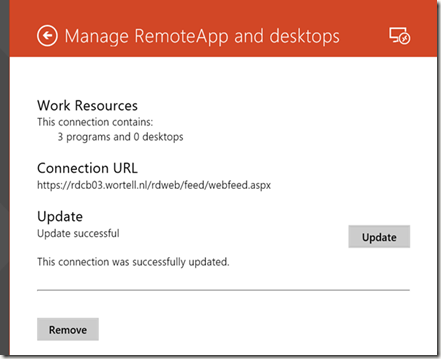
Here we can easily hit “Update” to retrieve the latest set of Remote Apps and Desktops assigned to us. And we have the ability to remove this sign up by choosing “Remove”.
The functionality itself is not new of course as it has always been available in the classic RADC, however it’s good to see that this functionality is now also available in Desktop Desktop App!
Second improvement is accessing the on screen keyboard and touch pointer from within a Full Desktop Session using the Connect option inside the Remote Desktop App.

When we’re running the Full Desktop Session we can now easily swipe from the bottom and instantly select the on screen keyboard as well toggle the touch pointer on and off.


