Thursday, March 15, 2012

RDS in WIN8 Feature highlight no. 6 Demo environment within just a few minutes

RDS in WIN8 Feature highlight no. 6  Demo environment within just a few minutes

Setting up a RDS demo environment on a server or VM running Windows Server 8 (Beta) literally takes you a few mouse clicks and a few minutes. If you read my Feature Spotlight no. 4 (http://microsoftplatform.blogspot.com/2012/03/rds-in-win8-feature-highlight-no-4.html) you know that installing the RDSH role as a prerequisite prior to the Scenario Based Deployment was a bug in the pre-beta release and is now fixed. This means that setting up a lab for demo-environments using the quick deployment only takes a few minutes. If you’ve ever setup a RDS lab or environment on Windows Server 2008 (R2) you’ll remember that it was always a hassle because you had to add the roles manually, add computers to the correct groups etc. The steps have not changed much compared to the pre-beta release, but I added them below to give you the complete story.

Open up the Server Manager Console and choose option 2, “Add roles and features”:

Choose next to start the deployment


Select the “Remote Desktop Services scenario-based installation”
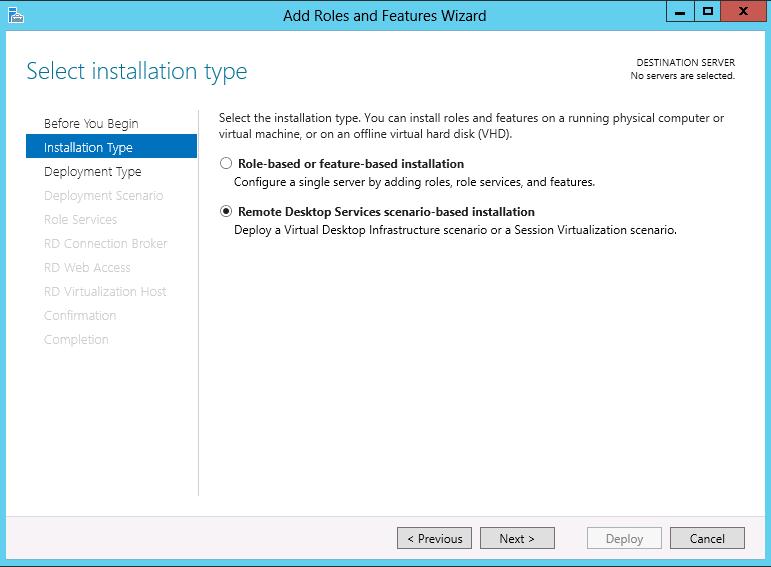

As we want all the roles to be running on the same server, we choose the Quick Deployment option.


As we are going to be deploying sessions, not Virtual Desktops, we choose Session Virtualization.


We select the server where we want to install the roles


We confirm that we allow the deployment to reboot the server (needed for the RDSH role)


And that it! The Scenario Based Deployment will now install the RD Session Host, RD Connection Broker and RD WebAccess role, create a first Session Collection and add computer to the Active Directory Groups as needed.


To make the lab even more complete, several applications are already added to the Remote App sections and published on RD WebAccess to give you an environment that can be used for demo’s instantly!

A Remote Desktop Services session stops responding during the logoff process in Windows Server 2008 R2

A new KB article (2571388) was released yesterday regarding the logoff process on a Windows Server 2008 R2 machine running the RD Session Host role. The cause is a deadlock situation in the Csrss.exe process. To apply the hotfix you must be running Service Pack 1.

Article ID: 2571388 - Last Review: March 14, 2012 - Revision: 1.0
A Remote Desktop Services session stops responding during the logoff process in Windows Server 2008 R2.

"...Consider the following scenario. You install the Remote Desktop Session Host role service on a computer that is running Windows Server 2008 R2. You try to log off a Remote Desktop Services session on the computer. In this scenario, the Remote Desktop Services session stops responding. After some time, the computer stops accepting incoming Remote Desktop Protocol (RDP) or Independent Computing Architecture (ICA) connections.

You must turn off and then restart the computer to recover from this issue..."


Source: http://support.microsoft.com/kb/2571388/en-us?sd=rss&spid=14134#appliesto

Wednesday, March 14, 2012

A closer look at MS12-020's critical issue

A blog post on Technet.com was brought online that more closely describes the issue with the MS12-020 vulnerability, possible workarrounds and affected systems. Follow the link on the end of this blog post to read the whole article.

"...Security Update MS12-020 addresses two vulnerabilities in Microsoft’s implementation of the Remote Desktop Protocol (RDP). One of the two, CVE-2012-002, is a Critical, remote code execution vulnerability affecting all versions of Windows. This blog post shares additional information with the following goals:
To strongly encourage you to make a special priority of applying this particular update;
To give you an option to harden your environment until the update can be applied.

Note that CVE-2012-0002 was privately reported and we are not aware of any attacks in the wild. Additionally, the remote desktop protocol is disabled by default. However, due to the attractiveness of this vulnerability to attackers, we anticipate that an exploit for code execution will be developed in the next 30 days.

We understand and appreciate that our customers often need time to evaluate and install bulletins as appropriate for their environment. For systems running RDP without Network-Level Authentication (NLA) enabled, this post includes information on a mitigation that may be applied in advance of the bulletin..."

Source: http://blogs.technet.com/b/srd/archive/2012/03/13/cve-2012-0002-a-closer-look-at-ms12-020-s-critical-issue.aspx

RDS in WIN8 Feature highlight no. 5 E-mail subscription for Remote Apps

RDS in WIN8 Feature highlight no. 5  E-mail subscription for Remote Apps

Users are now able to subscribe to their Remote Apps using their email address. Users open up their RemoteApp and Desktop Connections, either from the Control Panel or QuickLaunch.

Quick launch:

Control panel:

When they do so the following screen will appear:

Here they can also specify their email address instead of the URL to RD Web Access, which makes it much easier for users to connect and integrate their desktop with RD Remote Apps.

New KB: You cannot reestablish a Remote Desktop Services session to a Windows Server 2008 R2-based server. (2661332)

Microsoft has released a new KB article and fix today regarding RDS on Windows Server 2008 R2. For details see below or browse to the included URL for the original source and download link.
Article ID: 2661332 - Last Review: March 14, 2012 - Revision: 1.0
You cannot reestablish a Remote Desktop Services session to a Windows Server 2008 R2-based server.


"...Consider the following scenario:
  • You establish a Remote Desktop Services session to a Windows Server 2008-based server from a client computer.
  • You disconnect the Remote Desktop Services session.
  • You try to reestablish the Remote Desktop Services session.
In this scenario, you cannot reestablish the Remote Desktop Services session. Additionally, you receive the following error message:
The task you are trying to do can't be completed because Remote Desktop Services is currently busy. Please try again in a few minutes. Other users should still be able to log on.
 
This issue occurs because of a deadlock situation that occurs between the Csrss.exe process and some applications (for example, Microsoft Excel or Microsoft Visio)..."
 

Tuesday, March 13, 2012

Microsoft Security Bulletin MS12-020 - Critical - Vulnerabilities in Remote Desktop Could Allow Remote Code Execution (2671387)

Microsoft has released a critical security bulletin today on Remote Desktop

Microsoft Security Bulletin MS12-020 - Critical
Vulnerabilities in Remote Desktop Could Allow Remote Code Execution (2671387)
Published: Tuesday, March 13, 2012

For the complete bulletin please see: http://technet.microsoft.com/en-us/security/bulletin/ms12-020

"...Executive Summary
This security update resolves two privately reported vulnerabilities in the Remote Desktop Protocol. The more severe of these vulnerabilities could allow remote code execution if an attacker sends a sequence of specially crafted RDP packets to an affected system. By default, the Remote Desktop Protocol (RDP) is not enabled on any Windows operating system. Systems that do not have RDP enabled are not at risk.
This security update is rated Critical for all supported releases of Microsoft Windows. For more information, see the subsection, Affected and Non-Affected Software, in this section.
The security update addresses the vulnerabilities by modifying the way that the Remote Desktop Protocol processes packets in memory and the way that the RDP service processes packets. For more information about the vulnerabilities, see the Frequently Asked Questions (FAQ) subsection for the specific vulnerability entry under the next section, Vulnerability Information.
Recommendation. The majority of customers have automatic updating enabled and will not need to take any action because this security update will be downloaded and installed automatically. Customers who have not enabled automatic updating need to check for updates and install this update manually. For information about specific configuration options in automatic updating, see Microsoft Knowledge Base Article 294871.
For administrators and enterprise installations, or end users who want to install this security update manually, Microsoft recommends that customers apply the update immediately using update management software, or by checking for updates using the Microsoft Update service.
See also the section, Detection and Deployment Tools and Guidance, later in this bulletin.
Known Issues. Microsoft Knowledge Base Article 2671387 documents the currently known issues that customers may experience when installing this security update. The article also documents recommended solutions for these issues..."

RDS in WIN8 Feature highlight no. 4 Installing RDSH prior to a scenario based deployment, no requirement anymore

RDS in WIN8 Feature highlight no. 4  Installing RDSH prior to a scenario based deployment, no requirement anymore

This is more of a bug fix then a feature highlight of course, but if you have read one of my previous blog posts back in October 2011, I wrote that having the RD Session Host role installed was a prerequisite for being able to successfully walk through the new the Scenario Based deployment. Described here: http://microsoftplatform.blogspot.com/2011/10/take-rds-management-to-higher-level.html

Since the Beta release of Windows Server 8, this is no longer necessary. Therefore, the deployment of the scenario is now even faster than before.

I tested the quick scenario based deployment on a single server on the Beta Edition of Windows Server 8, within a few mouse clicks and an automatic reboot afterwards all the roles (RD Session Host, RD WebAccess and RD Connection Broker) are installed and the first Session Collection (QuickSessionCollection) is created. The scenario deployment runs very smooth.