Showing posts with label rdms. Show all posts

Wednesday, September 11, 2013

KB: Error when you try to change the properties of a published RemoteApp in Windows Server 2012

A new KB article (2862077) was released yesterday in regards to changing the properties of a Remote app inside the RDMS if this Remote App is installed on a non-system drive of the RD Session Host.

“…Consider the following scenario:

  • You deploy Remote Desktop Service on a Windows Server 2012-based computer.
  • A Remote Desktop Connection Broker is installed in the environment. The computer is joined in a session-based collection.
  • You install an application on a non-system drive of the computer.
  • You publish this application as a RemoteApp.
  • You try to use Remote Desktop Management Server (RDMS) UI to change and save the properties of the RemoteApp.
In this scenario, the operation fails, and you receive the following message:

Cannot bind argument to parameter 'VirtualPath' because it is an empty string

This issue occurs because the script that RDMS UI calls receives an empty parameter unexpectedly…”

“…To work around this issue, use the Set-RDRemoteApp cmdlet to change the properties of the RemoteApp…”

Source & download: http://support.microsoft.com/kb/2862077/en-us?sd=rss

Monday, June 3, 2013

Part 3 in our series on VDI in Windows Server 2012 now online on Microsoft TechNet Magazine

Part 3 of the series of articles I’m co-authoring on VDI in Windows Server 2012 together with Kristin Griffin (also RDS MVP) is now online on Microsoft TechNet Magazine. Read it here: Windows Server 2012: Manage your RDS with RDMS

In this part we’ll describe the main sections of Remote Desktop Management Services (RDMS) and explore how RDMS categorizes server properties. Then we’ll walk through several examples of how to use RDMS to manage your VDI session-based deployment

image

Thursday, March 21, 2013

Session-Based Desktop Deployment on Windows Server 2012, experiences so far (Part 1)

My new article on VirtualizationAdmin.com has just been published.

image“…Now that Windows Server 2012 has been generally available for some time, it’s high time to take a look back at the past few months to see what Windows Server 2012, and particularly Session-Based Desktop Deployment, Powered by RDS has brought us. In this article I’ll share some of my experiences while putting Session-Based Desktop Deployment in production based on Windows Server 2012. We’ll discuss how the overall installation process and the new way of managing your Session-Based Desktop Deployment environment performs and works out. This is part 1 of a series of (at least) 2 parts.…”

http://www.virtualizationadmin.com/articles-tutorials/vdi-articles/general/session-based-desktop-deployment-windows-server-2012-experiences-so-far-part1.html

Tuesday, February 19, 2013

Taking a closer look at RD Connection Broker High Availability in Windows Server 2012

My new article “Taking a closer look at RD Connection Broker High Availability in Windows Server 2012” was just published on VirtualizationAdmin.com

image“…If you have been following the new features of Windows Server 2012, you’re probably already familiar with the new High Availability features of the RD Connection Broker role in Windows Server 2012. In this article we’ll be taking a closer look at the RD Connection Broker configuration and its database. As a quick recap, we’ll start by summing up the requirements and performing an actual High Availability configuration. Along the way, we’ll take a look at some of the pitfalls during the configuration. After that we’ll dive a little deeper in the configuration and explore the SQL database that gets centrally stored on a SQL Server instance by setting up the High Availability (HA)…”

Source: http://virtualizationadmin.com/articles-tutorials/vdi-articles/microsoft-hyper-v/taking-closer-look-rd-connection-broker-high-availability-windows-server-2012.html

Friday, January 25, 2013

Adding custom RDP properties in Windows Server 2012 RDS/VDI environments

If you’re familiar with Remote Desktop Services in Windows Server 2008(R2) you’re probably familiar with the Remote App manager. This MMC snap-in was available on servers running the RD Session Host role and could be used to publish Remote Apps. As you might know by now, with Windows Server 2012 many of the MMC snap-ins have been deprecated and configuration of those features is now performed centrally using the Remote Desktop Management Service (RDMS) as part of the new Server Manager console. For more details on that also see RDMS on Windows Server 2012: The Where, the Why and the How..

Part of this Remote App manager in Windows Server 2008 R2 was the ability to set Deployment Settings, for example the Custom RDP Settings. Custom RDP settings can be used to further customize the users session, for example by settings specific redirection options or enabling Smart Sizing.

With Windows Server 2008(R2) setting these Custom RDP settings could be modified by using the GUI.

image

With Windows Server 2012 there is no option to set this in the RDMS Server Manager GUI. In order to add custom RDP properties we need to use the RemoteDesktop PowerShell module

The command to do this is Set-RDSessionCollectionConfiguration

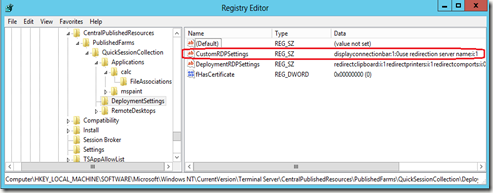
For example, if we want to remove the connectionbar we could run the following command:

Set-RDSessionCollectionConfiguration –CollectionName QuickSessionCollection "displayconnectionbar:i:0"

image

These settings are are stored in the registry of the RD Connection Broker(s) that are part of the Session Collections deployment.
image

Do note that if we wanted to add an additional custom RDP property we would have to specify all the custom RDP properties in one command. For example if we would add an additional custom RDP property to map the local C: drive and run

Set-RDSessionCollectionConfiguration –CollectionName QuickSessionCollection "drivestoredirect:s:C:"

That would overwrite the previously added custom RDP property.

image

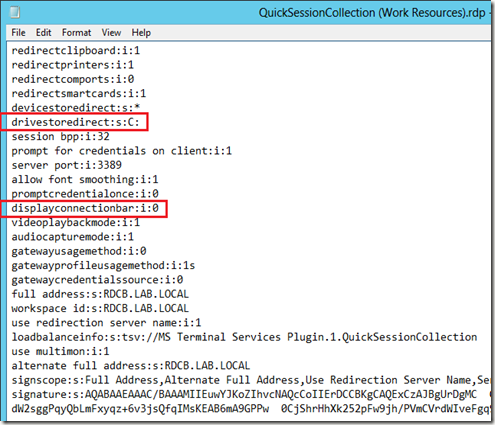
We obviously have to add all the custom RDP properties at once. To make this work we need to add a linefeed character (which is: `n) between the options otherwise it won’t be applied properly. The command would look like this:

Set-RDSessionCollectionConfiguration –CollectionName QuickSessionCollection "drivestoredirect:s:C: `n displayconnectionbar:i:0"

This will result in a published desktop with the following properties
image

As you might know the RD Connection Broker settings (as well as other RDMS settings) are stored in a database. Without running in RD Connection Broker High Availability (HA) mode, this is a SQL Express database running on the RD Connection Broker itself, and when running in HA mode, the database is moved to a central SQL Server instance.

Since the SQL database is the central place to store configuration we would expect the Custom RDP property to also be stored in this database. I’ve done some searching inside the RDMS database, and it appears that the Custom RDP property that we set using PowerShell is not stored there. Inside the table called PoolProperty, there is a CustomRDPSettings but that only contains the setting that is there by default, not our added properties.

image

There also is a value called CustomRdpSettings inside the table RdpFileInfo, but that table does not seem to hold any records at all.

image

So as it now seems the properties are only stored inside the registry of the RD Connection Broker.

Now consider the following scenario; we define the Custom RDP properties as shown above and after that add an additional RD Connection Broker. Would our added properties make it to the additional RD Connection Brokers registry?
I have tried this in my lab and it seems that this settings does not make it to the newly added RD Connection Broker!

First RD Connection Broker server Added RD Connection Broker server

image

image

The solution here is to run the PowerShell command again so that the configuration on the 2 RD Connection Broker is in sync again.

This raises another question, what if we would add a additional Custom RDP Property in a environment that is already in HA mode, but with 1 of the RD Connection Broker servers not being available? We can simulate this by disconnecting the network adapter of the 2nd RD Connection Broker and then try to run the PowerShell command again.

image

The command now raises an error “Unable to set Custom RDP Properties for collection Quick Session Collection because one or more RD Connection broker servers are unreachable or misconfigured”. Which is good! Because this way the RD Connection Broker configuration stays consistent.

Other properties configured in the RDMS GUI can be configured while a RD Connection broker in your HA farm is offline. For example we would be able to publish a Remote App. When the 2nd RD Connection Broker comes online again it’s triggered to sync the configuration, which can also be forced by restarting the “Remote Desktop management” service. The fact that you cannot change the Custom RDP Properties with a RD Connection Broker being offline seems to proof that this setting is not stored in the RDMS database but only in the registry.

Wednesday, January 16, 2013

RDMS on Windows Server 2012: The Where, the Why and the How..

By now I’m sure you’re familiar with the Remote Desktop Management Services (RDMS) as part of the new Server Manager in Windows Server 2012. The RDMS combines most of the functions we used to have in separate MMC snap ins in previous versions of Windows Server. RDMS is now the central management interface for all your deployments (both Session-Based as well as Virtual machine-Based).

If you’d like to read more about the actual deployment processes and RDMS configuration, the links that conclude this post might help.

In this post we’ll dive a little deeper to see where this RDMS data is (initially) stored, under what conditions you can successfully access the RDMS and what errors you may run into.

Let assume we would like to set up the following deployment:

Hostname Roles
AD01 Active Directory Domain Services
RDS01 RD Connection Broker
RDS02 RD Session Host
RD Web Access

For more information on this type of deployment also see this TechNet Wiki; Deploying the RDS Quick Start deployment type in Windows Server 2012 (for Session Virtualization)

Let’s assume that we perform the Scenario Based Deployment (Remote Desktop Services Deployment) using the Server manager console on the RDS01 and deploy the roles according to the table above. Note that as a prerequisite we added the RDS02 as a “to be managed server” to the Server Manager on this RDS01.

image

During the installation process a Windows Internal Database is created on the server that we selected ad the initial RD Connection Broker server. The corresponding .mdf and .ldf of this database are placed in C:\Windows\rdcbDb

image

When the deployment succeeds, we can open the RDMS (as part of the Server Manager) on the RDS01.

image

By selecting the Remote Desktop Services Link as shown above we can obviously manage our RDS environment as the screenshot below shows, nothing new there.

image

Now what would happen if we would open up the Server Manager on the RDS02 (now containing the RD Web Access and RD Session Host roles). We would also see the Remote Desktop Services link, since at least 1 RDS role is installed on the RDS02, however if we click we’re presented with the following error.

“There are no RD Connection Broker servers in the server pool.”image

If we’d want to manage the environment using the RDMS on this server we have to add the server running the RD Connection Broker role to the Server Manager by using the “Add other servers to manage” option.

If we would try to open the RDMS console on a server where the RD Connection broker is added as a server to be managed, but at least 1 server that is also part of the deployment is not added, we get a little different error.

“The following servers in this deployment are not part of the server pool”
image

Conclusion: we need to add all servers to the Server Manager that are part of the deployment in order to be able to use to RDMS on that server to manage that deployment.

In some scenarios you might perform the RDS deployment on some sort of central management server to perform al RDMS related tasks (and maybe also other administrative tasks) on that server. This is possible, but do note though that the RDMS database is still placed on the first RD Connection Broker part of that deployment. The exception here is when you configure RD Connection Broker High Availability (HA) as part of your post-installation configuration. After successfully performing the HA the RDMS database is placed on a centrally running SQL Server instance. To configure HA also see Installing and configuring RD Connection Broker High Availibilty in Windows Server 2012 .

Also note that although the name is RD Connection Broker HA, in a sense we’re also doing HA on the RDMS since the database does not only contain RD Connection Broker information, but all RDMS information.

Also note that from 1 server you can only manage 1 deployment at the same time. However, you can dynamically switch deployments. If you added more RD Connection Brokers from multiple deployments to a single RDMS console, you can use the option called “Connect to Another deployment” to switch between deployments.

image

That will show you what deployment you’re currently connected to and what other deployment(s) you can currently switch to.

image

Additional links to TechNet Wiki’s that describe working with the RDMS in more detail:

Scenario Based Deployment of RDS in Windows Server 2012
Distribution of Remote Apps and desktops in Windows Server 2012
Deploying and configuring RD Gateway in Windows Server 2012 Deploying and configuring RD WebAccess in Windows Server 2012