In addition to an earlier blogpost about troubleshooting shadowing (remote controlling) sessions; http://microsoftplatform.blogspot.com/2011/04/troubleshooting-remote-control-session.html
Microsoft released KB2533983 yesterday. This is about shadowing remote session in which Aero is enabled. This is not supported and could raise the following error:
The Terminal Server security layer detected an error in the protocol stream and has disconnected the client.
How do you know Aero is enabled for a user? The existence of the Dwm.exe process in the user session indicates that Aero is enabled for that session.
In addition the following events are raised:
Log Name: System
Source: TermDD
Date: 4/5/2011 1:14:24 PM
Event ID: 50
Task Category: None
Level: Error
Keywords: Classic
User: N/A
Computer: computername.domain.com
Description:
The RDP protocol component WD detected an error in the protocol stream and has disconnected the client.
Log Name: System
Source: TermDD
Date: 4/5/2011 1:14:24 PM
Event ID: 56
Task Category: None
Level: Error
Keywords: Classic
User: N/A
Computer: computername.domain.com
Description:
The Terminal Server security layer detected an error in the protocol stream and has disconnected the client. Client IP: fe80:0000:0000:0000:e499:f014:83ea:8221.
Source: http://support.microsoft.com/kb/2533983/en-us?sd=rss&spid=14134

Wednesday, May 4, 2011


Tuesday, May 3, 2011
RD Gateway using NPS and NAP (Network Access Protection)
As you might know the Remote Desktop Gateway (RDGW), which is one of the components of Remote Desktop Services, uses two kinds of policies. Connection Authorization Policies (CAP’s) hold the configuration of who can access resources behind the RDGW. The Resource Authorization Policies (RAP’s) consist of the information of what resources (i.e. servers of farms) can be accessed by users that have an entry in the CAP.In a standard configuration a RDGW uses a local store for its CAP which is based on Network Protection System (NPS) and the configuration of the CAP is done by using the RDGW Manager.

In this scenario I wanted to test a Remote Desktop Gateway (RDGW) using a central server running NPS. Why would I want to do this? Most obviously because this way I could create a second RDGW server that would use the same central NPS server for its CAP’s with which I would be able to create a form of High Availability (HA) for my RDGW. But besides this reason, using a central server running NPS I am able to make use of Network Access Protection. With a combination of RDGW and NAP I would be able to set restrictions on the workstations before letting them be able to connect. In other words I can set rules that clients have to be compliant with before I let them through my RDGW. Why is this interesting? When using managed clients (i.e. clients that are members of your domain) you can, of course, create all kinds of policies to enable firewall, virus scanning etc. But what about those non-managed clients? The term bring your own device (BYOD) is becoming more and more popular. A good evolution because why would you still want to manage client machines if all they access is some kind of cloud service (in the broadest sense of the word, a RemoteApp that runs behind your RDGW)? Using RDGW and NAP together you can define a compliance policy so that you can enforce that only clients that are compliant may connect. These compliance policies can include i.e.
· The Windows firewall must be enabled
· Ant-virus application must be running
· Anti-virus must be up to date
· Anti-spyware must be running
· Windows updates must be enabled
· Windows updates must be up to date
How does this work? Without going into detail, the client reports a statement of health (SoH) to the RDGW. Based on this SoH the RDGW checks the CAP’s that are stored on NPS server. If the client is compliant it will let it through, if not an error is raised to the client that it is not compliant including the actual reason why.
So let’s take a look at the scenario in this lab. I have set up the following machines:
- Windows Server 2008 R2 with RD Gateway role
- Windows Server 2008 R2 with RD Session Host role
- Windows 7 client machine
- And of course a Domain Controller (also Windows Server 2008 R2)
Our goal: Set an environment in which the Windows 7 client can only connect to the RDSH via the RDGW when the Windows Firewall is running on the Windows 7 client. And, on top of that, perform an auto-remediation on the client by automatically enabling the Windows Firewall if it’s not running and inform the client that he’s now compliant. Sounds like a lot of work, but it will turn out to be surprisingly easy!
We are assuming that the RDSH server already has the RDSession Host role and that a group is created and configured to be allowed to connect to the RDSH server using RDP. (Preferable using a GPO).
We also assume that the RDGateway server already had the RD Gateway role installed without any CAP’s or RAP’s defined during the setup and that we selected local NPS storage during the setup.
After issuing a SSL certificate for our RD Gateway server to our local CA and selecting it on the SSL certificate tab on the properties of the RDGateway, we’re ready to configure the NPS and RDGW.
We start by creating a new RAP in the RD Gateway Manager.

Remember to only create the RAP, not the CAP. We enter the name “RDS RAP”, enter the security group that holds the user we want to allow to connect and use the RDSH server as the Network Resource to be allowed to connect to.
On the RDGW properties in the RDGW manager on the RD CAP Store tab we make sure that “Request clients to send a statement of health” is checked. Remember that we do this to have the clients send their SoH to the RDGW.

We now open up the Network Policy Server (can be found in the admin tools section of the start menu of the RDGW server). You can of course, have the NPS server running on a different machine, but for the sake of the demo we have it running locally on the RD Gateway server.
Right click the RADIUS Server Groups and click new.

Enter a name and add the central NPS server by clicking Add and use the FQDN of the NPS server. Enter a shared secret, and note it down.
Now right-click the Connection Request Policies and choose new

Enter a name and choose Remote Desktop Gateway as the type
Add the NAS Port Type and select Virtual (VPN).

Click next and select “Forward request to the following remote RADIUS server groups for authentication” and make sure that the group you created earlier is selected.
Open the properties of the Default Configuration in the settings of the Windows Security Health Validator

For this demo we’re only going to check the Windows Firewall, so make sure that this is the only one that is selected here

Now move all the way to the top, select NPS(local) and click Configure NAP

On the first screen select RD Gateway and leave the default name
Next add the RD Gateway server by using its FQDN, and enter the same shared secret as used earlier.
Leave the default redirection settings and timeout settings in place
Now add the user group that you used earlier (the one that you want to allow to connect)
Make sure the Windows Security Health Validator is select and hit next and finish
We now have the basic configuration running. We have created three network policies:

And two health policies:


That’s it for the configuration on the server side. To have a fully operational client with NAP auto-remediation capabilities we need to configure the client. We can quickly do this by running Tsgqecclientconfig.cmd which can be downloaded here:
Ok, we’re done! Let’s do some testing!
We open up our Windows 7 machine and make sure all Windows Firewalls are disabled on it:

We create a .rdp file that has the correct RDSH server as the destination and the correct RD Gateway server configured and hit connect.
The first error we get is:

Which is good, because we are in fact not compliant with the policy!
Now comes the good part, a balloon of the NAP client pops up, when we click it we get the following dialog: 
Which again tells us that we’re not compliant, but on top of that it also tells us why, The Windows Firewall is not running. AND: it’s attempting to fix this as mean of remediation!
We hit close. The NAP dialog gets updates as shown below: 
Why? Because the auto-remediation did it’s work and automatically enabled our Windows Firewall again and made our client compliant again:

And these are just the basics! The combination of the RD Gateway and NPS(with NAP) generates lots of possible scenarios and is very flexible! Especially the fact that you can also create your own System Health Validator (SHV) or make combinations! And I haven’t even talked about Remediation servers that you can add to your environment as well.
For now, these are the basics, hope it was useful! I might do a new blog on this and take this NAP configuration a little further by extending it with a custom SHV and doing some NAP troubleshooting as well!
Additional info:
http://technet.microsoft.com/en-us/network/bb545879
http://www.microsoft.com/downloads/en/details.aspx?FamilyID=8e47649e-962c-42f8-9e6f-21c5ccdcf490&displaylang=en
http://technet.microsoft.com/en-us/library/dd560672(WS.10).aspx
http://technet.microsoft.com/en-us/library/cc742822.aspx
http://technet.microsoft.com/en-us/network/bb545879
http://www.microsoft.com/downloads/en/details.aspx?FamilyID=8e47649e-962c-42f8-9e6f-21c5ccdcf490&displaylang=en
http://technet.microsoft.com/en-us/library/dd560672(WS.10).aspx
http://technet.microsoft.com/en-us/library/cc742822.aspx
Thursday, April 28, 2011
Wortell TechReady
Today the company that I work for (Wortell) hosted the first edition of a new (internally) launched event called Wortell TechReady! A great event full of technical session presented by Wortell employees about all kinds of (new) Microsoft products and services! Today, the first day of two, there were 18 sessions packed with technical content and full of awesome demos! Tomorrow a full day on SharePoint will follow!
Subjects like FIM, Lync, Exchange, Hyper-V, App-V, Office365 and many, many more subjects came by! I personally had the honor to present a breakout that contained a technical drilldown on RDS 2008 R2, my favorite subject! J
We were also happy to invite 8 external speakers today! To give you an example, technical speakers from Dell, Quest and Microsoft also presented their latest products and technologies! Michel Roth, Quests Principal Product Architect on vWorkspace presented a great session on vWorkspace, Chantal Smelik from Microsoft talked about Windows Intune and Edie van den Berge, also Microsoft, talked about the private cloud!
The feedback on the event so far has been great! This will become a frequently returning event at Wortell!
For more info on Wortell also see: http://www.wortell.nl
Wil je het Wortell-team komen uitbreiden, bezoek dan: http://www.wortell.nl/nl-nl/workat/pages/werken-bij-wortell.aspx

Tuesday, April 26, 2011
Two hotfixes RemoteFX
Microsoft has released two hotfixes for RemoteFX:
Article ID: 2519946 - Last Review: April 13, 2011 - Revision: 1.0
Timeout Detection and Recovery (TDR) randomly occurs in a virtual machine that uses the RemoteFX feature in Windows Server 2008 R2
http://support.microsoft.com/kb/2519946
Article ID: 2523676 - Last Review: April 20, 2011 - Revision: 2.0
GPU is not accessed leads to some VMs that use the RemoteFX feature to not start in Windows Server 2008 R2 SP1
http://support.microsoft.com/kb/2523676
Wednesday, April 20, 2011
Troubleshooting Remote Control (Session Shadowing) on Win Server 2008 (R2)
Troubleshooting Remote Control (Session Shadowing) on Win Server 2008 (R2)
Remote Control with Remote Desktop Services is the technique you can use to view and / or interact with the session of another user. Doing so helps support desks troubleshoot issues or errors that end-users experience.
But what if session shadowing fails to start? There are a number of reasons why, and a number circumstance under which, shadowing sessions doesn’t work. In this blog I’ll walk you through them.
1. Check whether session of the user in question is allowed to be shadowed. That seems like a big “duh!”, but there are multiple places where shadowing can be disabled.
a. The user account properties in Active Directory

b. In the RD Session Host Configuration

c. In various places in a Group Policy Objects, on user- as well as on Computerobjects:


2. The error message that you get while trying to shadow a session, could sometimes also lead you in the right direction. The error could be:
Remote control failed. Error code 7051
Error [7051]:The requested session is not configured to allow remote control.
That one’s pretty easy, on 1 of the 3 places discussed before you deny shadowing for this user.
Remote control failed. Error code 7044
Error [7044]:The request to control another session remotely was denied.
Also very obvious, the user clicked “no” when the systems asks whether he allows the shadowing (if asking for permissions is enabled of course), or the user simply did not respond.
But what about this one:
Remote control failed. Error code 2Error [2]:
The system cannot find the file specified.
Error[2] could mean that either on 1 of the 3 places discussed before you deny shadowing for this user, or the user in question simply hits “No” when the systems asks whether he allows the shadowing (if asking for permissions is enabled of course), or the user simply did not respond. You particularly get this error when trying to shadow a session that sits on a different RDSH server then you start the shadow from.
And then this one:
Remote control failed. Error code 120
Error [120]:This function is not supported on this system.
Error[120] is raised when you try to shadow a session from a computer that has one monitor to a computer that uses multiple monitors.
What about this one
Remote control failed. Error code 31
Remote control failed. Error code 31
Error [31]:A device attached to the system is not functioning.
Error[13] is raised when you try to shadow a RD session from a Windows XP client, this is not supported.
Last but not least:
Remote Control Failed. Error Code 7050.
Error [7050]:The requested session cannot be controlled remotely.
This error means that you are logged on to the console of the server that is running Terminal Services, if you try to shadow another user's session from the console of the computer, you receive this error.
One of my personal favorites, shadowing seems to work, but I shadowed a user’s RemoteApp. Big Oops! Because this is what the end-user could end up with:

While the admin sees this:


Why? The administrator moved the RemoteApp from its position.
Word of advice: Don’t shadow a RemoteApp Session! J
Also see a previous blog post I wrote about this here: http://microsoftplatform.blogspot.com/2011/01/remote-control-rds-session-in-mixed_26.html
3. To quickly see what Remote Control configurations have been made for a computer, open a PowerShell box and enter the following command:
get-wmiobject -namespace "root\cimv2\terminalservices" -class
Win32_TSRemoteControlSetting
This will result in the following (example) output:
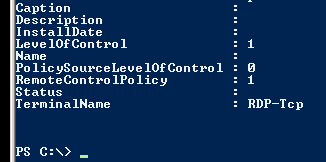
Levelofcontrol can have the following values:

PolicySourceLevelOfControl Indicates whether the LevelOfControl property is configured by the
server, group policy, or by default. And can have these values
server, group policy, or by default. And can have these values

RemoteControlPolicy is the policy the server uses to retrieve the remote control settings and can have the following values:

Hopefully this helps in finding out causes of non-functioning shadowing or remote controlling your sessions in your environment!
More general info:
Tuesday, April 19, 2011
The case about the incorrect office icon in the taskbar while using RDP is now fixed!
If you have been using Remote Desktop Services (RDS) 2008 R2 or a RDP session to Windows 7 (although I've seen it less in Win7) you must be familiar with case:
You open up a RDP session to a Windows Server 2008 R2 RDS server, open up for example outlto ook 2010 and you find that the icon for PowerPoint now appears on the task bar! This issue was inconsistent, sometimes it showed up sometimes it didn’t.
Microsoft has released a fix for this issue last week, here it is:
http://support.microsoft.com/kb/2519550/en-us
According to Micrsoft this issue occurs because of a timing issue in the Shell32.dll module.
Thursday, April 14, 2011
Having extensible-extention-error or ma-extention-error while provisioning Live@EDU? Here's how to get the detailed errors in FIM2010
In a scenario where you are using Forefront Identity Manager 2010 (FIM) to provision mailboxes to Live@EDU (Microsoft’s Cloud e-mailservice for education) you must have seen the following error before when you did an export or EDIDS on your Live@EDU Management agent.
“Error: extensible-extention-error” or “ma-extention-error”

When you click on the details you’ll get the following information:
Microsoft.MetadirectoryServices.ExtensibleExtensionException: System.TypeInitializationException: The type initializer for 'Microsoft.Exchange.GALSync.Common.XMAEventLog' threw an exception. ---> System.Security.SecurityException: The source was not found, but some or all event logs could not be searched. Inaccessible logs: Security.
Which tells us absolutely nothing about why the export to Live@EDU failed. When you look at the eventlog (application) you’ll see event id 6801 being raised which is basically the same error and still tells us nothing about why the export failed:

Why is this occurring? FIM 2010 is unable to actually write the error to the eventlog. Why? Because it doesn’t know which .dll to use to write to the eventlog. This is somewhat related to the fact that the Management Agent for Live@EDU that is used today was originally written for Identity Lifecycle Manager 2007 (ILM).
Now, what do we do to fix this? Quite simple!
1. Create a .reg file and enter the following content
Windows Registry Editor Version 5.00
[HKEY_LOCAL_MACHINE\SYSTEM\CurrentControlSet\services\eventlog\Application\OLMA]
"CategoryCount"=dword:00000002
"TypesSupported"=dword:00000007
"EventMessageFile"="\"C:\\Program Files\\Microsoft Forefront Identity Manager\\2010\\Synchronization Service\\Extensions\\res\\Microsoft.Exchange.GALSync.EventLog.dll\""
"CategoryMessageFile"="\"C:\\Program Files\\Microsoft Forefront Identity Manager\\2010\\Synchronization Service\\Extensions\\res\\Microsoft.Exchange.GALSync.EventLog.dll\""
Make sure that the paths to the .dll match your environment and that the .dll is actually there.
2. Run the .reg file on the machine that runs your FIM Sync Service
This should let FIM 2010 know what .dll to use to actually write a usefull error to the eventlog (that it receives from Live@EDU) and also where this .dll resides.
3. Now restart the service FIMSynchronizationService
4. (Re)start your export run profile (or EDIDS if you prefer so).
That’s it!
From now on, when for some reason FIM could not add, delete or update a mailbox in Live@EDU, we get the actual error from Live@EDU inside FIM2010 as well as inside the eventlog.

In this case the cause was simple, an account with the same liveID already existed. But you can imagine this can be very useful for finding out causes that aren’t too obvious.
From what I believe, add this to your default installation instructions when combining FIM2010 and Live@EDU!
Subscribe to:
Posts (Atom)