Monday, September 30, 2013

KB: Connection hangs after you import virtual machines into Windows Server 2012 Remote Desktop Services Unmanaged Pool

New KB article (2891541) related to migrating Windows Server 2008 (R2) VDI VM’s to Windows Server 2012.

“…Consider the following scenario:

  • You have a Virtual Device Interface (VDI) infrastructure that is configured on a server that is running Windows Server 2008 or Windows Server 2008 R2.
  • You have another Windows Server 2012 VDI environment.
  • You migrate virtual machines from Windows Server 2008 or Windows Server 2008 R2 to the Windows Server 2012 VDI environment.
  • You import the virtual machines into Windows Server 2012 Remote Desktop Services Unmanaged Pool.
In this scenario, if you try to connect to a virtual machine from Remote Desktop Web Access (RD Web) or Remote Desktop Protocol (RDP), the connection stops responding (hangs) at the "Loading the virtual machine" state. Additionally, the connection may time out, and you receive the following error message:

Connection processing has been canceled. Try connecting again, or contact your network administrator…”

“…The problem occurs because Windows Server 2012 VDI virtual machines add a Remote Desktop Virtualization (RDV) device that does not exist in virtual machines that are not created by using Windows Server 2012. Without this device, the VDI RDP client cannot connect to the virtual machines, and the connections hangs…”

“…To work around this problem, re-create the virtual machines in Windows Server 2012 and copy over the Virtual Hard Disk (VHD) instead of exporting and importing the virtual machines…”

Source: http://support.microsoft.com/kb/2891541/en-us?sd=rss&spid=16526

Tuesday, September 24, 2013

Download: Windows Azure Desktop Hosting Reference Architecture Guide

Microsoft put out a new Reference Architecture Guide on running RDS (Session-Based) in Windows Azure. Download it here!

Also see my earlier posts on RDS in Azure related to this Reference Architecture Guide:

Running Dell vWorkspace in Windows Azure
and
Load balancing Remote Desktop Services Web Access & Gateway with KEMP Load Master for Azure

“…Summary: This document defines a set of architectural blocks for using Windows Azure Virtual Machines to create multitenant, hosted Windows desktop and application services, referred to in this document as “desktop hosting.” The primary goal is to enable hosting providers to create secure, scalable, and reliable desktop hosting solution offers for small- and medium-sized organizations with up to 1,500 users. The intended audience for this reference architecture is hosting providers who want to leverage Windows Azure infrastructure services to deliver desktop hosting services and Subscriber Access Licenses (SALs) to multiple tenants via the Microsoft Service Provider Licensing Agreement (SPLA) program. To deliver a desktop hosting solution via Microsoft’s SPLA program, hosting partners leverage Windows Server and the Windows Desktop Experience feature to deliver Windows users an application experience that is familiar to business users and consumers. Although Windows 8, Windows 7, and earlier Windows client versions are not licensed for SPLA, the Desktop Experience feature in Windows Server 2012 provides a similar user experience and application support.

Source: http://msdn.microsoft.com/en-us/library/windowsazure/dn451351.aspx

Friday, September 20, 2013

Dell / Wyse ThinOS version 8 and the RD Connection Broker in Windows Server 2012

HomeAs you might know connecting to a RDS environment running on Windows Server 2012 (R2) requires users to always connect to the (farm of) RD Connection Broker Servers initially, from where they will be redirected to a RD Session Host in a farm. In order for the RD Connection Broker to be able to redirect the session to the correct RD Session Host farm it needs to be aware of the Session Collection. More info, also sees RD Connection Broker HA and the RDP properties on the client.

DellWyse ThinOS version 8 comes with a full featured RDP8 client and supports the RD Connection Broker 2012. To connect ThinOS8 to a Windows Server 2012 RDS environment you can specify the following .ini parameters;

VDIBroker=https://rds.domain.com AutoConnectList="Full Desktop"
ConnectionBroker=Microsoft
SignOn=Yes

The parameter VDIBroker should point to your RD Connection Broker Server(s) and optionally you can use AutoConnectList to auto run a certain Remote App or Full Desktop. The parameter ConnectionBroker specifies that the broker is a Microsoft RD Connection Broker. Setting the parameter SignOn to Yes allows Thin OS to pass the login credentials, entered when logging on the Thin Client, to the RD Connection Broker

If a user is authorized for multiple Session Collections within a single deployment ThinOS8 will retrieve and show all authorized Remote Apps and Desktops from all Session Collections combined together.

More info: http://www.wyse.com/products/cloud-clients/firmware/Wyse-Zero-and-Wyse-ThinOS

Wednesday, September 11, 2013

Using User Profile Disks (UPD) in combination with predefining the Modern UI Start Screen on RDS 2012 (appsfolder.itemdata-ms)

I was recently contacted by someone regarding one of my previous blog posts called Predefining and customizing the Modern UI Start Screen on RDS 2012 where I describe a way to create a predefined Start Screen layout for Remote Desktop Sessions running on Windows Server 2012 and still allow users to modify that predefined Start Screen to their needs.He was wondering how this method would work in combination with using User Profile Disks. I’ve also seen similar comments on that blog post in regards to that combination. Enough reason to test this combination in my lab and I hereby want to share the results with you.

If you’ve read my blog post you’ll know that the items on your Start Screen are not stored in a folder within your profile but are in fact stored in a binary file called appsfolder.itemdata-ms which is stored in %USERPROFILE%\appdata\local\microsoft\windows\.

With Use Profile Disks (UPD) you no longer use a (cached copy of) roaming profile. In stead, your profile is stored in a .VHDX file specific to your account which is placed on a central share. Upon logon a mount path is created under C:\Users\<username> that points to that .VHDX file on the share. This makes the solution fully transparent to the Operating System and applications. If you’ve used UPD before you will have noticed that the filenames of the .VHDX files hold the users SID, not the account name. To get a quick overview of what account name is coupled to what .VHDX file check out my script Retrieve usernames for a User Profile Disks (UPD) share in VDI environment on Microsoft TechNet Gallery.

Part of the configuration of UPD is to configure what folders of the profile you want to be part of UPD. In order to do so, open the RDMS as part of the Server Managed Console en edit the properties of your Session Collection.

image

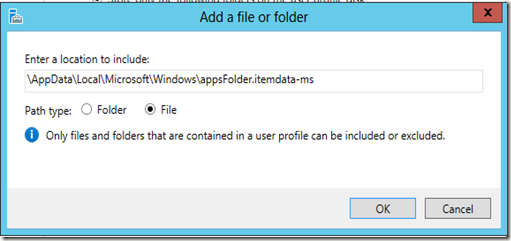
Choosing the option “Store all user settings and data in the user profile disk” would obviously capture everything normally stored under C:\users\<username> and add that to the UPD. That will obviously also include the path of the appsfolder.itemdata-ms file (\appdata\local\microsoft\windows\). However in most cases you would want a more granular control of what’s going to be stored in the UPD. To do so you select the option “Store only the following folders on the User Profile Disk”. After that you can make a selection based on the most common folders. Notice however that you can only select the roaming part of your user profile data. This means that \appdata\local\ will be excluded, and thus so will the appsfolder.itemdata-ms file.

However, besides being able to select the most common folders you can also add additional files & folders as desired. To test this we add the following, which is a relative path to the file where the Start Screen is stored.
image

When we configure this (in combination with the configuration I refered to earlier) and log on with a test user, a UPD file is created successfully.

image

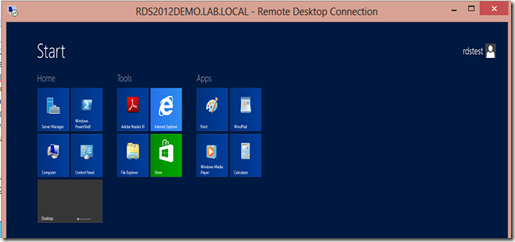
And the user seems to get the Start Screen Layout as pre configured.
image

However, when we look at the system drive of the RD Session Host Server we notice that a temperately profile has been created where we would have expected a mount point to the UPD file.

image

Upon logging off the user, the temp profile folder is obviously gone, but when we try to mount the UPD file we are presented with the following error:

image

Apparently in this scenario the .VHDX file doesn’t get detached properly. We manually detach the VHDX using Disk Management

image

We are now able to mount the .VHDX and check what’s inside and notice that the file we specified is not in there. (only the roaming part of the User Profile Data).

image

So apparently the method of selecting the file as an additional file does not work and causes the UPD to not be able to detach properly.

Does this mean that the combination with UPD simply does not work properly for this scenario? Upon some further testing  I discovered a workaround to make this work.

After removing the UPD file of the test user, in stead of adding the file inside the UPD configuration, we add the folder where the file resides.

image

Upon log on, again a VHDX file is successfully created and user is represented with the pre-defined Start Screen.

image

This time however we notice that that on the RD Session Host server the mount to the UPD file is successfully created (and no TEMP profile is showing).

image

When we do a drilldown inside this folder we see the desired behavior. The Windows Folder is a mounted folder.

image

Upon logging of the user, the UPD file is correctly detached, and when mounting the UPD file as an administrator we see that the folder \appdata\local\microsoft\windows is now part of the UPD file.

image

And so is the appsfolder.itemdata-ms file and as a result customization to the layout of the Start Screen can now be roamed to other servers within the Session Collection!

image

Final remarks: The ability to pre define the Start Screen has been improved in the R2 release of Windows Server 2012 and has become configurable using a GPO. More details on that: Predefining and customizing the Modern UI Start Screen on RDS 2012 R2

KB: The size of the "HKEY_USERS\.DEFAULT" registry hive continuously increases on a Windows Server 2008 R2 SP1-based server

A new KB article (2871131) in regards to an increasing KEY_USERS\.DEFAULT key related to printer settings never being deleted in the DevModes2 key. I’ve seen this issue in several environments, but there is a fix now!

“…Assume that you have a server that is running Windows Server 2008 R2 Service Pack 1 (SP1). Many users connect to the server by using a certain remote desktop application. In this situation, the size of the following registry hive may exceed the limit: KEY_USERS\.DEFAULT

Therefore, the users cannot connect to the server.

This issue occurs because of an error that occurs in the Print Spooler modules. When a user establishes a new remote desktop session to the server, the printer settings of the user are written in the following registry subkey: HKEY_USERS\.DEFAULT\Printers\DevModes2

However, the printer settings are never deleted. Therefore, the size of the following registry hive becomes larger and larger, and various problems are caused by this behavior:  HKEY_USERS\.DEFAULT…”

Source & download: http://support.microsoft.com/kb/2871131/en-us?sd=rss

KB: A memory leak in the WmiPrvSe.exe process occurs when you use the RDS WMI provider in Windows 7 SP1 or Windows Server 2008 R2 SP1

A new KB article (2876748) regarding a possible memory leak when using the RDS WMI provider in Windows Server 2008 R2 SP1.

“…When you use the Remote Desktop Services (RDS) Windows Management Instrumentation (WMI) provider in Windows 7 Service Pack 1 (SP1) or Windows Server 2008 R2 Service Pack 1 (SP1), you notice a memory leak in the WmiPrvSe.exe process. This may cause the WmiPrvSe.exe process to stop…”

Source & download: http://support.microsoft.com/kb/2876748/en-us?sd=rss

KB: Error when you try to change the properties of a published RemoteApp in Windows Server 2012

A new KB article (2862077) was released yesterday in regards to changing the properties of a Remote app inside the RDMS if this Remote App is installed on a non-system drive of the RD Session Host.

“…Consider the following scenario:

  • You deploy Remote Desktop Service on a Windows Server 2012-based computer.
  • A Remote Desktop Connection Broker is installed in the environment. The computer is joined in a session-based collection.
  • You install an application on a non-system drive of the computer.
  • You publish this application as a RemoteApp.
  • You try to use Remote Desktop Management Server (RDMS) UI to change and save the properties of the RemoteApp.
In this scenario, the operation fails, and you receive the following message:

Cannot bind argument to parameter 'VirtualPath' because it is an empty string

This issue occurs because the script that RDMS UI calls receives an empty parameter unexpectedly…”

“…To work around this issue, use the Set-RDRemoteApp cmdlet to change the properties of the RemoteApp…”

Source & download: http://support.microsoft.com/kb/2862077/en-us?sd=rss