Tuesday, April 12, 2011

Certificate Revocation List's in combination with the RD Gateway

Nice blog today by the Microsoft RDS team on Certificate Revocation List's in combination with the RD Gateway.

The RD Gateway client will, by default, not check whether the certificate that is used on the RD Gateway server is revoked or not. To enable the clients to check if the certificate is revoked or not and only proceed the connection if it's not, you can run the following command on client:

reg add "HKCU\Software\Microsoft\Terminal Server Gateway\Transports\Rpc" /v CheckForRevocation /t REG_DWORD /d 1

Important
The publishing and maintenance of the CRL is an integral part of the public key infrastructure (PKI) and is external to RD Gateway. Please do not enable certificate revocation checking on RD Gateway clients until you have confirmed that your infrastructure can support this; otherwise, even the basic connection to an end resource through the RD Gateway server will not work. This is the reason why certificate revocation checking is disabled by default on the RD Gateway client, and the recommendation is to turn it on as a security best practice only after ensuring that the CRL is accessible from the Internet.


Source: http://blogs.msdn.com/b/rds/archive/2011/04/11/how-to-enable-certificate-revocation-checking-on-a-remote-desktop-gateway-client.aspx

Friday, April 8, 2011

RSA Authentication Manager 7.1 BUG

RSA Authentication manager 7.1 has a nasty bug in it that I ran into recently. When running RSA Authentication Manager 7.1 on Windows it creates 1 or 2 .sql file every minute containing SQL Statements. They build up very quickly and are not removed by RSA by default. In time this could lead into serious issues like i.e. one or more of the RSA services might not be able to (re)start anymore!


RSA will release a new Service Pack (SP4) in Q4 of 2011 and advises customers the following workarround until that time:

Shortterm solution:
  • reboot the machine in safe mode
  • rename the c:\windows\temp to c:\windows\temp_old
  • create a fresh new c:\windows\temp
  • reboot in normal mode
Longterm solution:
  • create a standard plain text cmd file named, for example, 'cleanup.cmd', and add to it the following lines: del c:/windows/temp/dbmgmt*.sql
  • save the file
  • launch windows scheduler and have the cmd file run once a day
You might also decide to apply 7.1 SP3 hotfix rollup 6, which rolls out an emergency fix for this bug. However, RSA recommends you to use the mentioned workaround and wait for SP4.

Wednesday, April 6, 2011

Quest Software explains partnership with Microsoft on Desktop Virtualization

Last week a cool and funny (short) video got released by Quest Software explaining their partnership on Desktop Virtualization with Microsoft.


"...Many of the technologies in vWorkspace have been built to integrate with, and add value to, Microsoft technologies - and have been for a while now. Technologies in vWorkspace have been adding value to Microsoft RD Session Host (formerly known as Microsoft Terminal Services) for almost a decade now. Also, in addition to deep integration with App-V (Softricity back then) since around 2005, Quest with vWorkspace was the first desktop virtualization vendor to support Hyper-V back in 2008 followed by sophisticated integration with System Center Virtualization Machine Manager in 2009. The value-add for Microsoft customers doesn’t stop there. For almost ten years now Quest has embraced and extended the RDP protocol – including RemoteFX- with Quest vWorkspace EOP to deliver the best possible user experience for LAN and WAN and across a multitude of platforms, both client and server. The symbiosis continues with our upcoming vWorkspace 7.2 MR1 that unlocks the full potential of the technologies that are delivered in Microsoft Windows Server 2008 R2 and Microsoft Windows 7 Server Pack 1..."


Tuesday, April 5, 2011

RemoteFX on Remote Desktop Session Host (RDSH) servers.

RemoteFX has been officially launched recently. When you search for info on RemoteFX it is usually talked about in relationship to VDI. But what about RemoteFX on Remote Desktop Session Host servers? A post by Microsoft’s RDS team answers most commonly asked questions on this topic.

Q: Does RemoteFX work on RD Session Host?
Answer: RemoteFX is a collection of features that enhance the user experience in Remote Desktop Services deployments. The advanced bitmap acceleration of RemoteFX works for VDI on Remote Desktop Virtualization Host (RD Virtualization Host) servers as well as for session delivery on RD Session Host servers running Windows Server 2008 R2 SP1. Other features of RemoteFX, specifically virtualization of graphics processing units (GPUs) and broad support for USB devices, are specific to virtual machine delivery through Remote Desktop Services in a VDI environment.

Q: What are the key benefits of using RemoteFX with RD Session Host?
A: Using RemoteFX on RD Session Host servers allows you to use RemoteFX enabled thin clients and zero clients to connect to the server. It also reduces the bandwidth required for displaying bitmap-intensive applications (such as Flash, Silverlight, and Windows Presentation Foundation applications) on a full desktop

Q: Do any features of RD Session Host not use RemoteFX?
A: RemoteApp programs do not use RemoteFX because they need drawing orders, so RemoteApp programs use Remote Desktop Protocol (RDP) 7. No user action is required to use RDP 7 for RemoteApp programs. Also, Aero® "glass" remoting is disabled when using RemoteFX on RD Session Host servers. When RemoteFX codec is used on RD Session Host, the display driver is RDP's XPDM driver, which does not support 3D rendering.

Q: Can I virtualize an RD Session Host server and use RemoteFX with it?
A: Yes, but this RD Session Host server will not virtualize the GPU of the server even if a GPU is present.

Q: Can a virtualized RD Session Host server use a GPU at all?
A: Yes. Windowed DirectX apps will still work on RD Session Host servers if a GPU is present; however, the GPU will not be virtualized in each session.

Q: How can I learn more about using RemoteFX on an RD Session Host server? How can I tell that it's working? How do I configure the settings?
A: For answers to these and other related questions, see the Step-by-step guide to deploying RemoteFX on an RD Session Host server. For a complete list of all RemoteFX resources, see this blog entry.

Q: How can I evaluate Windows Server 2008 R2 with SP1?
A: You can download a 180-day evaluation of Windows Server 2008 R2 SP1, or, if you already have Windows Server 2008 R2, you can download the stand-alone SP1.

Source: http://blogs.msdn.com/b/rds/archive/2011/03/25/q-amp-a-microsoft-remotefx-and-remote-desktop-session-host-servers.aspx

Saturday, March 26, 2011

VDI is good for every organization but not every end point!

I attended Microsoft Management Summit 2011 this year (MMS). The event was hosted in the Mandalay Bay Hotel in Las Vegas. A great Microsoft event that, of course, showed all the ins en outs about a wide range of new (versions) of System Center products. Besides that, this year MMS2011 also included interesting sessions on RDS and VDI. I had to attend these of course! Thought I'd devote a blogpost on it.
On the very last day of MMS (the day after the closing party) I attended a session called VDI, RDS, TS, Windows 7 – How to Determine and Manage What Your Users Need by Tim S. Benjamin, he’s an Account Technology Strategist at Microsoft. A really good session! Very different from other MMS sessions, less focused on pure technology, but more on functionality and real life examples.
He shows the slide below, that is so basic, but yet so true.
RDS is so much more scalable and manageable then VDI. Users generally don’t care about VDI. Most of the time, they will not even see the difference between a Win7 VDI and a Win2008R2 RDS session. Do you? Below a slide that Tim Benjamin showed. Of course, as admins we know that the slide on the left had the server managent icon in the taskbar, so that must be Win 2008R2. But you have to admit, they look very much alike!

Research results in the following number: RDS have over 5 times more scalability over VDI. Besides that, < 20% of your users actually needs VDI. So can VDI and RDS reside in one environment? Of course! And you should. The following slides show the steps to determine who of your users really need VDI. For other users, use RDS!


So where does that leave VDI? I’m not saying RDS is always a better solutions then VDI. But, and I quote from Tim Benjamin:  VDI is good for every organization but not every end point!
During sessions at MMS, it was also good to see that Microsoft people on more than one occasion mentioned Quest (in particular vWorkspace) to extend RDS or VDI. During one of the sessions I used twitter to announce this extension to the rest of the attendees at that session (MMS offered great support for twitter using session-specific hashtags).  The tweet got retweeted lots of times. I personally have had the opportunity to test vWorkspace. I really like the way it extends the native RDP functionality from Microsoft. So it was good to see Microsoft referred to it as well!
And to conclude, a create quote from Gartner that is very much true as well:
“Virtualization without good management is more dangerous than not using virtualization in the first place.”
                Thomas Bittman, Analyst, Gartner

Wednesday, March 9, 2011

How to enable and test RemoteFX on RDSH

As a followup on my previous post about Remote FX for RDSH, and with SP1 for both Windows Server 2008 R2 and Windows 7 being available for download let’s see if we can get a basic RemoteFX for Remote Desktop Session Host running!
As a quick recap, what is RemoteFX in a nutshell? RemoteFX is not a standalone product from Microsoft. It’s a set of RDP technologies that is added to Windows Server 2008 R2 SP1.
“.. With Microsoft RemoteFX, users will be able to work remotely in a Windows Aero desktop environment, watch full-motion video, enjoy Silverlight animations, and run 3D applications – all with the fidelity of a local-like performance when connecting over the LAN. Their desktops are actually hosted in the data center as part of a virtual desktop infrastructure (VDI) or a session virtualization environment (formerly known as Terminal Services)..”
RemoteFX for VDI has been the most heard combination but RemoteFX on RDSH can actually give more benefits then you might suspect. Quick reminder of a blogpost from Brian Madden on this:
“…In the case of a Terminal Server running RemoteFX, you'll actually have an increase in CPU usage on the server since you can't offload the RemoteFX encoding to the GPU. (The exact amount of the increase will vary depending on your workload.) However, the actual traffic over the network will decrease since you're spending more effort on the host encoding and compressing the traffic. You'll also typically end up with a better user experience because of this! (That's right! A Terminal Server running RemoteFX with the CPU-based encoding will typically provide a better overall user experience than a non-RemoteFX RDP session!)…”

So, lets get started…What are the minimum requirements in this test-setup? I used the following virtual machines:
- Windows Server 2008 R2 Domain Controller
- Windows Server 2008 R2 SP1 RD Session Host
- Windows 7 SP1 client to run the RDP session on
So after setting up the basic stuff we have the domain running and have added the machines to it. We have configured the RD Session Host with the appropriate roles and created a group to allow them connections via RDP. As said, we need SP1 to enable RemoteFX on the RD Session host. Before running SP1 the option “configure RemoteFX” simply isn’t available in the Policy (see below)
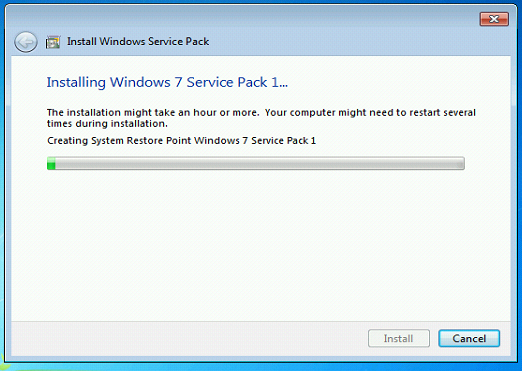
 So let’s get that SP1 running! Updating it is pretty straight forward, we download ISO, run the setup and after accepting some license terms we hit Install.
And after the reboot we’re up & running
And there we have the new options in the policy:
Now let’s take our Windows 7 client to SP1 as well, same procedure as previously.
Now let’s enable and configure RemoteFX for the RD Session Host server:
To enable RemoteFX compression
  1. Log on to RDSH-SRV as a member of the local Administrators group.
  2. Click Start, click Run, type gpedit.msc and then click OK.
  3. Navigate to Computer Configuration\Administrative Templates\Windows Components\Remote Desktop Services\Remote Desktop Session Host\Remote Session Environment.
Double-click Configure RemoteFX, click Enabled, and then click OK..
After a quick reboot of the RD Session Host to make sure the policy applied, we open up a session to the Windows 7 client and open up a Remote Desktop Client. We set the experience to LAN (10 Mbps or higher).
We enter the name to the RD Session Host server and hit connect. We’re now connected to the RD Session Host server with RemoteFX enabled. But…how can we make sure of this?
We open up the eventlog and we enable Analytic and Debug Logs
And then browse to
Application and Services\Logs\Microsoft\Windows\RemoteDesktopServices-RemoteDesktopSession Manager.
    • If the computer is connected to the RD Session Host by using RemoteFX for Remote Desktop Session Host, Event ID 1000 will be shown.
    • If the RemoteFX hardware compression was used, Event ID 1001 will be shown.
To conclude, we can configure the experience index for RemoteFX connections by using the following policy settings:
Computer Configuration\Policies\Administrative Templates\Windows Components\Remote Desktop Services\Remote Desktop Session Host\Remote Session Environment.
Enable Optimize visual experience when using RemoteFX.
In the Screen capture rate (frames per second) box, click Highest (best quality), and then click OK.
Select the Enabled option.
In the Screen Image quality box, click Highest (best quality), and then click OK.
A reboot of the RDSH server to apply the settings and we’re done!
Related articles and blogs:
* http://technet.microsoft.com/en-us/library/ff817595(WS.10).aspx
* http://www.brianmadden.com/blogs/brianmadden/archive/2011/03/03/can-you-connect-to-a-terminal-server-via-remotefx-yes-here-s-what-you-need-to-know.aspx
* http://technet.microsoft.com/en-us/library/ff817602(WS.10).aspx
* http://technet.microsoft.com/en-us/library/ff817578(WS.10).aspx

Tuesday, March 8, 2011

RemoteFX to connect to Remote Desktop Session Hosts

Interesting post by Brian Madden about RemoteFX on Remote Desktop Services (Terminal Services). We've been hearing about RemoteFX for some time now. In most cases it was all about Windows 7 VM's running on a Hyper-V environment in scenarios where VDI was used. Brian Madden shines a light on RemoteFX in combination with Remote Desktop Session Hosts. Some Snippets below.

For the full article see here: Can you connect to a Terminal Server via RemoteFX? Yes!

"...On the plus side, Microsoft has announced that certain partners will eventually release host-side hardware-based RemoteFX encoder cards that will offload the RemoteFX encoding. Those cards will work with both RemoteFX for Win7 VDI VMs on Hyper-V and Terminal Servers with no GPUs. Microsoft isn't talking about those cards too much today, but we can assume that they'll both lower the overall CPU load and provide a better overall user experience..."

"...In case you're wondering, the unofficial reason that RemoteFX will work with a Terminal Server natively is actually related to Microsoft MultiPoint Server. The story is that in order to get the ASIC-based MultiPoint thin client cost point as low as possible, Microsoft had to enable RemoteFX for Terminal Server. (MultiPoint is based on Terminal Server.)..."