On November 23rd the HTML5 client for Azure RemoteApp was officially announced
and placed on the public road map. A week later Microsoft publically demonstrated the HTML5 at Ignite Australia. Shortly after, I published a blog post showing
First glimpse at the Azure RemoteApp HTML5 client!
Today, HTML5 for Azure RemoteApp is available in Preview! This means you can now try HTML5 in your existing Azure RemoteApp collection! This blog post described my first experience with HTML5.
How to test drive HTML5 yourself?
Browse to
https://www.remoteapp.windowsazure.com/web and click on Try Now
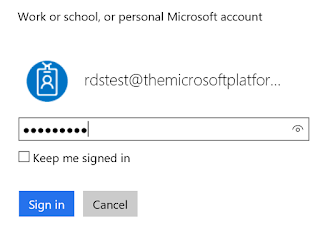
Now log on with your Azure Active Directory Account that has access to a Azure RemoteApp Collection. (The same account you use to log on to the installed Azure RemoteApp client itself)
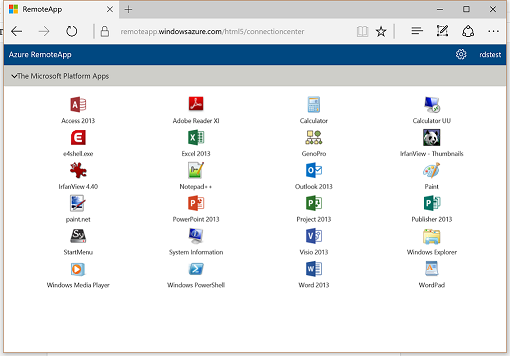
You will now be presented with the HTML5 portal which will show the applications that are assigned to your user based on the Azure RemoteApp collection membership.
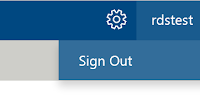
The upper right corner will show the logged on user with the ability to perform a sign out.
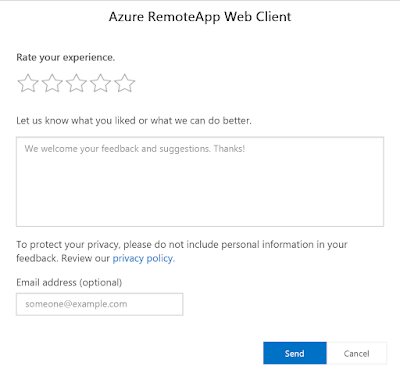
The other icon on the upper right can be used to rate your experience and send in additional feedback.
To launch a RemoteApp, simply click the icon. Similar to the installed Azure RemoteApp client, or any generic RemoteApp environment, the launch of the 1st application will take a little bit longer because the user session has to be logged on, the UPD has to be mounted et cetera. Any subsequent application you launch is almost instant.
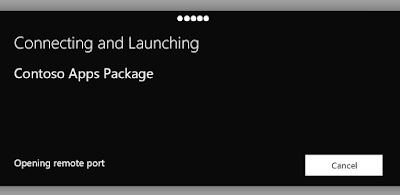
When you launch the application below is what you will see during the launch of the user session. In my lab (West Europe Azure Datacenter) the 1st launch took ~14 seconds.
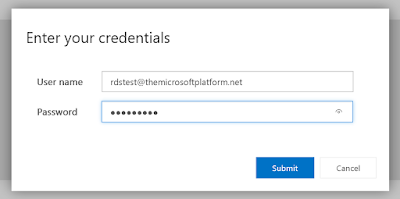
Similar to a Hybrid Collection (Domain Joined Collection), there is no Full Single Sign On yet. This means that after launching the 1st RemoteApp, you will be prompted to provide credentials again.
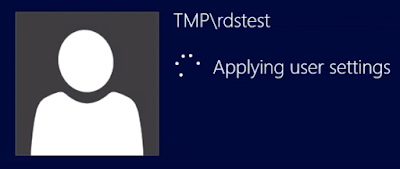
After providing credentials you will the logon process finish. This same process can also be viewed when using the Azure RemoteApp installed client by pressing
Details during the application launch.
Shortly after that, below is what you will see. In this case I launched Microsoft Excel which now runs in my browser, based on HTML5! We can drag, resize the application within the black canvas.
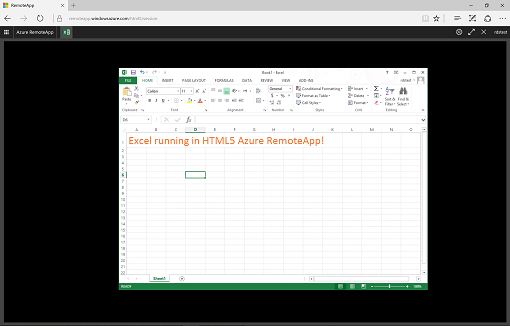
With Excel still opens, we can now click the Launch Apps button on the top left corner. This provides an application launcher which allows us to easily open additional applications.
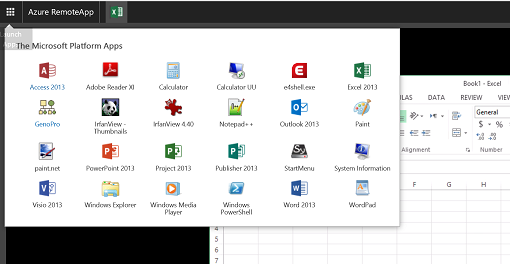
In the example below I can opened several applications by launching them from the Launch Apps button, they open almost instantly.
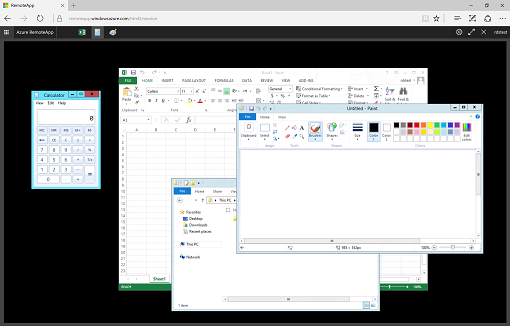
When running multiple applications, I can now also switch the active applications (switch focus) by using the icons on the top bar, similar the task bar of a local start menu. This allows for easy application switching.
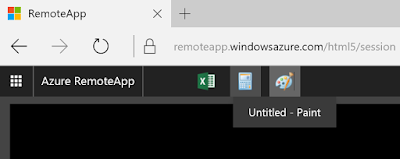
For an even better experience, toggle the Full Screen switch to run the HTML5 Azure RemoteApp environment in Full Screen.
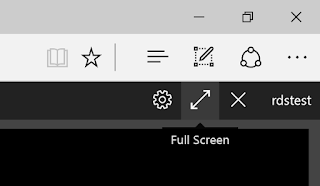
What's also great is you can easily disconnect from the environment by clicking the X symbol on the upper right corner. This will place the session in a disconnected state in the background with all the applications still running. By logging on again, even from a different device and different location you can reconnect to this disconnected session by opening an application. You will return in your HTML5 environment with all the applications you had running still opened. Obviously you need to reconnect within the configured maximum disconnect time, similar to using the installed Azure RemoteApp Client. In fact, you can also reconnect to a HTML5 session, using the installed client. Below is the result of reconnecting to the session above, using the installed Azure RemoteApp client.
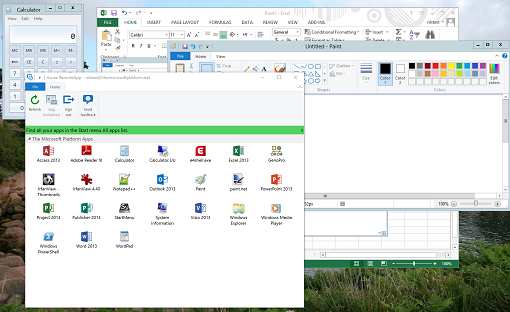
Personally I was pretty amazed by the smooth experience, especially since this is only the 1st preview. Obviously, the experience is not exactly the same compared to the installed client, this is true for any HTML5 client out there in the market.
Some of the current limitations for the HTML5 preview:
- To access HTML5, currently only Edge and Chrome can be used. IE support is coming in a few days and Firefox is coming later in January.
- Currently, only Hybrid (Domain Joined) scenarios
are supported. There is no support for Cloud (non-Domain Joined) scenario's yet. Non-domain joined cloud deployments support is coming later in January.
- In the current preview there is no redirection yet of Printers, Local drives, Audio, Clipboard et cetera.
As with every Azure service, we can expect Microsoft to use the same continuously development cycle for the HTML5 client as well, meaning we can expect regular improvements ad new features on a continuing basis. The next major update (end of January) will include: Copy and paste, dynamic resolution, automatic reconnect, Firefox and Safari support, mouse cursor and audio


