Showing posts with label RDWA. Show all posts

Wednesday, June 13, 2012

The Remote Desktop Web Access website does not show any published RemoteApp programs

Revision 2.0 of KB 2705427 was just released. I don’t recall ever seeing the 1.0 version of this KB, but it’s an interesting one.

imageArticle ID: 2705427 - Last Review: June 13, 2012 - Revision: 2.0
The Remote Desktop Web Access website does not show any published RemoteApp programs if a RemoteApp source is offline in Windows Server 2008 R2.

“…Consider the following scenario:

  • You configure a Remote Desktop Web Access (RD Web Access) server on a computer that is running Windows Server 2008 R2.
  • You install the Remote Desktop Session Host role service on some servers that are running Windows Server 2008 R2, and then you publish some RemoteApp applications on these servers.
  • You configure these Remote Desktop Session Host servers as the RemoteApp source of the RD Web Access server.
  • You shut down one of the Remote Desktop Session Host servers.

In this scenario, you notice that the list of the RemoteApp applications in the RD Web Access website is returned as blank.

This issue occurs because of a design flaw in the RD Web component. The RD Web component stops enumerating applications as soon as the component encounters a session host that is unavailable…”

Source: http://support.microsoft.com/kb/2705427/en-us?sd=rss&spid=14134

Wednesday, May 30, 2012

New Article: Remote Apps and the Metro RDP client

image_thumb1My new article titled “Remote Apps and the Metro RDP client" on virtualizationadmin.com just got published. The article is about the integration of RemoteApps running on Windows Server 2012 (8 Beta) launched from a Windows 8 client.

“…Introduction

Remote applications that run seamlessly on a client desktop have been around for some time now. With Windows Server 8 Beta, Microsoft has put in a good effort to make the RemoteApps on the Windows 8 desktop interact and integrate better than before. In this article, we will look at the integration of RemoteApps running on Windows Server 8 Beta launched from a Windows 8 client...”

Read the complete article here:
http://www.virtualizationadmin.com/articles-tutorials/vdi-articles/general/remote-apps-and-the-metro-rdp-client.html

Thursday, March 15, 2012

RDS in WIN8 Feature highlight no. 6 Demo environment within just a few minutes

RDS in WIN8 Feature highlight no. 6  Demo environment within just a few minutes

Setting up a RDS demo environment on a server or VM running Windows Server 8 (Beta) literally takes you a few mouse clicks and a few minutes. If you read my Feature Spotlight no. 4 (http://microsoftplatform.blogspot.com/2012/03/rds-in-win8-feature-highlight-no-4.html) you know that installing the RDSH role as a prerequisite prior to the Scenario Based Deployment was a bug in the pre-beta release and is now fixed. This means that setting up a lab for demo-environments using the quick deployment only takes a few minutes. If you’ve ever setup a RDS lab or environment on Windows Server 2008 (R2) you’ll remember that it was always a hassle because you had to add the roles manually, add computers to the correct groups etc. The steps have not changed much compared to the pre-beta release, but I added them below to give you the complete story.

Open up the Server Manager Console and choose option 2, “Add roles and features”:

Choose next to start the deployment


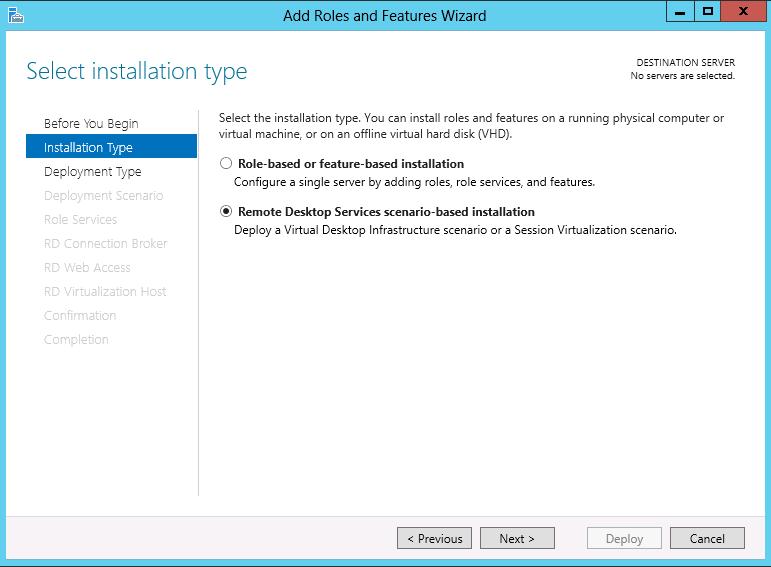
Select the “Remote Desktop Services scenario-based installation”


As we want all the roles to be running on the same server, we choose the Quick Deployment option.


As we are going to be deploying sessions, not Virtual Desktops, we choose Session Virtualization.


We select the server where we want to install the roles


We confirm that we allow the deployment to reboot the server (needed for the RDSH role)


And that it! The Scenario Based Deployment will now install the RD Session Host, RD Connection Broker and RD WebAccess role, create a first Session Collection and add computer to the Active Directory Groups as needed.


To make the lab even more complete, several applications are already added to the Remote App sections and published on RD WebAccess to give you an environment that can be used for demo’s instantly!

Tuesday, March 13, 2012

RDS in WIN8 Feature highlight no. 4 Installing RDSH prior to a scenario based deployment, no requirement anymore

RDS in WIN8 Feature highlight no. 4  Installing RDSH prior to a scenario based deployment, no requirement anymore

This is more of a bug fix then a feature highlight of course, but if you have read one of my previous blog posts back in October 2011, I wrote that having the RD Session Host role installed was a prerequisite for being able to successfully walk through the new the Scenario Based deployment. Described here: http://microsoftplatform.blogspot.com/2011/10/take-rds-management-to-higher-level.html

Since the Beta release of Windows Server 8, this is no longer necessary. Therefore, the deployment of the scenario is now even faster than before.

I tested the quick scenario based deployment on a single server on the Beta Edition of Windows Server 8, within a few mouse clicks and an automatic reboot afterwards all the roles (RD Session Host, RD WebAccess and RD Connection Broker) are installed and the first Session Collection (QuickSessionCollection) is created. The scenario deployment runs very smooth.

Wednesday, October 12, 2011

Take RDS management to a higher level with Windows Server 8

In a previous blog post, I discussed the Scenario Based Deployment of RDS in Windows Server 8, and more recently, discussed the new features of RD WebAccess in Windows Server 8. In this blog post, we’ll take a deeper look into what the new Server Manager has to offer when it comes to managing RDS Roles in Windows Server 8. I must say, I was quite surprised, in a positive way!
Let’s walk through the scenario. In a previous blog post I showed the steps to perform a Scenario Based Deployment of RDS using the standard scenario and spreading the different RDS roles over separate servers. This time we’ll do it differently and choose the Quick Scenario which deploys the RDS Roles (RDSH, RDWA and RDCB) on a single machine in order to create a RDS environment very quickly that you could i.e. use as a demo environment.
We start by launching the Add Roles and features wizard and choose Next.

We then select the Scenario Based Installation and choose next. 
As mentioned earlier we’ll go for the Quick Deployment in order to create a single server that contains all the roles that the RDS scenario is able to deploy. 
In this case, we want to publish applications and desktops on a RDS server, so we choose session virtualization deployment.
The next step is to select the server on which we want to deploy the roles. We’re reminded that the deployment will restart the server if necessary. Just a quick note: what I didn’t show you is that I pre-installed the RDSH role on this machine (using the Add Roles wizard) as this is a requirement for this type of Scenario Based Deployment where you run the wizard on the machine itself.
The deployment was successful! If you read my earlier blog post on Scenario Based Deployment, you’ll see a difference here. In that previous deployment, I got an error at the end of the wizard saying configuration failed: SetAllowTSConnections failed. I had configured a GPO that sets the SetAllowTSConnections to allow. In that post I assumed that the GPO caused the error at the end of this wizard and apparently, I was right. As a pre-installation action I removed the GPO setting, and set the SetAllowTSConnections back to default, and now no errors occur at the end of the installation.

Now let’s go back to the new server manager, we’ll notice some great new options and management features there! We now have a graphical overview of the RDS environment showing us that we have a RDWA, RDCB and RDSH role.

We can even add or remove roles from within this interface! I.e. adding a new RDSH server is done my right-clicking on the RD Session Host icon and choosing Add RDSH server.
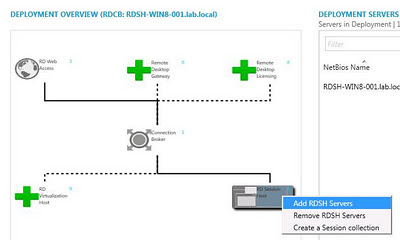
We can also add the role RD Gateway which is not part of the Scenario Based Deployment itself.
When we drill down one-step, notice that we now have something new there that is called Collections, and underneath the first collection called QuickSessionCollection which the Scenario Based Deployment wizard created for us. (click the image to expand)
  
When we look into that QuickSessionCollection we see; the properties of the RDSH servers (groups, resources), the RemoteApp Programs, the host servers and the active connections on this SessionCollection. Normally you’d had to gather this information in different places, it’s now nicely gathered and consolidated in the Server Manager, which is a big improvement!

From this console we can i.e. choose Edit Properties.
This brings us to the properties page of the collection where we can set security groups, timeout settings, redirection settings etc. Before, you would edit or view these properties on the RDP-tcp properties screen.
We can also manage our Remote Apps from this console! As you can see, I added two RemoteApps (calculator and wordpad).
When we choose the properties of a RemoteApp, we can edit the settings that we previously had to do in the RemoteApp Manager. Again, all from within the Server Manager!
Notice that we can now enter a folder name! If you read my previous blog post you’ll remember that inside the new Remote App .aspx files I noticed that there was new code regarding to folder management of your Remote Apps. I promised to further take a look at that later, so here it is! We enter the folder name “Accessories” here, refresh the RD WebAccess page, and Voila!


This is definitely a big improvement of RD WebAccess. I’ve seen people asking for this feature in TechNet Forums and blog posts quite a lot.
Conclusion so far:Microsoft has done great work with the new Server Manager. It definitely makes managing your RDS environment a whole lot better. I really like the fact the all RDS roles, settings and even Remote Apps can now be managed through a consolidated interface in the Server Manager.
I will drill down in the Server Manager some more and start using it some more by adding additional RDSH servers and more RemoteApps to get a good feeling on how it will perform and what working with the new Server Manager will be like. But so far, it looks very promising!

Tuesday, October 4, 2011

Remote Desktop Web Access in Windows Server 8

In an earlier blog post I showed and discussed the Scenario Based Deployment of Remote Desktop Services. (see here: Scenario Based Deployment). Remote Desktop WebAccess (RDWA) is part of this deployment. In this blog post I will discuss the changes to this role a bit further and show you what RDWA looks like in Windows Server 8 (at least inside the developers preview).

When you install the Remote Desktop WebAccess (RD WebAccess) role, either via de Scenario Based Deployment or manually using the Server Manager, the RD WebAccess page becomes available under https://hostname/rdweb (no difference there, compared to Windows Server 2008 (R2). When we browse this URL, the login screen actually looks pretty much the same.


We can see that the RD WebAccess page in the Developers Preview still needs some work done, as it still states “Windows Server 2008 R2” in the lower-left corner. :-)

When we logon, we are presented with the screen below. Again, not very different compared to Windows Server 2008 R2. A difference that we do see however is “Current folder: /” Is that what we think (and hope) it is? It seems that in upcoming releases, we will actually be able to put RD WebAccess RemoteApps Programs inside (sub)folders! That’s great! I have seen lots of requests and questions on about this on TechNet forum!


When we look at the source of default.aspx quickly, it seems my thoughts a confirmed! We already see declarations of strings containing errors and messages of a folder hierarchy structure.

const string L_BadFolderErrorTitle_Text = "Folder does not exist. Redirecting...";
const string L_BadFolderErrorBody_Text = "You have attempted to load a folder that does not exist. In a moment, you will be redirected to the top-level folder.";


Also, note that we’re missing a tab here called “Configuration”. Am I perhaps not logged on as an Administrator? Yes, I am. So why is it not showing? It simply isn’t there yet. When we look at the content of the folder that RD WebAccess uses (that is still C:\Windows\Web\RDWeb\Pages) we see the following content:


Which is different compared to Windows Server 2008 R2 as we can see below.


We’re missing config.aspx. This configuration is moves to the Server Manager. I'll talk about that more in an upcoming blog post!

There is another new file in the en-US folder called RDWAstrings.xml. When we open this up we’re presented with, as the name suggests, strings that we can modify. A snippet of the code is shown below.

<string id="ControlUpgradeVistaBody_2">.<br/><br/></string>
<string id="SearchingForApps">Searching for available RemoteApp programs... </string>
<string id="CurrentFolder">Current folder: </string>
<string id="ParentFolder">Up</string>


So yes, we can already change the name of the root-folder using the CurrentFolder string :-)


In my next blog post I will discuss the new functionality that has moved from the "Configuration" tab in the RD WebAccess page to the Server Manager. Stay tuned!