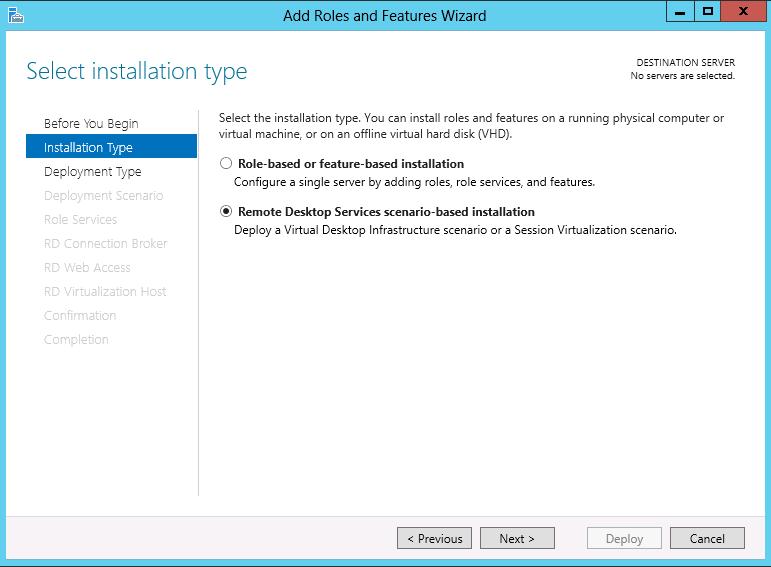
In previous blog posts I showed the two different ways of deploying RDS via Scenario Based Deployment (SDC) . Remember that we had the option to either select Quick Deployment or Standard Deployment. more info see
here and
here.
In this blog post, we’ll continue our build on the Quick Deployment that we did earlier. Remember that we experienced that rolling out the Quick Deployment Scenario using Quick Deployment is great for configuring a lab for testing or demo purposes. In those kinds of environments, you might also want to add the Remote Desktop Gateway (RDGW), so let’s take a look at how we can add this role using the new Server Manager.
We open up the Server Manager and browse to Remote Desktop Services -> Overview. We can simply right-click the Remote Desktop Gateway icon and choose “Add RDG Servers”.
We are then presented the wizard below where we are able to select the server(s) that we want to deploy the RDGW role on. Remember that you first need to add these servers to your Server Manager Console in order to see them. (Option 3. Add other servers to manage).
We can now specify Fully Qualified Domain Name (FQDN) that we want to publish the RDGW on. The wizard will generate a self-signed certificate based on the name that we specify here.
The confirm dialog sums up the details of the installation, and by hitting "add" the installation of the RDGW role will start.
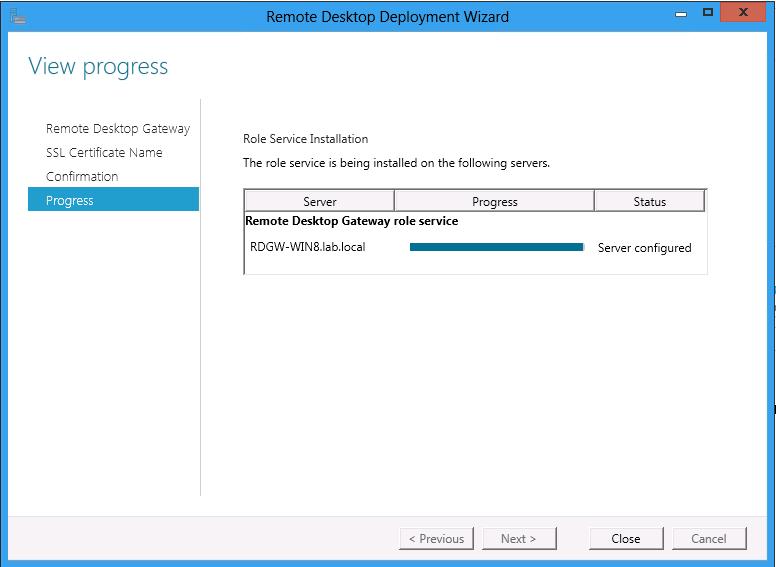
The progress bar that follows, shows us steps in the installation and shows “Server Configured” upon completion.
That’s it. So again, we installed Server Roles remotely using the consolidated Server Manger with which we manage multiple servers and their roles remotely.
So, let’s take a look at what the wizard did for us. It won’t be a surprise that the wizard added the RDGW role to our target server and that we are also able to manage it remotely using the Server Manager.
Another entry that’s added to the server manager here is Network Policy and Access services which enabled you to manage NAP. As you might now, NAP (either locally en central) is a part of a RDGW solution (details see here:
NAP & RDGW).
When we open up the Remote Desktop Gateway Manager, we see a familiar look.
Deploying the RDGW using the Quick Deployment also provides us with a default configuration inside RDGW Manager.
The wizard created a default RDCap named RDG_CAP_AllUsers with the following summary
If the user is a member of any of the following user groups:
LAB\Domain Users
If the client computer is a member of any of the following computer groups:
Not applicable (no computer group is specified)
If the user uses the following supported Windows authentication methods:
Password
Allow the user to connect to this RD Gateway server and disable device redirection for the following client devices:
Not applicable (device redirection is allowed for all client devices)
After the idle timeout is reached:
- Not applicable (no idle timeout)
After the session timeout is reached:
- Not applicable (no session timeout)
So it basically allows all domain users access to the RDGW by means of a password. Of course, this isn’t something you would deploy on a production environment. However, this makes setting up a RDS environment for demo of lab purposes, which is the main goal of the Quick Deployment, very easy.
Furthermore, the wizard also created a RDRap named RDG_AllDomainComputers wich basically allows domain users access to resources in the group LAB\domain computers (which means all computers in the domain). Again, this is not intended to use in a production environment but it’s an excellent way to setup RDGW for a lab very quickly.
We’re now able to connect to a RDSH server using the new RDGW server.
That concludes this blog post on adding an RDGW role to your Quick Deployment RDS Scenario.
In my next blog post I'll cover some of the new features of the RD Gateway role itself.

 RDS in WIN8 Feature highlight no. 6 Demo environment within just a few minutes