1. INTRODUCTION
I’m sure you’ve all heard about Azure RemoteApp by now. If not, see https://www.remoteapp.windowsazure.com/ for more details. Currently Azure RemoteApp is still in preview, so you can try it out for free.
Azure RemoteApp comes is two different deployments, a Cloud Deployment and a Hybrid Deployment. Cloud deployment means the RD Session Host servers that run your Azure Remote Apps are not connected to your on premises Active Directory Domain and can therefor only interact with application and data on the RD Session Hosts itself. Hybrid Deployment means the RD Session Host servers are connected to your on premises environment and are also members of your on premises Active Directory Domain, connected via Azure Active Directory. This means these RD Session Host servers and the users it serves, are able to access resources like file servers, application servers, SQL servers etc. that are hosted on premises.
The Cloud deployment is very straight forward to set up and you can have that up and running in no time. Previously the Cloud Deployment only supported using the RD Session Host template provided by Microsoft Azure. This has changed since August 2014 when Microsoft announced the support to use your own RD Session Host template for Cloud Deployments as well.
In the mean time, Microsoft has also provided two guides to help you set up both deployments.
How to create a cloud deployment of RemoteApp
How to create a hybrid deployment of RemoteApp
In this blog post we’re taking a closer look at what Azure RemoteApp Hybrid, what it means for your local environment and how the elastic growing of the RD Session Host farm is performed.
2. HIGH LEVEL OVERVIEW OF THE SETUP
As there are already detailed guides out there, I won’t go into all the details of the step by step process to set up the Hybrid deployment, instead, we’ll do a quick high level overview to give you an overview of the required steps.
After signing up for the (free) preview, the first step is to actually create the Azure RemoteApp Hybrid deployment which in Microsoft Azure terms, is called a “with VPN” deployment.

After the creation is finished we’re presented with a wizard to guide us through the steps.

First step is to link the Virtual Network. I created the Virtual Network in advance, with the following details

After the linking the Virtual Network, an option Get Script becomes available which allows you to download a PowerShell script you can run on your on premises VPN device or server to be able to accomplish the site-to-site VPN with Microsoft Azure. In my case I use Microsoft RRAS on Windows Server 2012 R2.
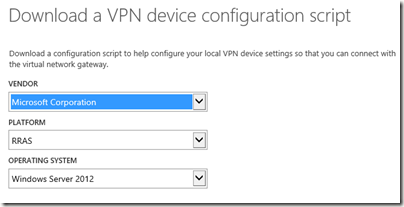
If you run the script on your on premises RRAS server a VPN will be configured for you.

Make sure the VPN is enabled and connected
The next step is to provide the credentials to connect to your local Active Directory domain to allow Azure RemoteApp to add new RD Session Host servers to your domain, in the OU you provided. Obviously the specified account needs the appropriate permissions.

Next, we link the RD Session Host image. In this case I re-used a previously uploaded image that I also used for a Cloud Deployment.

Shortly after you perform this step, Microsoft Azure will start to provision the deployment including the creation of your RD Session Host servers, based on the template. As the warning states, this can take up to 30 minutes.
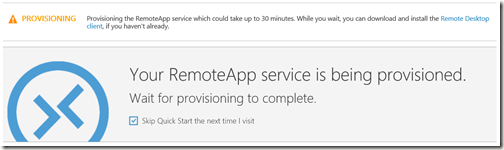
In the mean time you can configure the Directory Synchronization between your on premises Active Directory and Azure Active Directory (AAD) which is needed to be able to assign users and groups to your published Remote Apps and allow users to authenticate to the Azure Remote App Client using their corporate credentials.
If not already in place, you need to create a new AAD in Azure and enable Activate Directory Sync on it. Microsoft Azure guides you through the process by outlining the required steps as shown below.
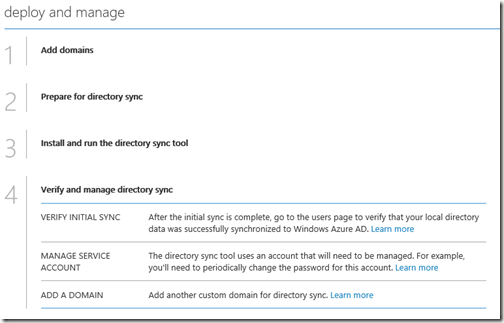
Again, I wont go over all steps in great details, please follow the Microsoft guides as referred to in the introduction of the blog post.
Once you have created the AAD, you download and run the directory sync tool on your on premises server.

A wizard which is launched right after the setup allows to you to configure the directory synchronization and perform the initial synchronization. You’ll need to provide your AAD credentials (a user with global admin permissions) and your on premises service account.
Once this wizard is finished an initial sync will take place and you should be able to see your users / groups in AAD become available.

Using PowerShell you can also manually trigger synchronization by running the command Start-OnlineCoexistenceSync

If synchronization does not correctly function, check the Application Event log for more details on the various synchronization steps.

In the mean time you Azure RemoteApp will probably be provisioned. This means we can now perform the final steps: publishing applications and configuring user access.

Publishing applications is very straight forward. Simply select the desired applications, notice that I also installed some custom test application in my RD Session Host template which I’m able to select here as well.

Or, add published applications by specifying a name and full path to the executable.

When you are done publishing Remote Apps, the final step is to configure who is allowed to connect and launch your remote apps.
You can add individual users, but it’s obviously more convenient to select a group of users. In my cased I provided the name of a group I created in my on premises environment which was synced to AAD. (note that you can only add Users & Groups here that are already synced).

We’re done. We can now use the Azure RemoteApp client on our endpoint device, and provide our corporate UPN and password. 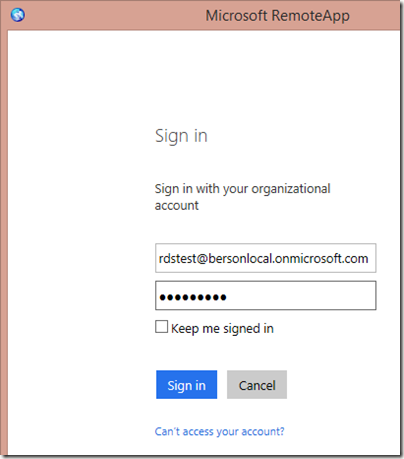
In this case I used the subdomain that comes with AAD (<yourAAD>.onmicrosoft.com) but you can also link your corporate domain by adding it and running the domain verification process which is done via a TXT DNS value you need to configure.

And here my are Remote Apps available and ready to launch, hosted by Azure RemoteApp Session Host servers, which are domain joined to my on premises domain!

Since this is a Hibrid Deployment, I’m able to access resources that are on premises. I can for example can create a drivemapping pointing to a server running on premises from within my published Remote App (cmd.exe).

Also note that my printers are being redirected using Easy Print. USB redirection is however not supported at this moment.

3. A CLOSER LOOK
Now that we have the hybrid deployment up and running, and are able to launch Remote Apps, let’s take a closer look at what happens in your on premises environment.
After the initial RemoteApp deployment has been provisioned, 2 RD Session Host servers have been provisioned and have been joined to the on premises AD domain. A random hostname prefix is selected followed by a number 0000, 0001 etc.

The IP-addresses are handled by Microsoft Azure, and based on the Virtual Network Address Space that we configured in Azure as part of the vNet, a DHCP server is used to supply IP-addresses starting by .20 and going up.

An IPconfig on one of the RD Session Host servers shows the DHCP server, apparently 168.63.129.16 and also notice the reddog.microsoft.com DNS Suffix, which was the the original code name for Azure. :)

A check on port 3389 shows that both RD Session Host servers are available and shortly after the initial provisioning.

Shortly after that however, the 1st RD Session Host becomes unavailable.

I’m assuming the VM is being put in pause as part of the elastic growing and shrinking mechanism since no user is logged on to the deployment.
As soon as the first users are logging on, a 3rd RD Session Host server is provisioned and after that being put into pause.

Furthermore the 2nd RD Session Host server now becomes available again too.

To summarize, at this point we have:
- 1 provisioned RDSH server which is accessible and contains active sessions.
- 1 provisioned RDSH server which is accessible but does not accept new sessions (yet)
- 1 provisioned RDSH Server which is not accessible (in pause mode)
When we start hitting the deployment with more users we discover that the first 5 users are being send to the 1st RD Session Host, the 6th user is being redirected to the 2nd RD Session Host servers. So apparently the configuration is max 5 users per RD Session Host server. And, as soon as we logon the 6th user, the 3rd RD Session Host server becomes accessible (but does not get new sessions yet). Etc.
This is how the elastic growing and shrinking is configured at the moment. Obviously Azure Remote Apps is still in Preview so these variables might be changed after General Availability. Who knows, we might even be able to configure this variable in upcoming releases? :)
4. TO CONCLUDE
These are some of the thing I’ve tested in my hybrid deployment so far. In this blog post I tried to give you a more detailed look on how the Hybrid scenario works, specifically how the elastic growing & shrinking works. Obviously there is still a lot more to discuss like performance when accessing your on premises servers, support for GPU, desktop integration, etc.
Personally I really like the concept of Azure Remote Apps, compared to other DaaS offerings this much more of a “It’s all about the apps” solution. Over a decade ago people were already talking about how Windows applications would all be gone in the future, replaced by Web Applications. In 2014 this is still not the case, and it probably won’t be for many years to come. Azure Remote Apps can fill the gaps there, by offering your (corporate) Windows Applications side by side with web based applications or specific locally running applications, accessible from any device at any time. There is however a long way ahead, Azure RemoteApp is currently still into preview. At this point there are no details in pricing yet, good pricing will be crucial in making Azure RemoteApp a success. And, although the Cloud Deployment setup is relatively straight easy and forward, The hybrid Deployment takes a lot of different (sometimes unstructured) steps to set it up. Hopefully Azure RemoteApp will inherit the extremely fast updating speed used in other Azure services to help make it a success.
To finish this blog post, a funny screenshot….I’m sure any sys admin has seen this pop up before, but in this case apparently, the provisioned Azure RemoteApp RD Session Host servers are equipped with temp licenses that last 10 years :)


 Microsoft just announced new features for the Remote Desktop client for Windows Phone! The featureset for this client is growing, making it a more enterprise ready client with every step.


