Showing posts with label ARA. Show all posts

Wednesday, August 12, 2015

New Azure RemoteApp client supporting pinning to local Start Menu / Start Screen is now publicly available!

We have been waiting for this one!

In April We were given a first look at a new feature of the Azure RemoteApp client. Also see Azure RemoteApp: First look at pinning Azure RemoteApp shortcuts to the Start Screen! This allows pinning a RemoteApp to your local Start Screen and means that you no longer need to constantly switch to the Azure RemoteApp client to a launch a RemoteApp. In fact, after the initial sign in, you can even close the client and still launch a RemoteApp directly from the Start Screen.

Benny Tritsch and I had also performed a demo of this feature while it was still in private beta at the BriForum 2015 Conference in London last May, during our session called “Unfolding the Azure RemoteApp Magic

The feature is now publicly available! If you open the Azure RemoteApp client, the click once application will automatically update.

image

And after you log on, you will be presented with a note in the client stating “Find all your apps in the Start menu All apps list”

image

The RemoteApp applications are now available and ready to launch from the local Start Menu. In my case Windows10, but this is also supported for Windows 8 and Windows 7.

image

From here the shortcuts can be pinned to the Start Menu as desired.

image

Thursday, July 9, 2015

Adding Conditional Access & MFA to Azure RemoteApp

(Originally posted on rdgurus.com)

Because the Azure RemoteApp client authenticates against Azure Active Directory (AAD) we are also able to leverage Conditional Access and Multi Factor Authentication (MFA) based on AAD. The RDS Product team also recently announced this in the blog post Control access to Azure RemoteApp with Azure AD Conditional Access!

In this blog post I’ll guide you through the process of setting up MFA on Azure RemoteApp.

First of all, Conditional access requires Azure AD Premium (currently in preview). You can however set this up in a 30 day trial. To do that, open the Azure Portal browse to your AAD and choose the option “TRY AZURE ACTIVE DIRECTORY PREMIUM NOW”

image

Confirm the agreement belowimage

It take a few minutes to setup. Click the refresh link to be able to start using it.

image

Shortly followed by that, you should receive a confirmation email that the organization is ready for Azure AD Premium.

image

To configure MFA, reopen the Azure Portal, go to Active Directory open your AAD domain en choose Applications.

image

Now click on Microsoft Azure RemoteApp and go to the Configure tab. For this demo, we’ll select Enabled Access Rules, have it applied to all users, and select Require multi-factor authentication.

image

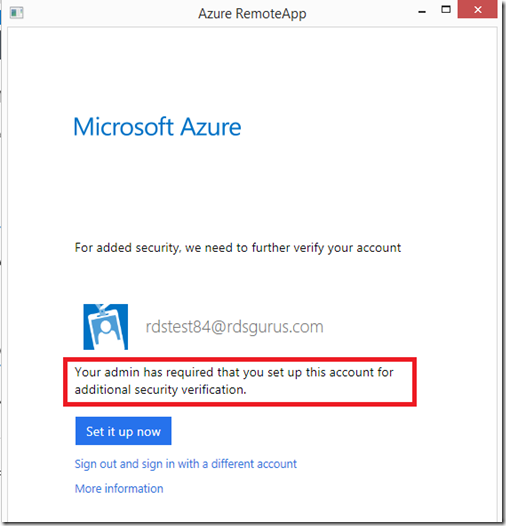
The next time we log on to the Azure RemoteApp client with an organization account from this AAD, we are presented with the following;
image

This is MFA kicking in. We click “Set it up now”. And without having to leave the Azure RemoteApp client, we’re being presented the ability to provide a phone number and verification type that we would like to use for this account. In this case I choose Phone Authentication, and provide my cell number. (we obviously only have to perform these steps once).

image

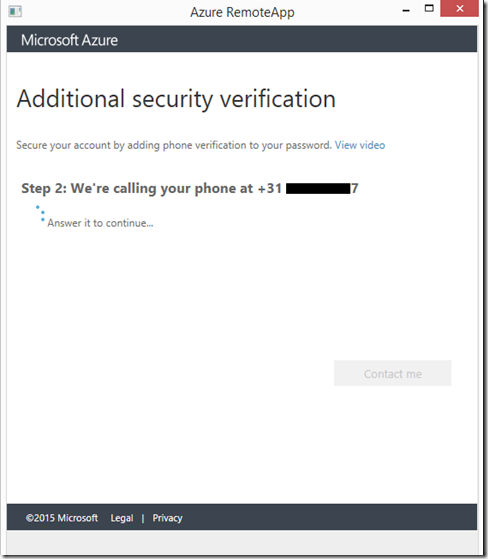
When we click Contact me, Azure MFA will call me on the number provided to verify the correct number.
image

The verification process is now completed and we are ready to use MFA for Azure RemoteApp.

image

When proceeding the logon in the Azure RemoteApp client we’re presented with the following screen indicating that we can expect a call to our provided phone number to perform the MFA !
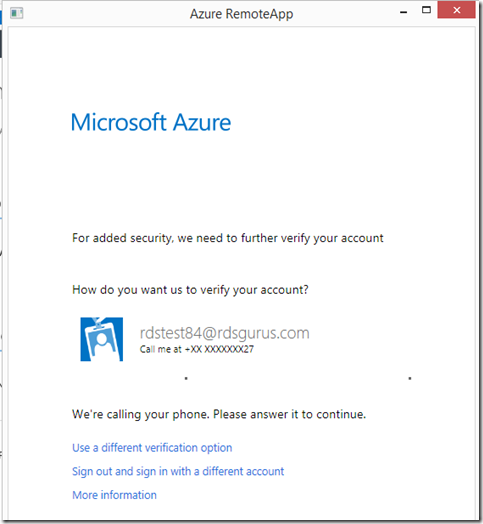
image

And after that, we’re presented with the RemoteApps assigned to us based on the Azure RemoteApp Collection.

image

There are some other options in conditional Access policy worth mentioning. We can for example specify to only enforce MFA when people are connecting from outside of the corporate (trusted) locations, or even block access in those cases.

image

By clicking the link, we’re able to configure these trusted locations, configure whether or not we want to allow app passwords and even allow users to suspend multi factor authentication from remembered devices.

image

This blog post was originally posted here:
http://www.rdsgurus.com/azure-multi-factor-authentication/adding-conditional-access-mfa-to-azure-remoteapp/

Thursday, June 25, 2015

On the roadmap: Assigning specific applications to specific users in Azure RemoteApp

imageOne of the current limitations to Azure RemoteApp compared to a RemoteApp deployment on premises is not having the ability to assign specific RemoteApps to specific uses (fine grained assigning). If a user is a added to a App collection he will see all the applications published to that Collection. This can be confusing to users because they will generally see more applications in the Azure RemoteApp client than the use, and there will most likely also be applications that they are not even authorized to start. Although seeing the application in the Remoteapp client does not mean that can start, it’s still a current limitation you need to be aware of.

The good news? Adding this functionality is now on the road map! It’s on the roadmap for the July-September 2015 iteration! As RDS MVP’s we have been providing feedback on this and discussing this a lot with the product team, and it’s also a heavily voted request on the user voice page for Azure RemoteApp!

Looking forward to this feature, this will definitely drive adoption to Azure RemoteApp! Another big step in the continuous development.

Thursday, March 12, 2015

Manage Azure RemoteApp using PowerShell!

We’ve been waiting for this one! The Azure PowerShell team has just released version 0.8.15. This version contains a new module that allows managing Azure RemoteApp using PowerShell!

Get the latest version here: http://go.microsoft.com/?linkid=9811175&clcid=0x409

image

The commands related to Azure RemoteApp are all in it, for example:

image


Prior to this availability, I was already able to play with it when the commands were still in beta, they were contained in a separate module. To get an overview of all the commands related to Azure RemoteApp type get-command -noun azureremoteapp*

image


The product team will also release a announcement on this soon!

Tuesday, February 3, 2015

Azure RemoteApp, update on Pre-build image

The Office 365 ProPlus pre-build image for Azure RemoteApp has been updates now including several new applications.  as you may know, Azure RemoteApp Cloud deployment comes with 3 different pre-build RDSH images.

As of last week, the following has been added to the Office 365 ProPlus image;

  • SQL Native client
  • ODBC Driver
  • SQL Server Data Mining client
  • MasterDataServices client
  • Microsoft Publisher
  • PowerQuery
  • PowerMap

To use this image, make sure you select the 28-1-2015 version of the Office 365 ProPlus image.

image

Exploring the Azure RemoteApp User Experience

imageThe Microsoft RDS team released a new blog post on the User Experience of Azure RemoteApp. In several recorded demo’s they show the Local-like Productivity, Multi-platform support and performance!


image

image

image

Source & more info: http://blogs.msdn.com/b/rds/archive/2015/02/02/exploring-the-azure-remoteapp-user-experience.aspx?wa=wsignin1.0

Thursday, December 11, 2014

Azure RemoteApp is GA, previously created Previews are changed to a 30-day trial

It’s December 11th today, which means Azure RemoteApp is now officially generally available.

If you previously signed up the the Free Preview, that preview is now automatically changes to a 30-day trial. If you open the Azure Portal and browse to your Azure RemoteApp you will be notified with the ability to activate the service.

image

For more info on Azure RemoteApp also see: azureremoteapp.net or join the LinkedIn group here https://www.linkedin.com/groups/Microsoft-Azure-RemoteApp-7401732

Friday, December 5, 2014

Azure RemoteApp Series – Weekly Ask the Experts Webinar

Yesterday was the announcement on the GA date of Microsoft Azure RemoteApp, December 11th, 2014. Basically, next week! :) Back in October I attended TechEd Europe in Madrid, staffing the Microsoft Desktop Virtualization booth, which was fully dedicated in Azure RemoteApp. Back then, the interest and attention for this service was already huge. Overall, the interest for the service has been growing a lot over the past few months.

The Remote Desktop Services team is running a Azure RemoteApp Series – Weekly Ask the Experts Webinar series, you can join here to attend the webinars:

image

https://azureinfo.microsoft.com/US-Azure-WBNR-FY15-11Nov-AzureRemoteAppAskTheExperts-Registration-Page.html

And here are some links of recordings of previous sessions:

11/19 webinar  https://wcc.on24.com/webcast/previewlobby?e=897606&k=771C3CB420F89654082297C28BC5626B

12/3 webinar https://wcc.on24.com/webcast/previewlobby?e=903716&k=2D5579C2FB7DECCB3E33B007C4F177BC

Wednesday, December 3, 2014

Azure RemoteApp (ARA) now supporting Office 365 ProPlus!

The Microsoft RDV Team released a new bog post about support for Office 365 in Azure RemoteApp (ARA). This means that you can now publish Office 365 ProPlus applications as a RemoteApp to your end-users!

As a results, you can now choose from three different Microsoft Images to create Azure RemoteApp cloud collections which are available out of the box in Azure!

image

Below is a description of the images currently available today!

Windows Server 2012 R2 (a.k.a. "the vanilla image")

  • This image is based on Microsoft Windows Server 2012 R2 Datacenter operating system and has the following roles and features installed to meet the requirements of Azure RemoteApp template images:
    • .NET Framework 4.5, 3.5.1, 3.5
    • Desktop Experience
    • Ink and Handwriting Services
    • Media Foundation
    • Remote Desktop Session Host
    • Windows PowerShell 4.0
    • Windows PowerShell ISE
    • WoW64 Support
  • This image also has the following applications installed:
    • Adobe Flash Player
    • Microsoft Silverlight
    • Microsoft System Center 2012 Endpoint Protection
    • Microsoft Windows Media Player

Microsoft Office 365 ProPlus (Office 365 Enterprise E3 or E4 subscription required)

  • Office 365 is the most requested application and therefore we have provided you with a pre-created "custom" image for you to work with.
  • This image is an extension of the vanilla image and has the following components of Microsoft Office 365 ProPlus installed in addition to the components described in the Windows Server 2012 R2 image:
    • Access
    • Excel
    • Lync
    • OneNote
    • OneDrive for Business
    • Outlook
    • PowerPoint
    • Project
    • Visio
    • Word
    • Microsoft Office Proofing Tools
  • Full functionality of Office 365 ProPlus apps is available only for users who have Office 365 Enterprise E3 or E4 subscriptions. Please contact your Microsoft account representative for more details on Office licensing.

Microsoft Office 2013 ProPlus (trial only)

  • During the preview, we thought that it would be good idea to provide a pre-created "custom" image for you to test the service with.
  • This image is an extension of the vanilla image and has the following components of Microsoft Office 2013 ProPlus installed in addition to the components described in the Windows Server 2012 R2 image:
    • Access
    • Excel
    • Lync
    • OneNote
    • OneDrive for Business
    • Outlook
    • PowerPoint
    • Project
    • Visio
    • Word
    • Microsoft Office Proofing Tools
  • Our legal team wanted us to emphasize: This image does not include Microsoft Office license and hence cannot be used for production. Office 2013 ProPlus is for preview only and if you want to use Office apps in Azure RemoteApp for production, please use Office 365 ProPlus image. For more details on Office licensing, please contact your Microsoft account representative.

Source and more info: http://blogs.msdn.com/b/rds/archive/2014/12/02/azure-remoteapp-now-supporting-office-365-proplus.aspx

Monday, November 24, 2014

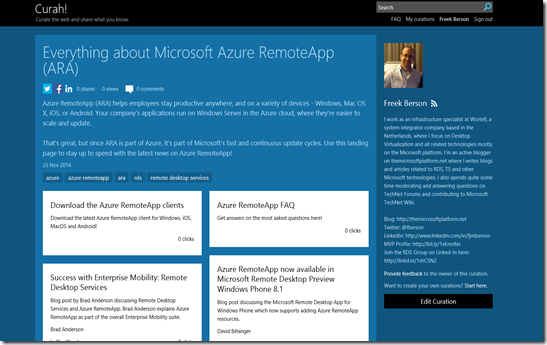
Microsoft Azure RemoteApp (ARA) on Curah!

What is Curah!
Curah! is a new curation service specifically designed for and maintained by the technical community. With curations we aim to get users where they need to go faster and more reliably with aggregated-answer data, helpful advice, and prescriptive guidance.

Why a curation on Azure RemoteApp (ARA)?
Since ARA is part of Microsoft Azure platform, it's also part of Azure’s fast and continuous update cycles. The “Everything about Microsoft Azure RemoteApp (ARA)” Curation will provide you with a consolidated view of the latest news, combined with direct links to downloads related to ARA, in an easy to navigate format. To accommodate an easy entry I created azureremoteapp.net to point to this new curation!

Happy reading!

image

Thursday, November 20, 2014

Support for groups in Azure RemoteApp (ARA) will end in 10 days

If you are using the Azure RemoteApp (ARA) Preview you previously had the option to grant users access to ARA using Active Directory Groups (for Hybrid Scenario’s).

Note that this support will end soon: on November 30, 2014. To ensure continuity, any user group assignment you have before today will continue to work until November 30, 2014. All users in current groups will still have access , even though the groups are not shown on the User Access page.

If you have signed up for the ARA Preview, you should have been notified via e-mail on November 6th.

After this date, you will need to assign permissions per user. The reason behind this is making billing and usage simple and predictable. Microsoft has not disclosed pricing and SLA to the public yet.

imageTo make life a little easier, you can use a CSV based import. Click the Bulk Add Users option to upload a .CSV containing a list of e-mail addresses.

image

Using a bulk import is of course a step back in regards to easy of management, but it apparently had to be done to be fully prepared for the upcoming billing model. Will it return as part of Azure’s fast release model?  let’s hope so! :)

Wednesday, November 19, 2014

New documentation around Azure RemoteApp (preview)

image

Today, some new Microsoft documentation around Azure RemoteApp (ARA) has been released.

There is a Best practices for configuring and using Azure RemoteApp and a Azure RemoteApp FAQ available.

Currently Azure RemoteApp is still into preview, but you can sign up to do a free trial. If you want to be up to date with the latest news around ARA join then open LinkedIn group here: https://www.linkedin.com/groups/Microsoft-Azure-RemoteApp-7401732